

Introduction
In this blog, I am explaining how to insert online templates in Visual Studio 2015. Microsoft Visual Studio 2015 provides a new feature called online templates. First, you can search online templates and you can download them, as per your need. We have templates for new templates, components, technologies like F#, MVVM. Visual Studio 2015 provides the ability to search Online Templates.
Steps for online templates in Visual Studio 2015
Step 1
Open Visual Studio 2015 and click File -> New ->Project
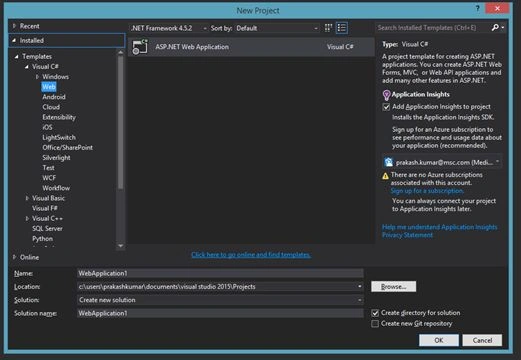
Step 2
Click Online -> Templates -> Visual C#.
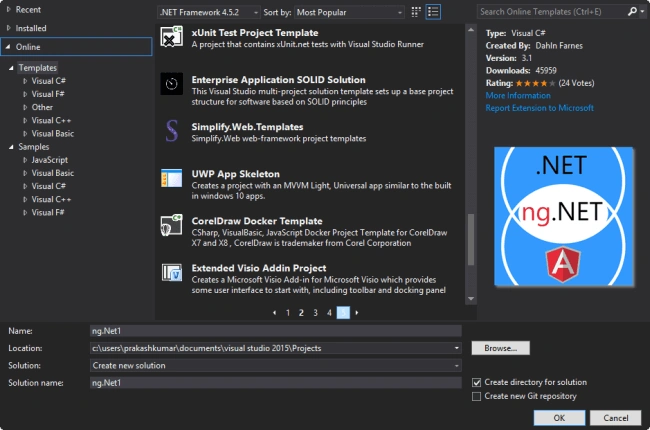
Step 3
Select any template or technology from the list item.
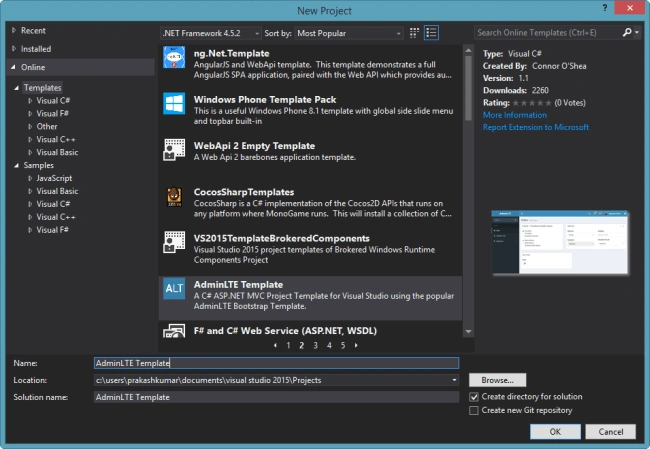
Step 4
Click to download the selected item.
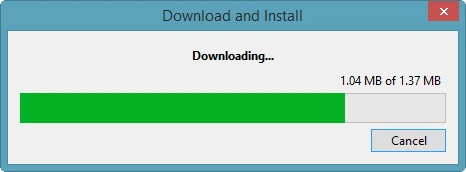
Step 5
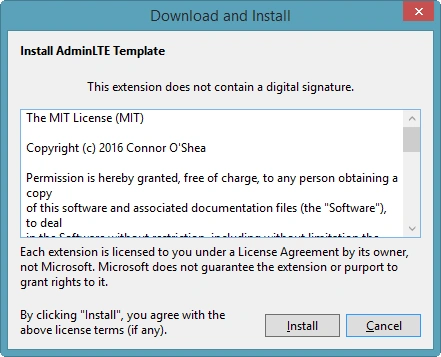
Click install button.
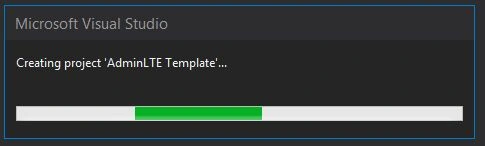
Run the Application, once the Application has completed the project creation.
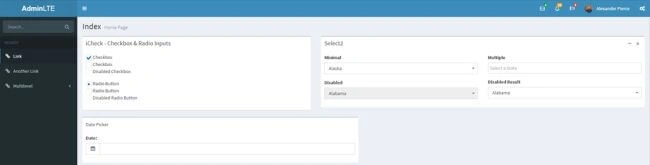
Finally, view the output in the Browser for AdminLTE template.
Anish KumarPosted Dec 1, 2016, 11:51 AM
Superb Bro... Fantastic...
Prakash KumarPosted Nov 10, 2016, 10:51 PM
Hi Subash, thanks for your feedback.
SubashPosted Nov 10, 2016, 8:49 PM
Very good start prakash kumar please continue write more blogs like this
Salman BegPosted Nov 10, 2016, 3:16 AM
Hi Prakash.Thanks for your quick reply.Whenever i will get time i will definitely look into it.thanks.
Prakash KumarPosted Nov 9, 2016, 11:09 PM
Hi Salman, thanks for your feedback. Using bootstrap templates will nothing happen it will give nice responsive applications. use properly and get good environment. thanks.
Salman BegPosted Nov 9, 2016, 7:54 AM
Hi.i gave a shot and it really worked for me but i am afraid if i modified to the existing template and use it in any other project then is there any problem? By the way Nice article.Great. Keep it Up.