
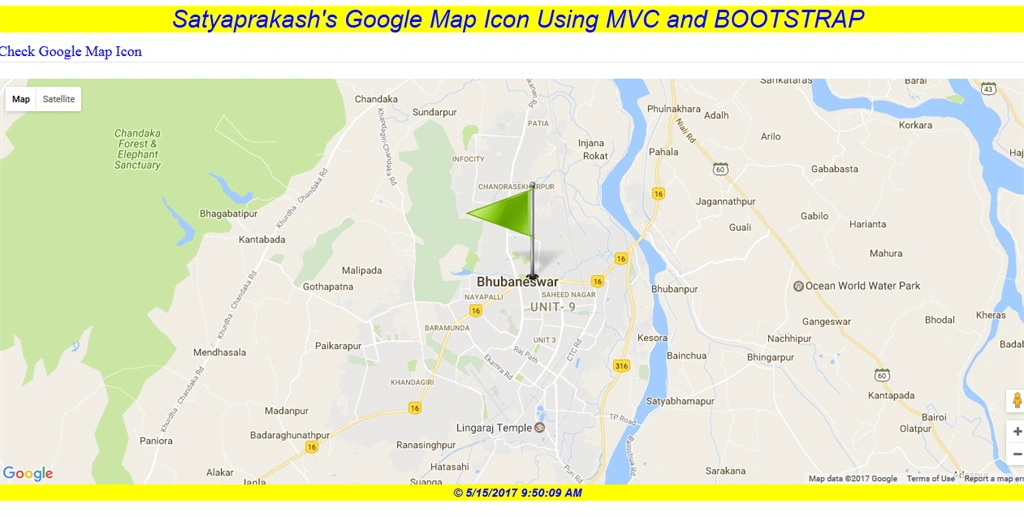
You can specify an image instead of the default marker in Google Maps.
Description
Follow my Google Maps Part-1 ,Part-2 and Part-3 blogs before you go through the Part-4.
Steps
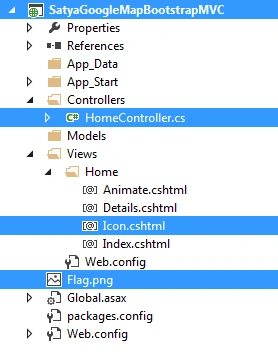
Create a Controller action method named "Icon" in the same Controller class named "HomeController.cs".
- using System;
- using System.Collections.Generic;
- using System.Linq;
- using System.Web;
- using System.Web.Mvc;
- namespace SatyaGoogleMapBootstrapMVC.Controllers
- {
- public class HomeController : Controller
- {
- //
- // GET: /Home/
- public ActionResult Index()
- {
- return View();
- }
- public ActionResult Details()
- {
- return View();
- }
- public ActionResult Animate()
- {
- return View();
- }
- public ActionResult Icon()
- {
- return View();
- }
- }
- }
- @{
- ViewBag.Title = "Satyaprakash Google Map Icon";
- }
- <title>@ViewBag.Title</title>
- <h2 style="background-color: Yellow;color: Blue; text-align: center; font-style: oblique">Satyaprakash's Google Map Icon Using MVC and BOOTSTRAP</h2>
- <fieldset>
- <legend style="font-family: Arial Black; color: blue; font-size: large;">Check Google Map Icon</legend>
- <meta charset="utf-8">
- <meta name="viewport" content="width=device-width, initial-scale=1">
- <link rel="stylesheet" href="https://maxcdn.bootstrapcdn.com/bootstrap/3.3.7/css/bootstrap.min.css">
- <script src="https://ajax.googleapis.com/ajax/libs/jquery/3.2.1/jquery.min.js"></script>
- <script src="https://maxcdn.bootstrapcdn.com/bootstrap/3.3.7/js/bootstrap.min.js"></script>
- <div id="map" style="width:100%;height:500px"></div>
- <script>
- function myMap() {
- var mapCanvas = document.getElementById("map");
- var myCenter = new google.maps.LatLng(20.296100, 85.824500);
- var mapOptions = { center: myCenter, zoom: 12 };
- var map = new google.maps.Map(mapCanvas, mapOptions);
- var marker = new google.maps.Marker({
- position: myCenter,
- icon: "Flag.png"
- });
- marker.setMap(map);
- }
- </script>
- <script src="https://maps.googleapis.com/maps/api/js?key=put_your_key&callback=myMap"></script>
- </fieldset>
- <footer>
- <p style="background-color: Yellow; font-weight: bold; color:blue; text-align: center; font-style: oblique">© @DateTime.Now.ToLocalTime()</p> @*Add Date Time*@
- </footer>
- var marker = new google.maps.Marker({
- position: myCenter,
- icon: "Flag.png"
- });
OUTPUT
Url: http://localhost:57237/Home/Icon
Url: http://localhost:57237/Home/Icon
Desktop View
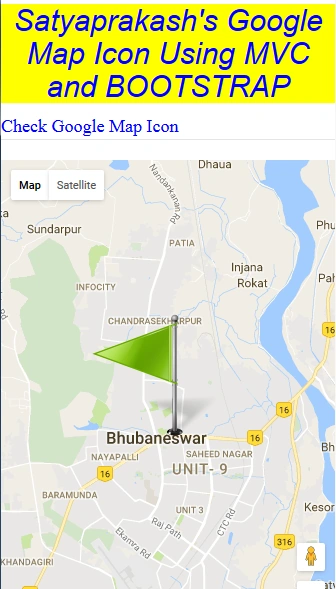
Mobile View
Summary
- Use image instead of marker In Google Maps.
- Implementing Mvc and Bootstrap.
Join the conversation! Your thoughts help the community grow.