

In this article, we will learn how the Loader works in between two Forms of a simple Windows Application.
Loader
Loader is an operating system that is used for loading Programs and Libraries. It is one of the essential stages in the process of starting a program.
Step 1
Click New >> Project >> Visual C# >> Windows >> Windows Forms Application. Enter your Project name and click OK.

Step 2
Click the View->Select Toolbox. We are using this Toolbox to design the Form in Windows application.
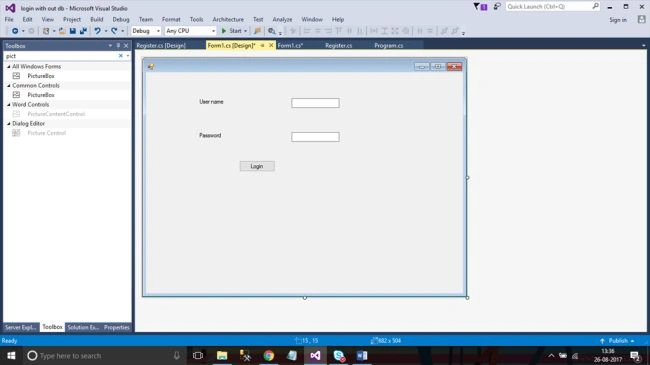
Step 3
In Toolbox, we have to add Picture Box and click the Picture Box tasks to choose the image.
Step 4
Click the Local Resources to import the Loader.gif file and click OK.
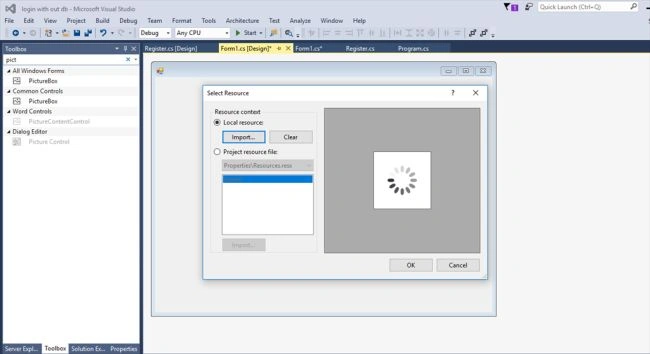
Step 5
Click the Size Mode Tab and change to CenterImage.
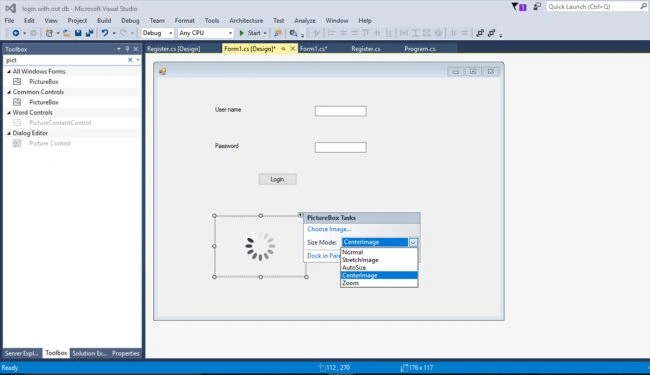
Step 6
Click the Properties menu of Picture Box. Toggle Visible option as False.
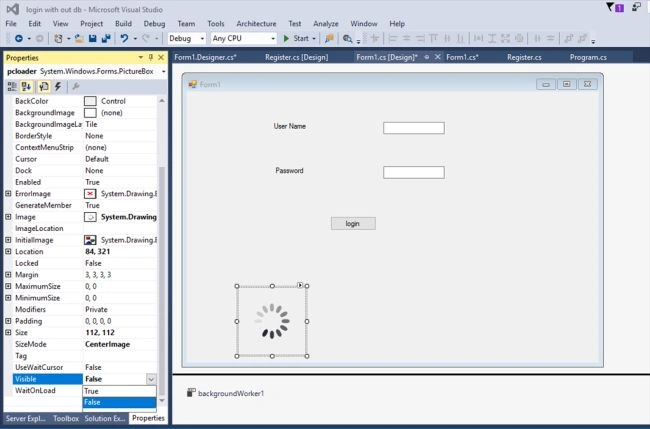
Step 7
Click the Toolbox and Add >> Background Worker.
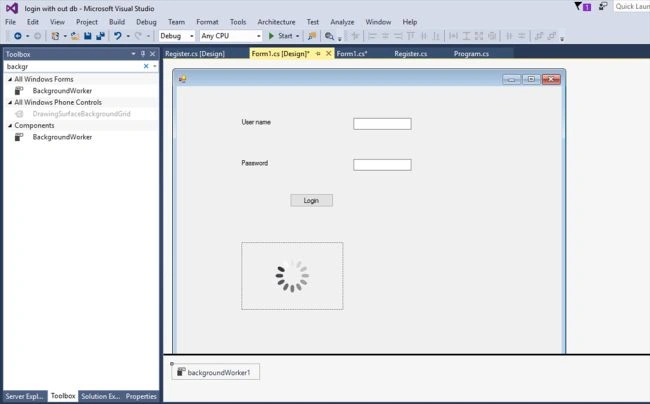
Step 8
Click the Background Worker properties and add the backgroundWorker1_DoWork, backgroundWorker1_RunWorker to be completed for the event to make the function more accurate.
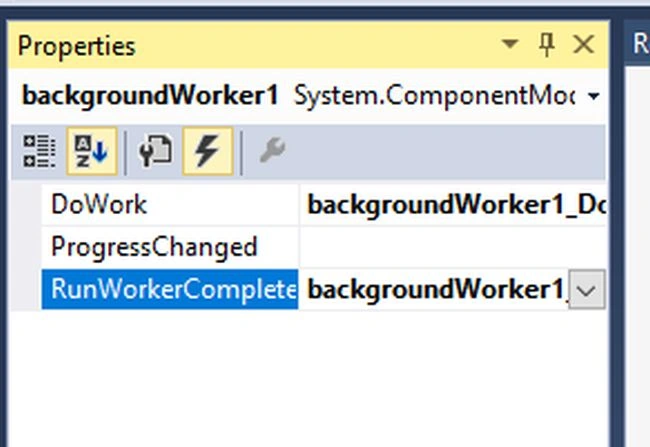
Where,
Header File
- using System.Threading;
C# CODE
- private void backgroundWorker1_DoWork(object sender, DoWorkEventArgs e) {
- if (LoginUserNameTB.Text == "admin" && LoginPasswordTB.Text == "admin") {
- Thread.Sleep(1000);
- isloginSuccess = true;
- } else {
- isloginSuccess = false;
- }
- }
- private void backgroundWorker1_RunWorkerCompleted(object sender, RunWorkerCompletedEventArgs e) {
- if (isloginSuccess) {
- MessageBox.Show("Login Succesfuly");
- this.Close();
- } else {
- MessageBox.Show("Check uname & Password");
- pcloader.Visible = false;
- }
- }
- Step 9
- Click the BUTTON Properties to add the
- function
- for button1_Click.
- public bool isloginSuccess = false;
- private void button1_Click(object sender, EventArgs e) {
- pcloader.Visible = true;
- pcloader.Dock = DockStyle.Fill;
- backgroundWorker1.RunWorkerAsync();
- }
Step 10
Add new form and save it.
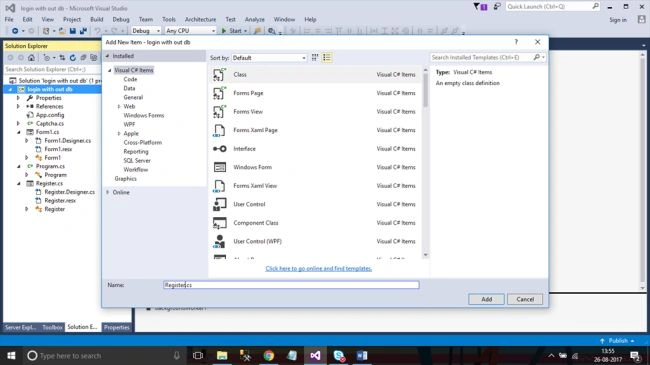
Click View->Select Toolbox. We are using the Toolbox to design the Form in Window Application.
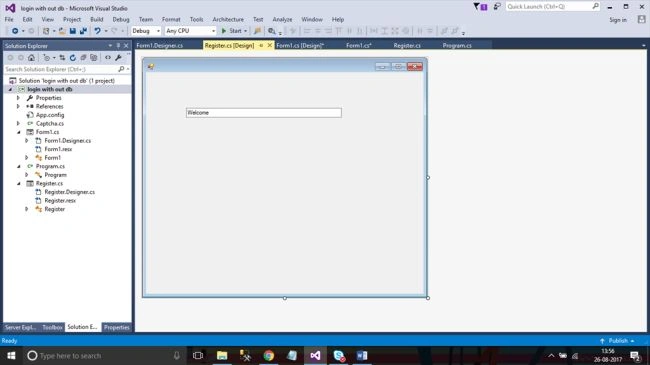
Step 11
Click the Register(Form2) Properties and add the Register_Load function.
C# CODE
- Form1 Objlogin;
- private void Register_Load(object sender, EventArgs e) {
- Objlogin = new Form1();
- Objlogin.ShowDialog();
- if (Objlogin.isloginSuccess == true) {} else {
- this.Close();
- }
- }
Step 12
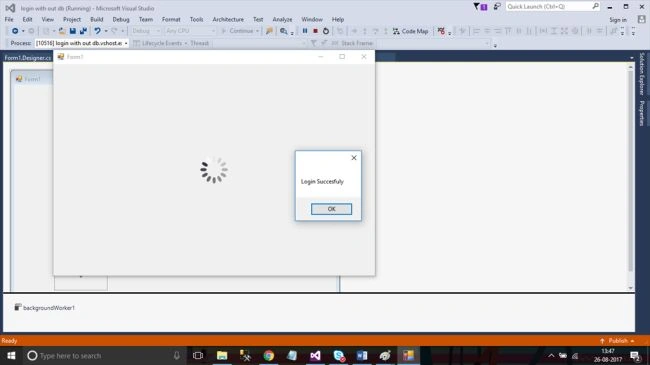
Press F5 or "Build and Run" the application to get the Loader running.
Result Loader is running.
Join the conversation! Your thoughts help the community grow.