

AWS TagSyncTask is an automatic tag synchronization mechanism that helps you effortlessly onboard resources with a specified tag key-value pair to your application. In this post, I’ll walk you through how to use TagSyncTask to automatically onboard or off-board multiple resources to your AWS application in just a few steps using an example scenario.
Scenario
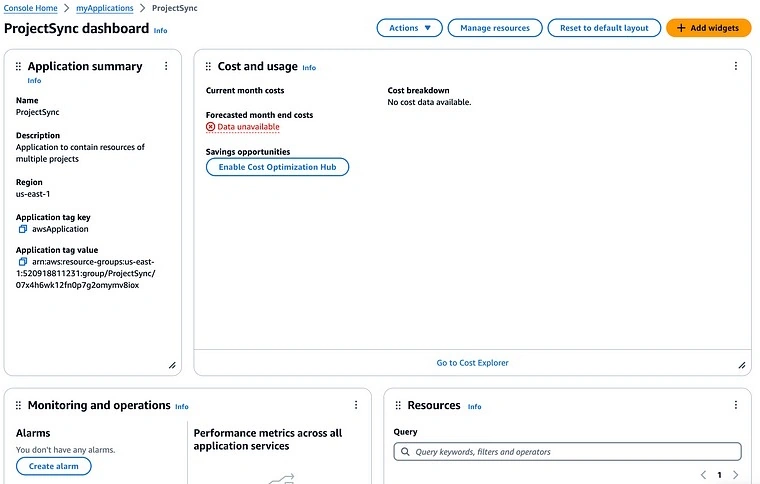
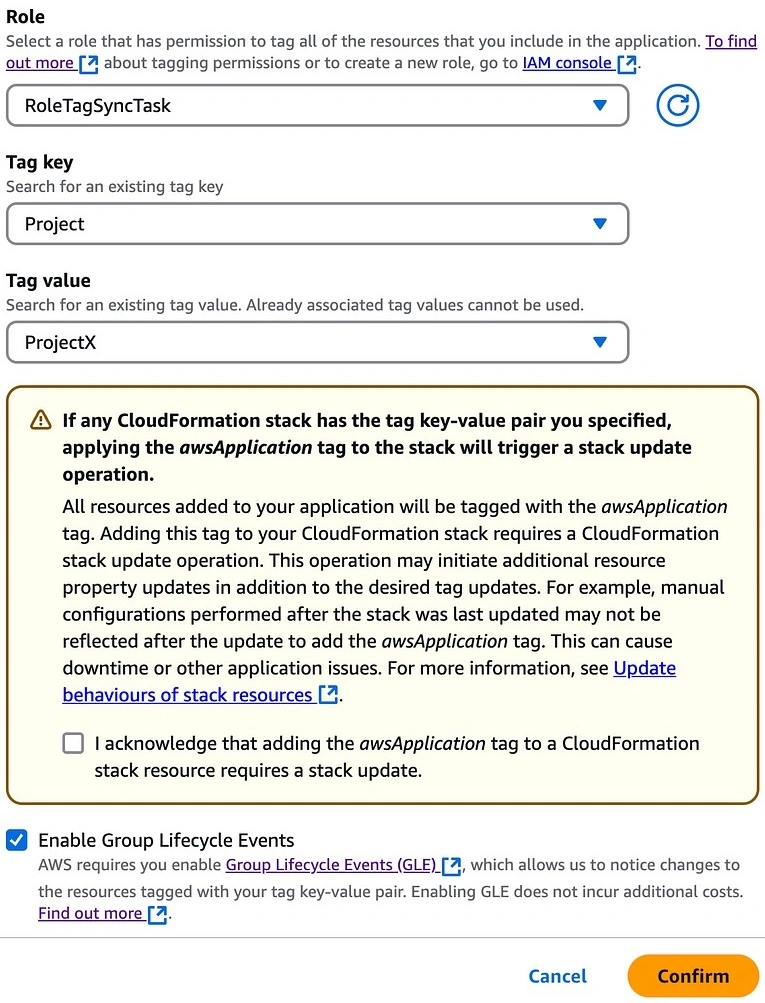
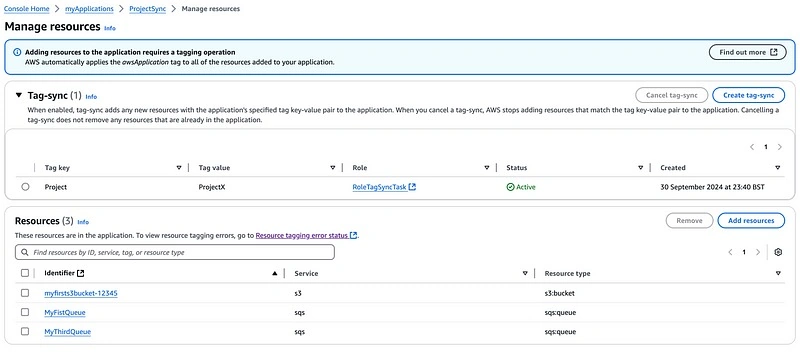
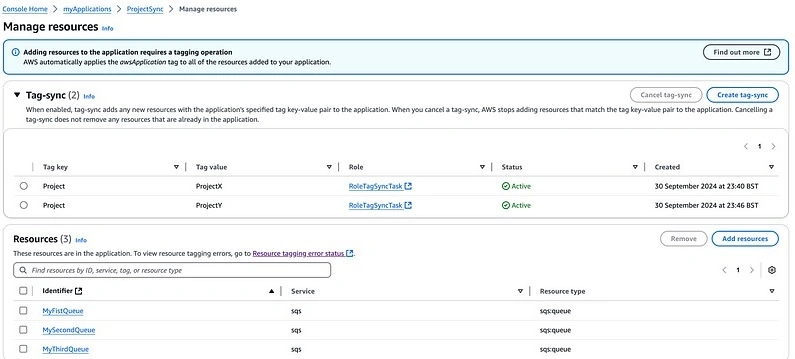
Here, let's consider a scenario where multiple resources tagged with either tag key-value pair Project=ProjectX or Project=ProjectY need to be included as part of an AWS AppRegistry application called ProjectSync. For simplicity, let’s also assume that all these resources are either SQS queues or S3 buckets.
Instead of manually associating all these resources to the application, the process can be streamlined by using AWS TagSyncTask.
Let's get started
For simplicity, let's assume the role used to access the AWS account has Administrator permissions.
Prerequisite
Step 1. Create a permission policy to tag resources.
Navigate to the IAM console in the AWS account. Click on Policies on the left-hand side panel and click Create Policy.
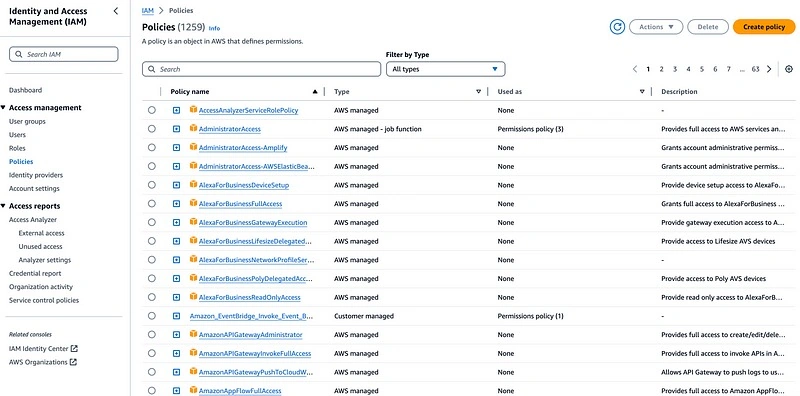
Create a policy with the below permissions. This policy allows permissions required by resource-groups service to onboard and off-board resources to an application, along with permissions required to tag different resource types. In our case, the resources are sqs queues and s3 buckets.
{
    "Version": "2012-10-17",
    "Statement": [
        {
            "Sid": "VisualEditor0",
            "Effect": "Allow",
            "Action": [
                "tag:GetResources",
                "tag:UntagResources",
                "tag:TagResources",
                "resource-groups:GroupResources",
                "resource-groups:UngroupResources",
                "resource-groups:Untag",
                "resource-groups:Tag",
                "sqs:TagQueue",
                "sqs:UntagQueue",
                "s3:PutBucketTagging",
                "s3:GetBucketTagging"
            ],
            "Resource": "*"
        }
    ]
}

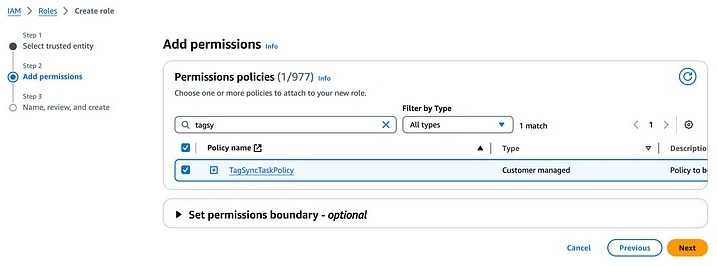
Click Next and create the policy with the name TagSyncTaskPolicy and description Policy to be used for the TagSync Task role.
Step 2. Create a role to be used by tag-sync tasks to onboard and off-board resources from the application.
Navigate to the IAM console in the AWS account. Click on Roles on the left-hand side panel and click Create Role.
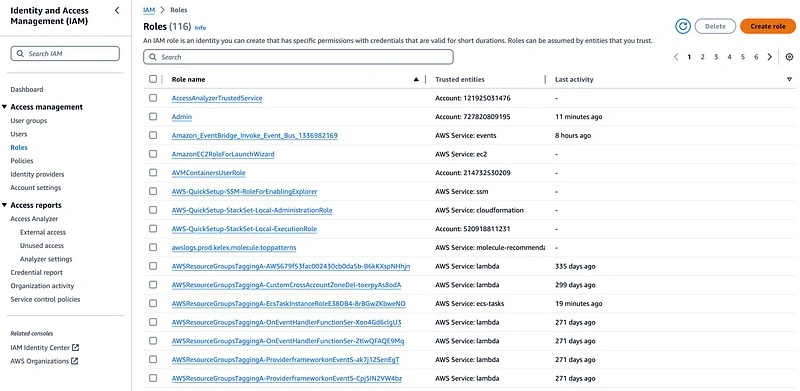
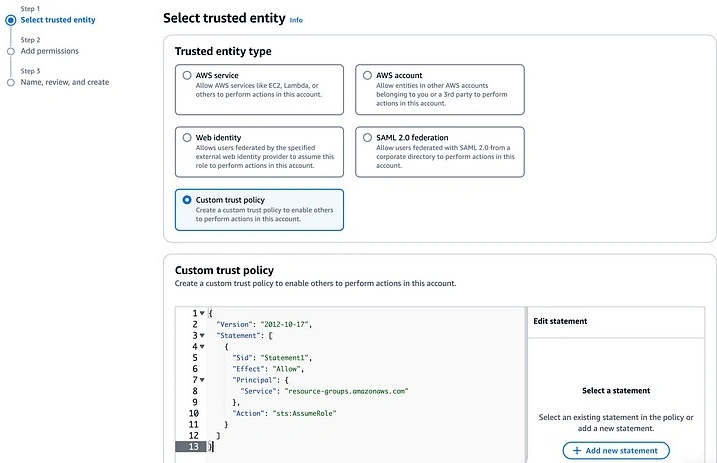
Create a role with a custom trust policy using the trust policy below.



Join the conversation! Your thoughts help the community grow.