

Introduction
Content types are nothing, just a set of columns that are grouped together to serve a specific purpose. For example, you could create a set of columns like school student details and it can be useful for many lists/libraries.
And the content type is such that if anytime you need a specific set of columns, you can add it to your list/library. So you don’t want to use it again and it is reusable.
A CT can only exist within a Site Collection. If you want to reuse it in another, you will have to recreate it but Microsoft having alternative way in SharePoint, called the Content Type Hub (CTH).
You can use many content types to single list/library.
Here, I would like to explain how to create a content type very quickly.
Go to, Site settings, Under Web designer Galleries, then select site Content Types, create a Content Types.
Steps:
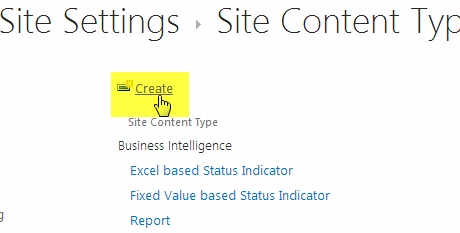
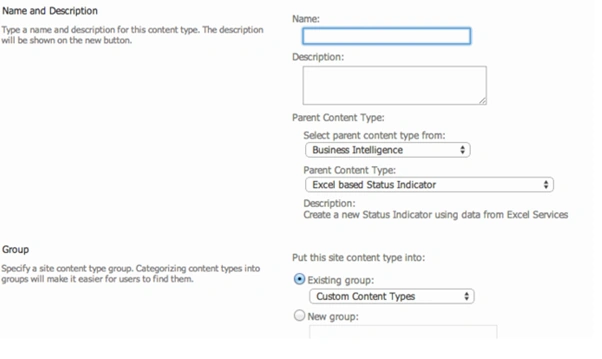
Then Content type is created and columns looks like below,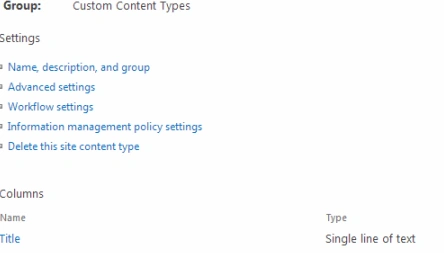
Then you can add Site Columns in this Content Type using the “Add from existing site columns” option and save it.
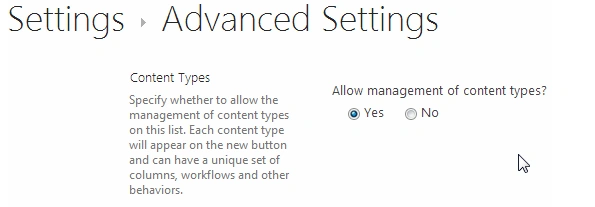
Go to the list settings and select the "Advanced settings" and select the check box like "Allow management of content types" true,
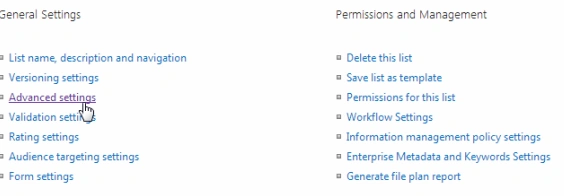
At last go to the List Settings Page under Content Types AND select “Add from existing site content types” to add your newly added Content Type.
Then select your custom content type it will be assigned to your list/library.
Now we will go to the actual requirement. Here we will use the PowerShell script to change the existing attached content type to new one.
Script:
Add-PSSnapin Microsoft.SharePoint.PowerShell -ErrorAction SilentlyContinue
- #Variables Declaration
- Function CTChange {
- param(
- [Microsoft.SharePoint.SPWeb]$Web = $(throw "Enter the 'Web' url"),
- [string]$ListName = $(throw "Enter the 'ListName'"),
- [string]$OldContentTypeName = $(throw "Enter the 'ExistingContentTypeName'"),
- [string]$NewContentTypeName = $(throw "Enter the 'NewContentTypeName' ")
- )
- $GetList = $Web.Lists[$ListName]
- $NewCT = $GetList.ContentTypes[$NewContentTypeName]
- foreach($item in $GetList.Items)
- {
- if($item.File.CheckOutStatus -ne "None")
- {
- $item.File.CheckIn("File Checked In By Administrator")
- write-host "checked-in on item: "$item.id
- }
- }
- foreach($item in $GetList.Items)
- {
- if($item.CT.Name -eq $OldContentTypeName)
- {
- $item.File.CheckOut()
- $item["ContentTypeId"] = $NewContentType.Id
- $item.SystemUpdate()
- $item.File.CheckIn("Content type changed to " + $NewContentType.Name, 1)
- Write-host "Content type changed for item: "$item.id
- }
- }
- }
- $WebURL ="http://gowtham.sharepoint.com"
- $ListName ="DataEntry"
- $ContentTypeName ="NewDataEntry"
- $Web = Get-SPWeb $WebURL
- $List = $Web.lists.TryGetList($ListName)
- if($list -ne $null)
- {
- CTChange $web $list "document" "NewDataEntry"
- }
Read more articles on SharePoint:
Gowtham RajamanickamPosted Apr 26, 2016, 1:30 AM
wait for my second part
Gowtham RajamanickamPosted Apr 26, 2016, 1:29 AM
keep read my blogs
Gowtham RajamanickamPosted Apr 26, 2016, 1:29 AM
thak u all
Gowtham RajamanickamPosted Apr 26, 2016, 1:29 AM
thanks ramakrishan
Gowtham RajamanickamPosted Apr 26, 2016, 1:29 AM
thanks humayn
Gowtham RajamanickamPosted Apr 26, 2016, 1:29 AM
thanks nitin
Gowtham RajamanickamPosted Apr 26, 2016, 1:29 AM
thanks vignesh
Gowtham RajamanickamPosted Apr 26, 2016, 1:28 AM
thanks pradeep
Gowtham RajamanickamPosted Apr 26, 2016, 1:28 AM
thank u k nagaraj
Gowtham RajamanickamPosted Apr 26, 2016, 1:28 AM
thanks debasis
Ramakrishna BasagallaPosted Apr 25, 2016, 1:31 PM
Nice one
Humayun Kabir MamunPosted Apr 24, 2016, 12:41 AM
Nice...
NitinPosted Apr 22, 2016, 11:46 PM
Good one
Vignesh ManiPosted Apr 22, 2016, 5:32 PM
Nice
Pradeep SahooPosted Apr 22, 2016, 1:39 PM
Nice ...Thanks for sharing .
Kuppurasu NagarajPosted Apr 22, 2016, 11:49 AM
Nice Sharing..
Debasis SahaPosted Apr 22, 2016, 10:17 AM
Good One..
Satish Kumar VadlavalliPosted Apr 22, 2016, 6:04 AM
Nice article :)