

Microsoft Flow is a cloud-based service. It allows us to react to an event in one and do something with the data from that event into another service. It makes it practical and simple for line-of-business. The users can build workflows that automatically do some business tasks and processes across applications and services.
It helps us to monitor all our workflow with the help of a great cloud solution called “Microsoft Flow”. Before reading this article, please go through some important articles mentioned below.
- Deep Dive Into Microsoft Flow
- How To Connect OneDrive To Google Drive With Microsoft Flow
- How To Connect Facebook to Twitter With Microsoft Flow
- How To Save Email Attachment From Outlook To Dropbox With Microsoft Flow
- How To Send Notification Via SMS When Dropbox Is Modified With Microsoft Flow
- How To Connect The Outlook Mail To Excel With Microsoft Flow
- How To Save Office 365 Email Attachment To OneDrive With Microsoft Flow
Connect Microsoft Forms with Office 365
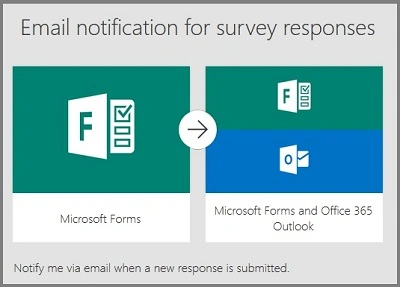
Microsoft Forms
With Microsoft Forms, you can create surveys, quizzes, and polls, and easily see results as they come in. When you create a quiz or form, you can invite others to respond to it using any web browser, even on mobile devices. As the results are submitted, you can use built-in analytics to evaluate the responses. Form data, such as quiz results, can be easily exported to Excel for additional analysis or grading. Log in to Microsoft Forms from here.
Office 365 is the brand name Microsoft uses for a group of subscriptions that provide productivity software and related services. For business users, Office 365 also offers service subscriptions for e-mail and social networking services through hosted versions of Exchange Server, Skype for Business Server, SharePoint, and Office Online, integration with Yammer. Login here.
Prerequisites
- Microsoft Account – Corporate ID.
- Microsoft Form Account.
- Office 365 Account.
Follow the below steps to build a Flow using a template.
Step 1
Create the Microsoft Forms
Login to the Microsoft Forms - https://forms.office.com/
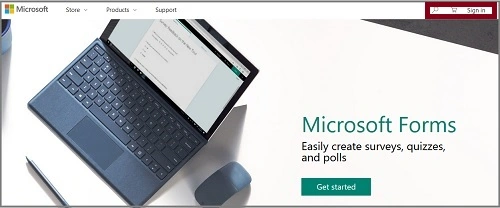
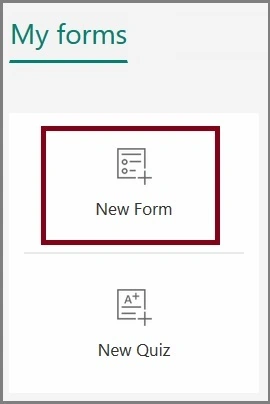
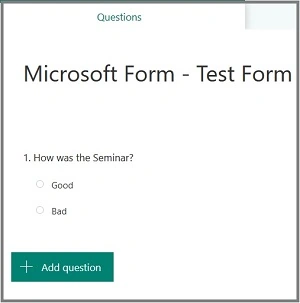
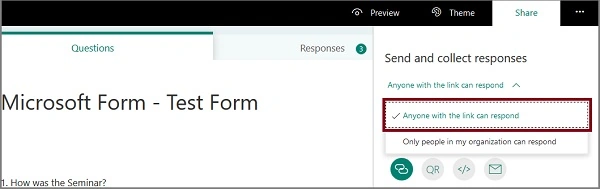
After completing the form, we have to create the link to the form. So, we choose "Share". In that, we choose "Anyone with the link can respond" link.
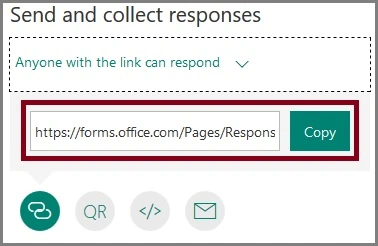
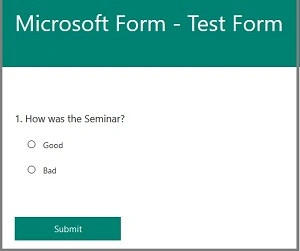
Paste the link into the browser to fill up the form and share the link with the users.
Step 2
Login to the Microsoft Flow
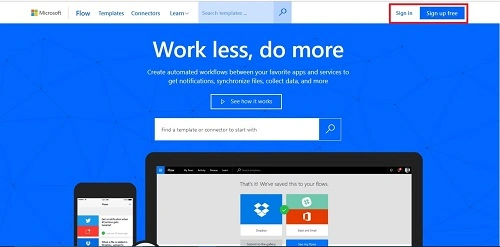
Login to www.flow.microsoft.com
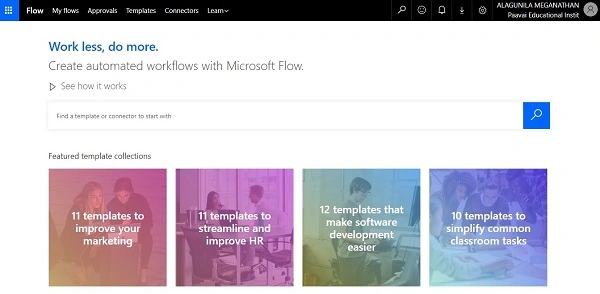
Step 3 - Search the Template
Choose the Templates menu from the menu bar.

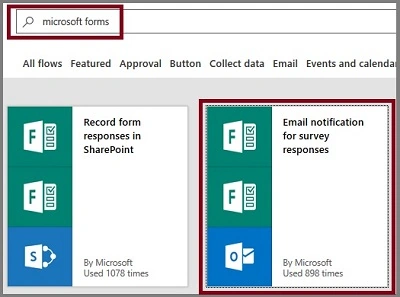
Now, click on the "Use this template" option.
Sign in to Microsoft Forms and give permission to access your account.
Step 5
Sign into Office 365 and give it permission to access your accounts.
Now, both are connected to the flow. Choose "Create Flow".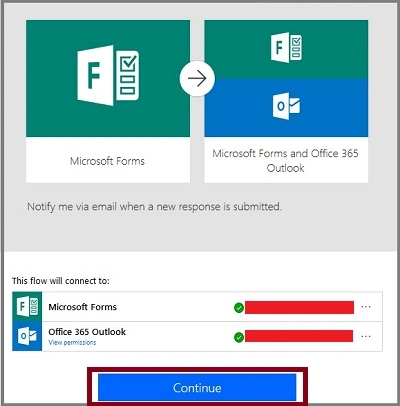
Next, let us configure Microsoft Forms and Office 365.
- We have to choose the list of responses in the output form.
- Choose the Form ID in which the response is taken.
- Choose the Office 365 mail to send that response.
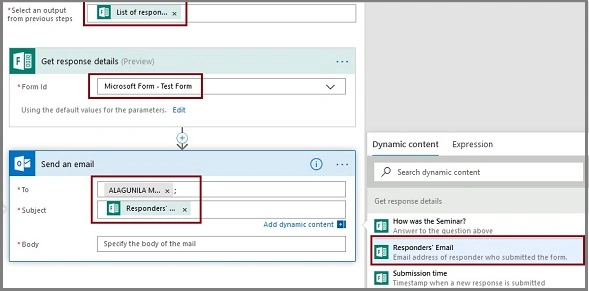
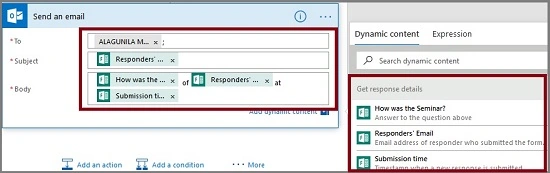
The final flow should be like this. Click on the "Save Flow" images.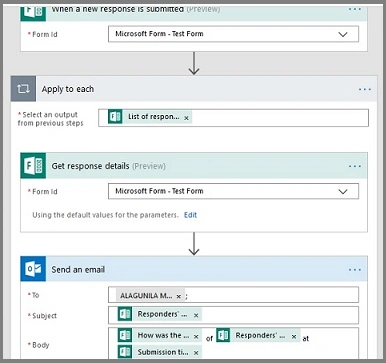
The Flow is created.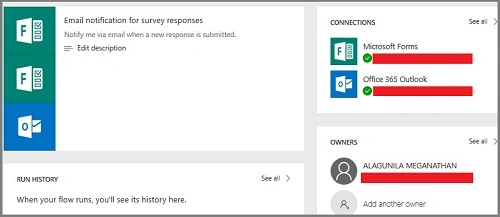
Output
Fill up the Microsoft Forms and submit.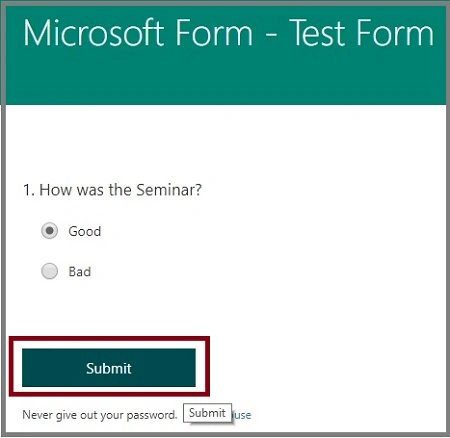
The Form is saved.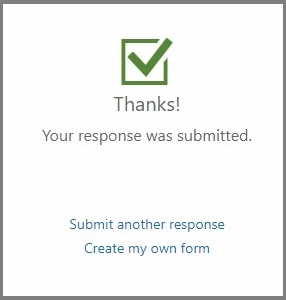
Now, the notification is sent to the Office 365 Mail.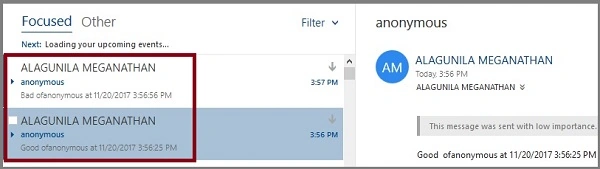
The history of flow.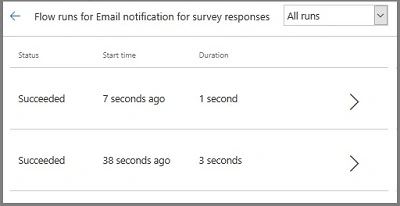
Summary
I hope you understood how to send the notification Email to the user when a new response is submitted in Microsoft Forms. Stay tuned for more flow articles.
Sriram HariharanPosted Nov 24, 2017, 4:02 AM
Interesting article