

We may often not want to show all the options from an OptionSet in the form.
Here, we can hide options from OptionSet using JavaScript in Dynamic 365 CRM.
Let's see the below scenario.
We have a Job Role field on the Contact form where we have some of the options in OptionSet. We need to hide one of the options from the OptionSet field.
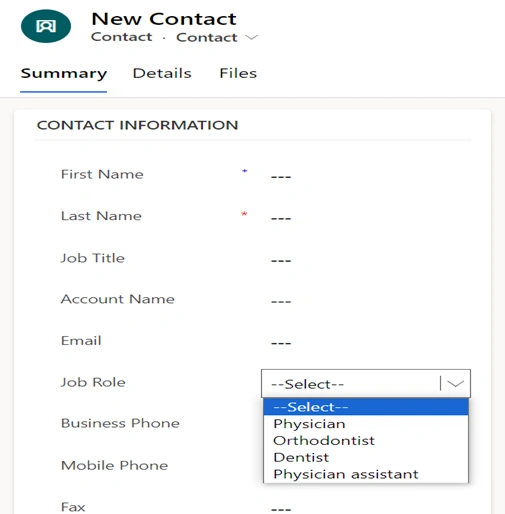
Now, we want to hide the "Dentist" option from OptionSet when a Contact form loads.
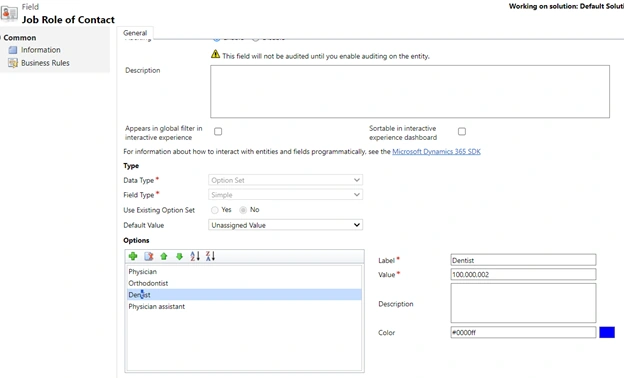
Now, with the above information shown, we can go and hide the option “Dentist”.
With the help of JavaScript Code, we can hide the options that we don’t need to display on the form.
Below is the code we need to register the OnLoad of the Contact form and pass the Context as the first parameter.
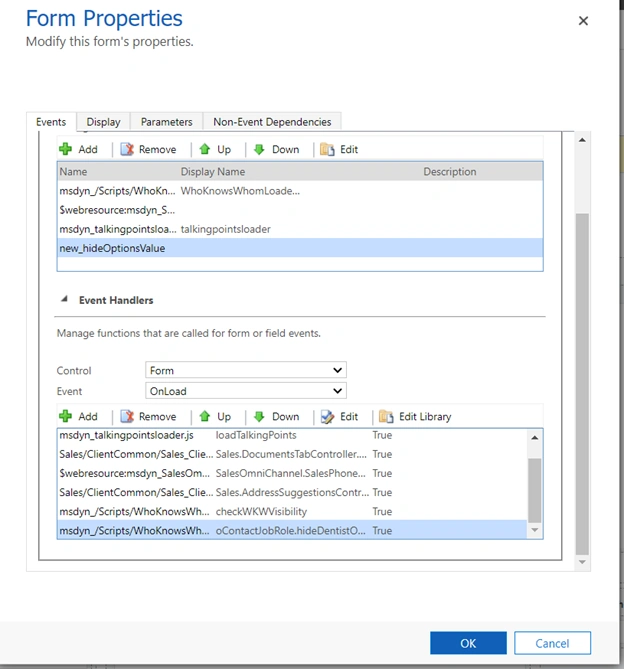
Next, we need to call the function on OnLoad, as shown in the below screenshot.
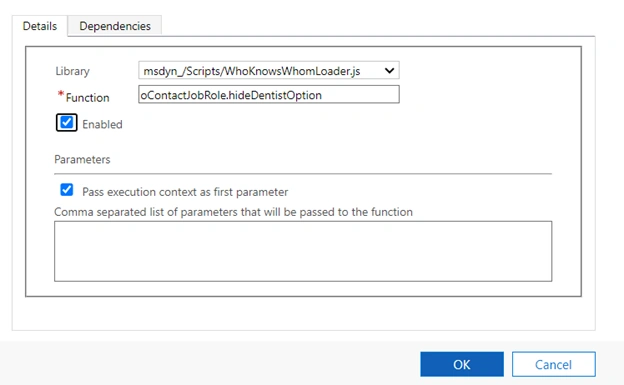
JavaScript Code
oContactJobRole = {

    hideDentistOption: function (context) {
        "use strict"; debugger;
        var formContext = context.getFormContext();
        var gradeOptionSet = formContext.getControl("new_jobrole");

        if (gradeOptionSet !== null) {
            gradeOptionSet.removeOption(100000002);
        }
    }
};
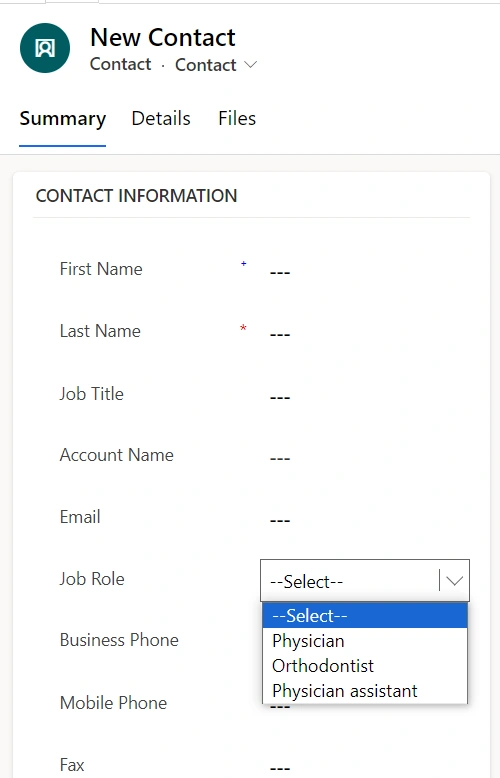
Now, when we load the form, the "Dentist" options are no longer visible.
Mohith BodhankarPosted Aug 21, 2025, 6:18 PM
But now there is a better way of doing it. We can hide the optionvalue directly from the optionset/Choice editor in the make.powerapps.com. With this way the value will not show on the UI using configuration without writing Javascript. Follow below steps Step 1: Navigate to https://make.powerapp.com Step 2: On the left navigation page click on Tables Step 3: Search and open desired table by clicking on it. (For Example: Account) Step 4: On the schema section click on "Columns" Step 5: On the list of columns search desired column with Data Type = "Choice".(For Example : Industry) Step 6: Now Edit the Column by clicking on the field name which opens a popup Step 7: Navigate to Choice section and select the value (For Example: Accounting) which you want to hide by clicking on "Additional Properties". Step 8: This would open a popup in that there is a checkbox called "Hidden". Enable that checkbox. Step 9: Click on Save. Step 10: Publish the table to reflect the changes. Step 11: Navigate back to Application and check the value which we are hiding in the optionset field on the form it will not longer be visible.
sagar nanawarePosted Dec 6, 2024, 1:29 PM
I try same solution but it removes from option set array but not from UI. ( I write this in Form Load () event