

Introduction
Pipes allows us to change the way we output our data or transform data visually in our template.
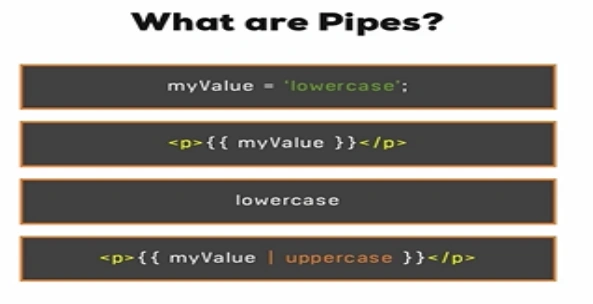
Here the easiest way to convert myValue to uppercase is using the built in pipes. Angular 2 provides many built in pipes. They are known as pipes because we simply had to use ‘ | ‘ sign as a prefix. It is same as angular js 1.x provides what are known as filters. Though Angular 2 doesn’t support all the filters available in angular js 1.x ,for example angular 2 doesn’t support sort and order by filters of angular js 1.x because of performance issues. But we can achieve both order by and sorting with custom pipes.
So in this article we will learn how to use built in pipes and also how to create your own custom pipes.
To demonstrate the example I had already created a project using Angular 2 CLI and also I had used Inline Html (i.e. I am using template inside component metadata in place of templateUrl.
Few Built-in Pipe
- Uppercase/Lowercase
Converts the value into the uppercase and vice versa.
Example- [code language = "typescript"]
- @Component({
- selector: 'app-pipesdemo',
- template: `<div>
- <p>In lowercase: <pre>'{{value1 | lowercase}}'</pre>
- <p>In uppercase: <pre>'{{value2 | uppercase}}'</pre>
- </div>`
- })
- export class PipesdemoComponent {
- value1: string = ’HELLO WORLD’;
- value2: string = ’hello world’;
- }
- [/code]
- Slice Pipe
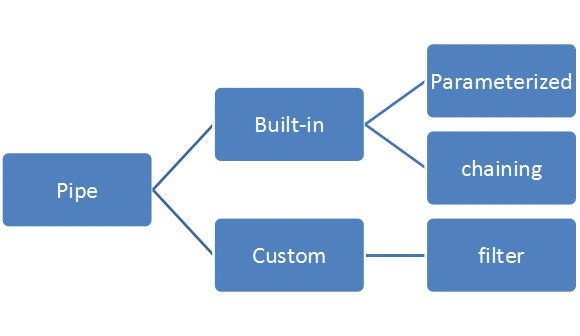
It is used to slice the string. It takes two parameters, first is start index and the second parameter is limit. It is also known as parameterized pipe.
ExampleIn above example ,we used two pipes together -- it is also known as chaining of pipes.- [code language = "typescript"]
- @Component({
- selector: 'app-pipesdemo',
- template: `<div>
- <h1>
- {{myValue | uppercase | slice:6:10}}
- </h1>
- </div>`
- })
- export class PipesdemoComponent {
- myValue: string = ’HELLO WORLD’;
- }
- [/code]
- Date Pipe
It is used to format date object in different formats. Following are some examples of it.
Examplea few more formats are available with Date pipe.- [code language = "typescript"]
- @Component({
- selector: 'app-pipesdemo',
- template: `<div>
- <h1>
- {{myDate | date}}
- </h1>
- <br/>
- <h1>
- {{myDate | date:"dd/MM/yy"}}
- </h1>
- <h1>
- {{myDate | date:"fullDate"}}
- </h1>
- </div>`
- })
- export class PipesdemoComponent {
- myDate = new Date(2016, 10, 26);
- }
- [/code]
'medium' e.g. Sep 3, 2010, 12:05:08 PM 'short' e.g. 9/3/2010, 12:05 PM 'fullDate' e.g. Friday, September 3, 2010 'mediumDate' e.g. September 3, 2010 'shortDate' e.g. 9/3/2010 'mediumTime' e.g. 12:05:08 PM 'shortTime' e.g. 12:05 PM - Currency Pipe
It is used to display currency symbol or currency code.
Example- [code language = "typescript"]
- @Component({
- selector: 'app-pipesdemo',
- template: `<div>
- <h1>A: {{myCurrency | currency:'INR':true}}</h1>
- <h1>A: {{myCurrency | currency:'INR':false}}</h1>
- </div>`
- })
- export class PipesdemoComponent {
- myCurrency: number = 10;
- }
- [/code]
- Percent Pipe
formats a number as percentage. This pipe uses the Internationalization API which is not yet available in all browsers and may require a polyfill.
Example- [code language = "typescript"]
- @Component({
- selector: 'app-pipesdemo',
- template: `<div>
- <h1> A: {{a | percent: '.3' }}</h1>
- <h1> B: {{b | percent : '3.1-2'}}</h1>
- </div>`
- })
- export class PipesdemoComponent {
- a: number = 0.99;
- b: number = 8.36;
- }
- [/code]
Custom Pipe
To create our own pipe we need to generate pipe file.
cmd> ng g p doublepipe
which will generate the following file for us.
- [code language = ”typescript”]
- import {
- Pipe,
- PipeTransform
- } from '@angular/core';
- @Pipe({
- name: 'doublepipe'
- })
- export class DoublepipePipe implements PipeTransform {
- transform(value: number, args ? : any): any {
- return value * 2;
- }
- }
- [/code]
- @NgModule({
- declarations: [
- AppComponent,
- PipesdemoComponent,
- DoublepipePipe
- ]
First navigate to the component in which you want to use this component.
Then simply paste the following code.
- [code language = "typescript"]
- @Component({
- selector: 'app-pipesdemo',
- template: `<div>
- <input type="number" (keyup)="0" #input1/>
- <p>{{input1.value | doublepipe}}</p>
- </div>`
- })
- export class PipesdemoComponent {}
- [/code]
Join the conversation! Your thoughts help the community grow.