
Introduction
This article will help you to develop a basic Universal Windows app, which can work on Windows phone, Windows 10 PC, Surface tab, etc. Let’s get to the work now.
Target Audience
Beginner with basic C# and XAML coding knowledge.
Technical Requirements
- Operating System should be Windows 10 Pro on your PC.
- Visual Studio 2015 or 2017 installed on your PC.
- Developer Mode should be enabled on your OS.
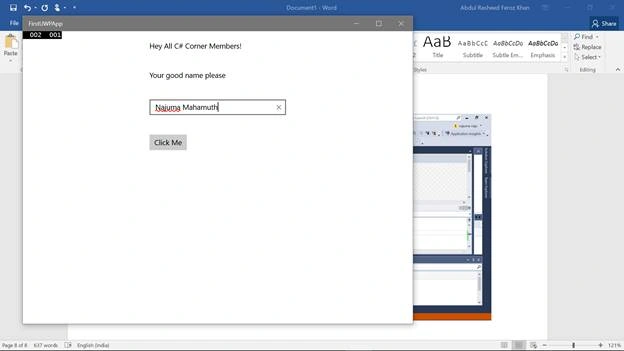
Let’s work now on a basic app which we will be developing, using controls like Text Box, Text Field, Button Click etc. and it can work both on Windows and Windows PC.
Run Visual Studio 2015 in your PC.
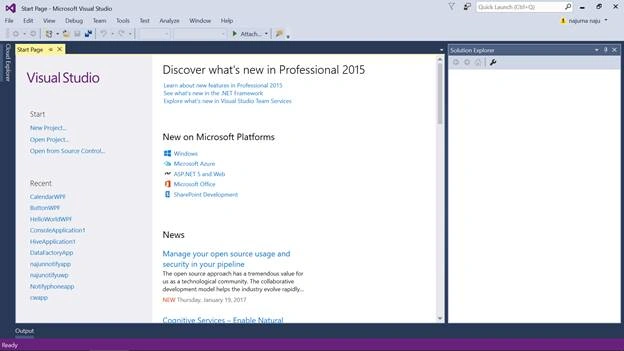
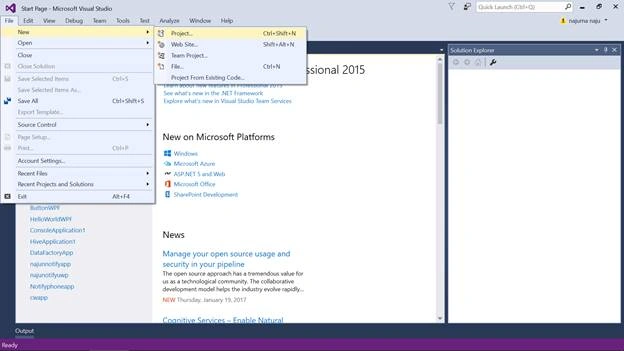
Click File -> New -> Project
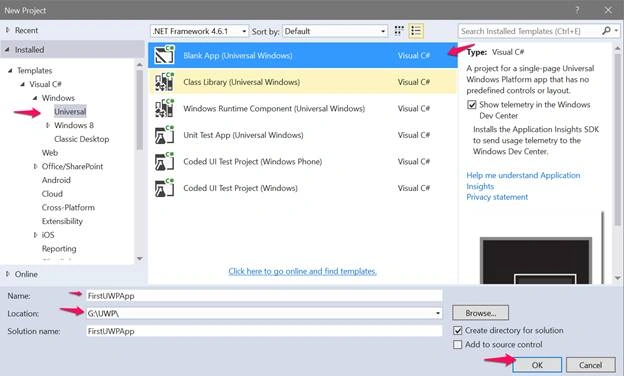
Select Visual C# -> Windows -> Universal -> Blank app (Universal Windows) Visual C#, name your app -> Select the location, where it has to be saved and click OK to create the app project in Visual Studio 2015.
Now, Visual Studio 2015 is ready with all the development related information of Solution Explorer, menu options, coding Window etc.
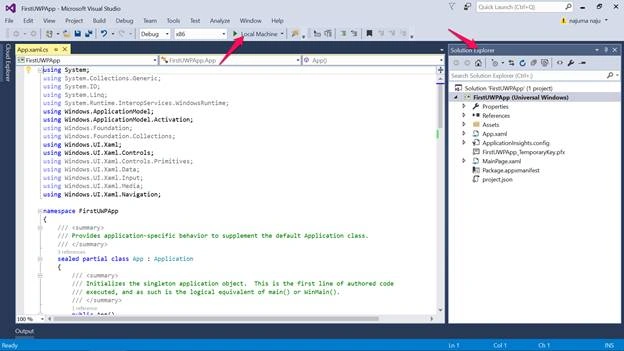
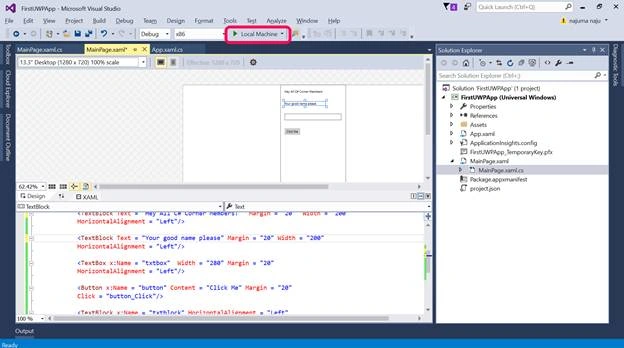
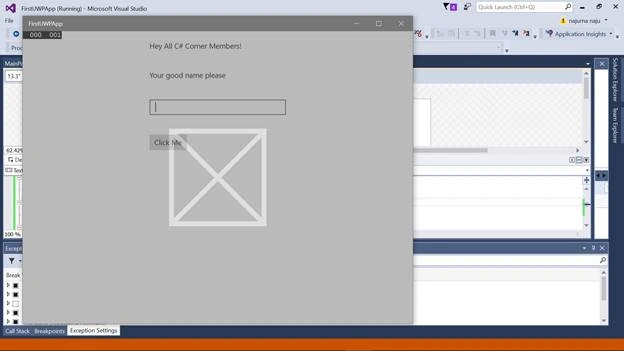
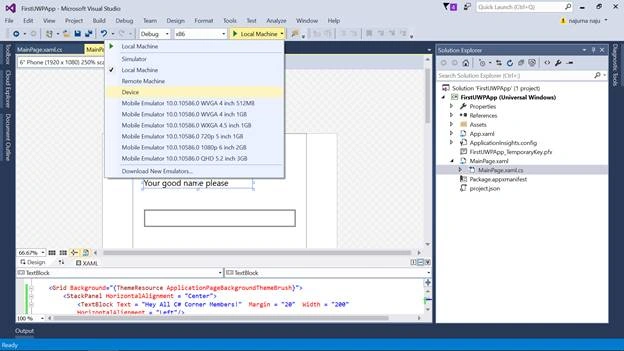
Clicking on Local Machine will help you to run the UWP app in your Windows machine.

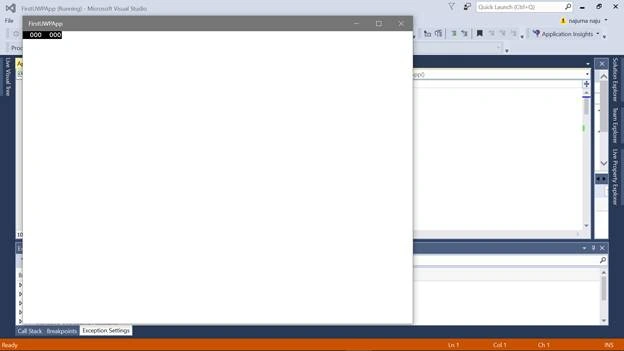
The Blank UWP app is ready now. Let’s work with the control options, which we need now.
Note
Clicking on the Stop button will stop running your UWP app on your PC and you should stop running your app before you switch on to work with your project on Visual Studio 2015.
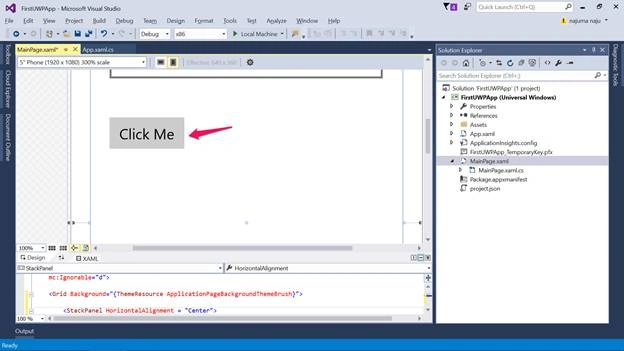
On your Solution Explorer, you can find two main files named MainPage.xaml and MainPage.xaml.cs. Now, click on MainPage.xaml, where you can find two panes – a graphical designer pane and a coding pane given below.
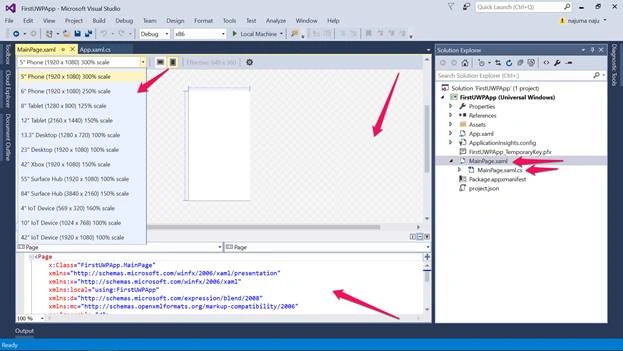
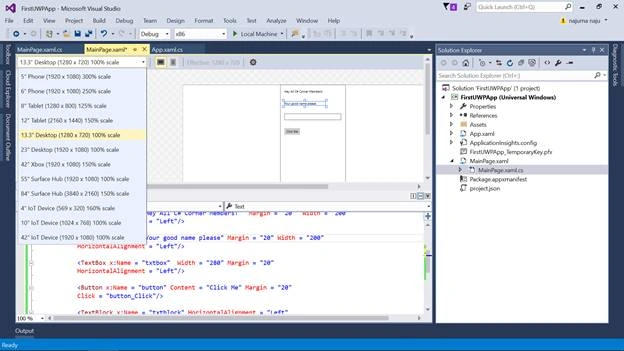
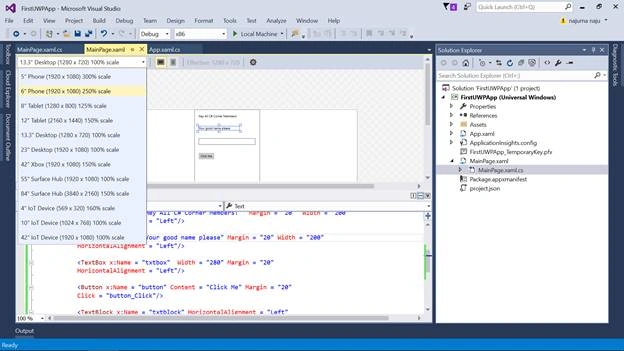
In the top image, you can find different options given below.
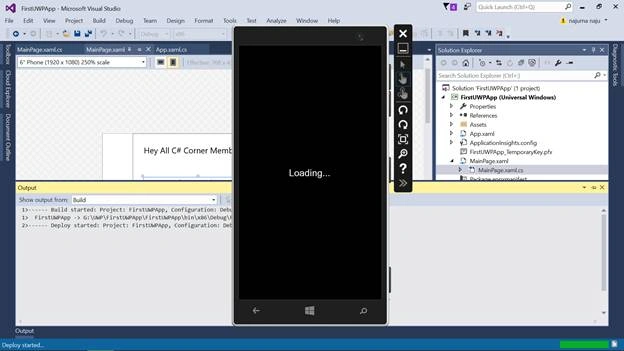
- Selecting the options of the phone will help you to build the app for the same code on the phone interface, which can work on the phone and you can find the same preview on the graphical designer pane of Visual Studio 2015.
- Selecting the options of Tablet will help you to develop an app for Tablet and give the graphical designer pane of the same, provided the same code can work on it.
- Selecting the options of the desktop will help you to develop an app for Windows 10 PC and Visual Studio will take you to the designer graphical pane of Windows 10 PC.
- You can also find the coding pane given below in the image given above and other two files of MainWindow.xaml – MainWindow.xaml.cs on your Solution Explorer in Visual Studio 2015.
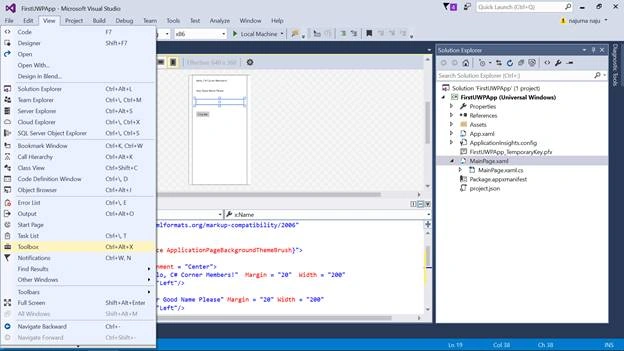
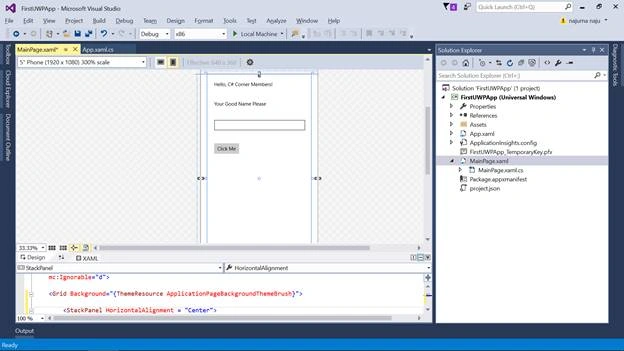
Adding controls in UWP app
Nigel FernandesPosted Jan 27, 2017, 5:07 PM
Good article, I will try this !!
Thennarasu NPosted Jan 27, 2017, 7:51 AM
Super Article and Easy understanding