

Previous part: Setting the App Icon and SplashScreen in MAUI [GamesCatalog] 17
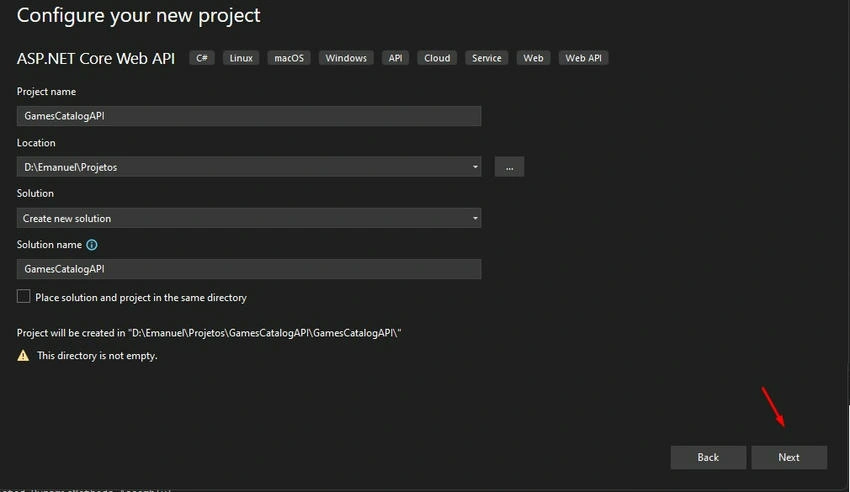
Step 1. Create an ASP.NET Core WebApi Project, Framework .NET 9.
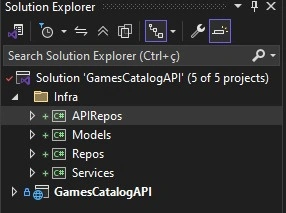
Step 2. Let's define the structure by creating the following Class Library Projects.
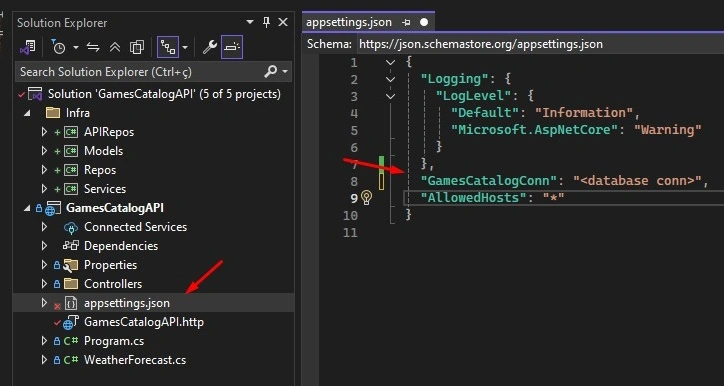
Step 3. Configure or use an existing database, and then set the database connection string.
Step 4. In the Repos and Models projects, install the NuGet package Microsoft.EntityFrameworkCore, version 9.0.4 at the time of writing this article.

Step 5. In my case, I will be using a MySQL database, which, at the time of writing, only has a preview version available, 9.0.0.

Step 6. In the Repos project, create the class DbCtx.cs:
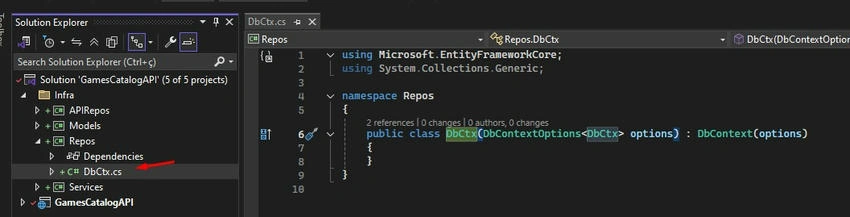
Code
using Microsoft.EntityFrameworkCore;
namespace Repos
{
    public class DbCtx : DbContext
    {
        public DbCtx(DbContextOptions<DbCtx> options) : base(options)
        {
        }
    }
}
Step 7. In the Program.cs, initialize the database with the connection string.
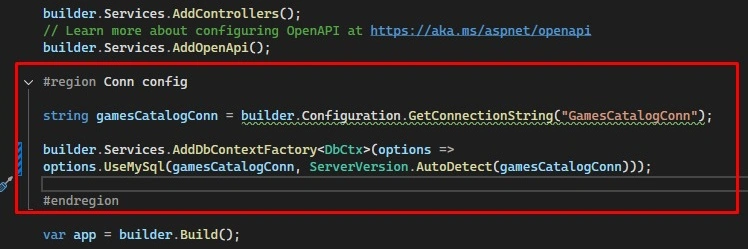
Code
#region Conn config

string gamesCatalogConn = builder.Configuration.GetConnectionString("GamesCatalogConn");

builder.Services.AddDbContextFactory<DbCtx>(options =>
    options.UseMySql(gamesCatalogConn, ServerVersion.AutoDetect(gamesCatalogConn)));

#endregion
Step 8. In the Models project, create the classes DTOBase.cs and UserDTO. cs.
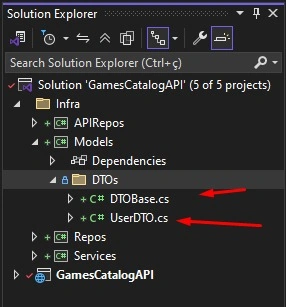
Code for DTOBase.cs
namespace Models
{
    public class DTOBase
    {
        public int Id { get; set; }
        public required DateTime CreatedAt { get; set; }
    }
}
Code for UserDTO.cs
using System.ComponentModel.DataAnnotations;
using System.ComponentModel.DataAnnotations.Schema;

namespace Models.DTOs
{
    [Table("User")]
    public class UserDTO : DTOBase
    {
        [MaxLength(150)]
        public required string Name { get; set; }

        [MaxLength(250)]
        public required string Email { get; set; }

        [MaxLength(350)]
        public required string Password { get; set; }
    }
}
Step 9. In the Repos project, inside DbCtx.cs, add a DbSet for UserDTO.
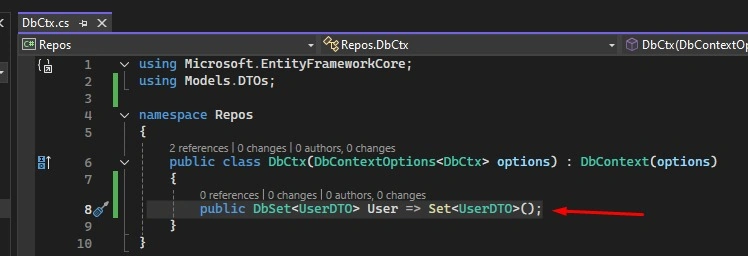
Code
public DbSet<UserDTO> User => Set<UserDTO>();
Step 10. Install the Microsoft package.EntityFrameworkCore.Design in both the GamesCatalogAPI and Repos projects, version 9.0.4 at the time of writing this article.
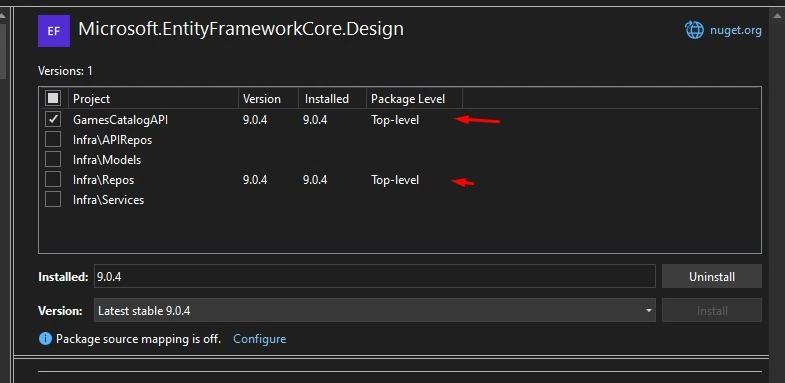
Step 11. In the Package Manager Console, select the Repos project and run the command to create the migration that will generate the users table.

Command
EntityFrameworkCore\Add-Migration
    "create User tbl"
    -Context DbCtx
After that, run the command to update the database.
EntityFrameworkCore\update-database
    -Context DbCtx
Step 12. This way, we will have our Users table created in the database.
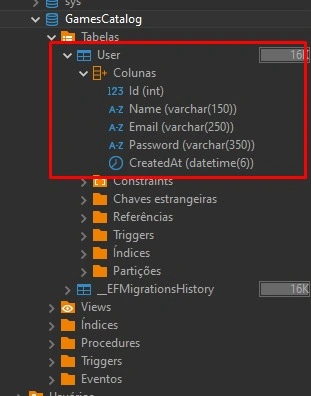
In the next step, we will create the route for user creation.
Join the conversation! Your thoughts help the community grow.