

Introduction
What is bound service?
- A request is made from MainActivity to access the method in LocalService class.
- A response generated in LocalService class can be forwarded to MainActivity.
- Extending the Binder class
- Using a Messenger Class
- Android Interface Definition Language (AIDL)
Using Binder Class
- create an instance of Binder in-service class that:
1. contains public methods that the client can call.2. it can return the current Service instance, by having service class instance we can call public methods.3. or returns an instance of another class hosted by the service with public methods the client can call.
- Return this instance of Binder from the onBind() callback method.
- In the client, receive the Binder from the onServiceConnected() method as shown in the code below and make calls to the bound service using the methods provided.
Lets have a look at code below activity_main.xml,
- <?xml version="1.0" encoding="utf-8"?>
- <RelativeLayout xmlns:android="http://schemas.android.com/apk/res/android"
- xmlns:tools="http://schemas.android.com/tools"
- android:layout_width="match_parent"
- android:layout_height="match_parent"
- android:paddingBottom="@dimen/activity_vertical_margin"
- android:paddingLeft="@dimen/activity_horizontal_margin"
- android:paddingRight="@dimen/activity_horizontal_margin"
- android:paddingTop="@dimen/activity_vertical_margin"
- tools:context="com.example.gkumar.examplebindservice.MainActivity">
- <TextView
- android:layout_width="wrap_content"
- android:layout_height="wrap_content"
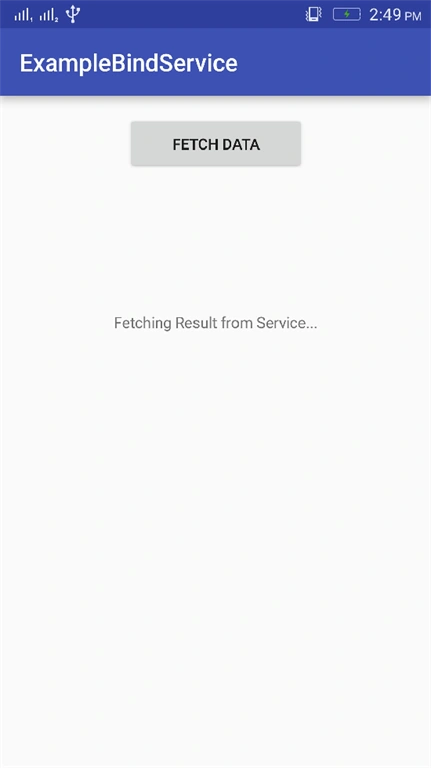
- android:text="Fetching Result from Service..."
- android:id="@+id/textView"
- android:layout_marginTop="116dp"
- android:layout_below="@+id/button"
- android:layout_centerHorizontal="true"
- android:visibility="invisible"/>
- <Button
- style="?android:attr/buttonStyleSmall"
- android:layout_width="150dp"
- android:layout_height="wrap_content"
- android:text="Fetch Data"
- android:id="@+id/button"
- android:layout_alignParentTop="true"
- android:layout_centerHorizontal="true" />
- </RelativeLayout>
Now find these views created above in MainActivity.java as given below.
- package com.example.gkumar.examplebindservice;
- import android.content.BroadcastReceiver;
- import android.content.ComponentName;
- import android.content.Context;
- import android.content.Intent;
- import android.content.IntentFilter;
- import android.content.ServiceConnection;
- import android.os.IBinder;
- import android.support.v7.app.AppCompatActivity;
- import android.os.Bundle;
- import android.view.View;
- import android.widget.Button;
- import android.widget.TextView;
- import android.widget.Toast;
- public class MainActivity extends AppCompatActivity {
- LocalService mService;
- boolean mBound = false;
- TextView fetchedText;
- Button mButton;
- MyReceiver mReciver;
- @Override
- protected void onCreate(Bundle savedInstanceState) {
- super.onCreate(savedInstanceState);
- setContentView(R.layout.activity_main);
- mButton = (Button) findViewById(R.id.button);
- fetchedText = (TextView) findViewById(R.id.textView);
- IntentFilter intentFilter = new IntentFilter();
- intentFilter.addAction(LocalService.MY_ACTION);
- mReciver = new MyReceiver();
- registerReceiver(mReciver,intentFilter);
- mButton.setOnClickListener(new View.OnClickListener() {
- @Override
- public void onClick(View v) {
- fetchedText.setVisibility(View.VISIBLE);
- onButtonClick(v);
- }
- });
- }
- @Override
- protected void onStart() {
- super.onStart();
- Intent intent = new Intent(this, LocalService.class);
- bindService(intent, mConnection, Context.BIND_AUTO_CREATE);
- }
- @Override
- protected void onStop() {
- super.onStop();
- unregisterReceiver(mReciver);
- if (mBound) {
- unbindService(mConnection);
- mBound = false;
- }
- }
- public void onButtonClick(View v) {
- if (mBound) {
- mService.getDataFromAPI();
- }
- }
- /**
- * Defines callbacks for service binding, passed to bindService()
- */
- private ServiceConnection mConnection = new ServiceConnection() {
- @Override
- public void onServiceConnected(ComponentName className,
- IBinder service) {
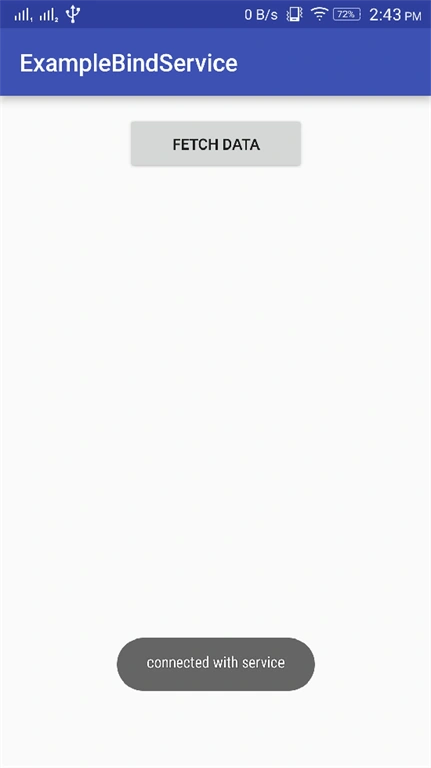
- Toast.makeText(MainActivity.this, "connected with service", Toast.LENGTH_LONG).show();
- // We've bound to LocalService, cast the IBinder and get LocalService instance
- LocalService.LocalBinder binder = (LocalService.LocalBinder) service;
- mService = binder.getService();
- mBound = true;
- }
- @Override
- public void onServiceDisconnected(ComponentName arg0) {
- mBound = false;
- }
- };
- private class MyReceiver extends BroadcastReceiver {
- @Override
- public void onReceive(Context arg0, Intent arg1) {
- // TODO Auto-generated method stub
- String datapassed = arg1.getStringExtra(LocalService.FETCHIG_DATA);
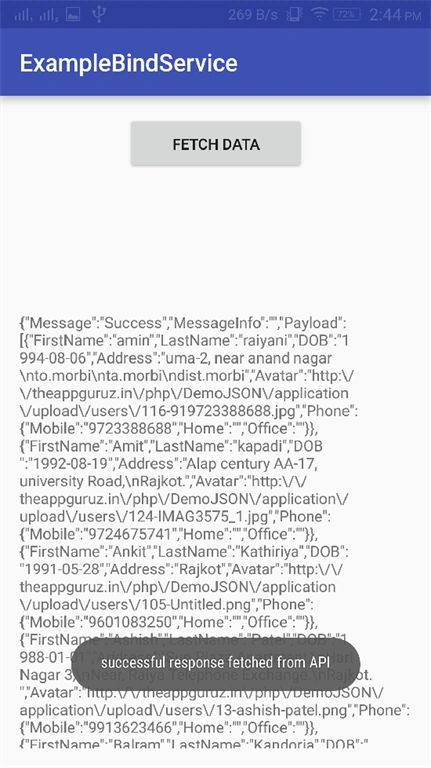
- Toast.makeText(MainActivity.this,"successful response fetched from API",Toast.LENGTH_LONG).show();
- fetchedText.setText(String.valueOf(datapassed));
- }
- }
- }
BroadCastReceiver is used to receive data and notifies MainActivity as well, after broadcasting from LocalService class, the fetched response from the API will be sent back from service to MainActivity and received in onReceive() method of BroadCastReceiver. Let's have a LocalService class code in which data fetching from API.
- package com.example.gkumar.examplebindservice;
- import android.app.Service;
- import android.content.Intent;
- import android.os.Binder;
- import android.os.IBinder;
- import android.util.Log;
- import com.android.volley.Request;
- import com.android.volley.Response;
- import com.android.volley.VolleyError;
- import com.android.volley.toolbox.StringRequest;
- /**
- * Created by gkumar on 4/11/2016.
- */
- public class LocalService extends Service {
- public final static String MY_ACTION = "MY_ACTION";
- public final static String FETCHIG_DATA = "fetchingapidata";
- private final IBinder mBinder = new LocalBinder();
- public class LocalBinder extends Binder {
- LocalService getService() {
- // Return this instance of LocalService so clients can call public methods
- return LocalService.this;
- }
- }
- @Override
- public IBinder onBind(Intent intent) {
- return mBinder;
- }
- /**
- * method for clients
- */
- public void getDataFromAPI() {
- String url = "http://theappguruz.in/php/DemoJSON/api/user/contacts";
- StringRequest sr = null;
- sr = new StringRequest(Request.Method.GET, url,
- new Response.Listener<String>() {
- @Override
- public void onResponse(String response) {
- if (response != null) {
- Intent intent = new Intent();
- intent.setAction(MY_ACTION);
- intent.putExtra(FETCHIG_DATA, response.toString());
- sendBroadcast(intent);
- }
- }
- }, new Response.ErrorListener() {
- @Override
- public void onErrorResponse(VolleyError error) {
- }
- });
- VolleySingleton.getInstance(this).getRequestQueue().add(sr);
- }
- }
This code will let you use the features of the volley library and add gradle dependencies of volley to your build.gradle as provided below this code.
- package com.example.gkumar.examplebindservice;
- import android.content.Context;
- import android.graphics.Bitmap;
- import android.support.v4.util.LruCache;
- import com.android.volley.RequestQueue;
- import com.android.volley.toolbox.ImageLoader;
- import com.android.volley.toolbox.Volley;
- public class VolleySingleton {
- private static VolleySingleton mInstance = null;
- private RequestQueue mRequestQueue;
- private ImageLoader mImageLoader;
- private VolleySingleton(Context context){
- mRequestQueue = Volley.newRequestQueue(context);
- mImageLoader = new ImageLoader(this.mRequestQueue, new ImageLoader.ImageCache() {
- private final LruCache<String, Bitmap> mCache = new LruCache<String, Bitmap>(10);
- public void putBitmap(String url, Bitmap bitmap) {
- mCache.put(url, bitmap);
- }
- public Bitmap getBitmap(String url) {
- return mCache.get(url);
- }
- });
- }
- public static VolleySingleton getInstance(Context context){
- if(mInstance == null){
- mInstance = new VolleySingleton(context);
- }
- return mInstance;
- }
- public RequestQueue getRequestQueue(){
- return this.mRequestQueue;
- }
- }
Build.gradle (app)
- apply plugin: 'com.android.application'
- android {
- compileSdkVersion 23
- buildToolsVersion "23.0.2"
- defaultConfig {
- applicationId "com.example.gkumar.examplebindservice"
- minSdkVersion 15
- targetSdkVersion 23
- versionCode 1
- versionName "1.0"
- }
- buildTypes {
- release {
- minifyEnabled false
- proguardFiles getDefaultProguardFile('proguard-android.txt'), 'proguard-rules.pro'
- }
- }
- }
- dependencies {
- compile fileTree(dir: 'libs', include: ['*.jar'])
- testCompile 'junit:junit:4.12'
- compile 'com.android.support:appcompat-v7:23.1.1'
- compile 'com.android.volley:volley:1.0.0'
- }
- <?xml version="1.0" encoding="utf-8"?>
- <manifest xmlns:android="http://schemas.android.com/apk/res/android"
- package="com.example.gkumar.examplebindservice">
- <uses-permission android:name="android.permission.INTERNET" />
- <application
- android:allowBackup="true"
- android:icon="@mipmap/ic_launcher"
- android:label="@string/app_name"
- android:supportsRtl="true"
- android:theme="@style/AppTheme">
- <activity android:name=".MainActivity"
- android:screenOrientation="portrait">
- <intent-filter>
- <action android:name="android.intent.action.MAIN" />
- <category android:name="android.intent.category.LAUNCHER" />
- </intent-filter>
- </activity>
- <service
- android:name="com.example.gkumar.examplebindservice.LocalService"
- android:enabled="true"
- android:exported="false" />
- </application>
- </manifest>
Summary
In this article, we have learned how to bind service with activity and send data back to activity from service. In the next article, we will see binding activity with service using messenger.
Read more articles on Android
Bhavik PatelPosted Apr 14, 2016, 9:33 PM
good share. please include Android in title so people can easily identify technology.
Kuppurasu NagarajPosted Apr 14, 2016, 9:23 AM
Nice Sharing..
Vignesh ManiPosted Apr 14, 2016, 8:17 AM
Nice
Rahul Kumar SaxenaPosted Apr 14, 2016, 6:24 AM
Good Show