

It feels great to be back with this, my 18th article on Angular with the recently updated Angular 7. With this article, let's try to explore the Angular 7 features and get hands on with the CRUD operations using Angular 7, .NET Core, and Entity Framework Core. Let us first set the agenda for this article.
Agenda
- Introduction to Angular 7
- New Features
- Angular CLI Changes
- Angular Material Changes
- Upgrading to Angular 7
- Adding New Project
- Front-end design and implementation using Angular 7
- Adding Components
- Adding Models and Config files
- Adding Bootstrap popups
- Adding Data service
- Back-end Web API Development using ASP.NET Core and Entity Framework Core
- Set up .NET Core project
- Setup Entity framework core
- Set up CORS to allow cross-origin resource sharing.
- Future expansion of this article
- Source code link
Angular 7
Finally, the wait for Angular 7 is over!! This version of the Angular has given us some exciting features. Primarily, the changes are in Angular Core, CLI, and then Angular Material. Let's explore it one by one.
Angular Core Changes
Some of the added features in the Angular Core are listed down here.
- Introduced new interface - UrlSegment [] to CanLoad interface
- New Interface DoBootStrap
- Added a new elements features - enable Shadow DOM v1 and slots
- Added a new router features - warn if navigation triggered outside Angular zone
- Added a new ability to recover from malformed URLs
- Added a new compiler support dot (.) in import statements and avoid a crash in ngc-wrapped
- Added a new "original" placeholder value on extracted XMB
- Updated dependencies to support TypeScript 3.1, RxJS 6.3 and Node 10.
Angular CLI Changes
CLI Prompts
Angular 7 CLI has some exciting feature like prompt as shown in the screen below. This lets you set up the Angular project with a couple of questions.
Angular Material and CDK
Angular Material and CDK have come out with new advanced features like virtual scrolling and Drag and Drop. Let’s explore them in brief
Virtual Scrolling
This allows us to use the noticeable aspect of the list to load and unload the DOM element in the page. That means if we have a large chunk of the data and we want to show it in the list, we can make use of this feature.
Drag and Drop
"Drag and Drop" gets the support from CDK and includes the features like automatic rendering as the user moves items and including the helper methods for the record or transfer of items in the lists.
Application performance
Everything revolves around the application and Google has invested plenty of things and introduced some features which will help us to boost the performance . The first one is the Bundle Budget which lets us set the application bundle size and gives some errors when the limit is exceeded. The default size for bundle budget is 2 MB which can be increased later.
The next thing is the removal of the Pollyfill.ts file which is used only during the development. Now, it gets removed from the production automatically.
Upgrading to Angular 7
Well, many of us have the project built on the older versions of Angular. In order to upgrade the old versions to the new one, the official website has provided the ways and the detailed explanation of how to do that. You can find it here.
If we are migrating from the Angular 6 to Angular 7, the following command will do the work for us.
ng update @angular/cli @angular/core
So far, we learned about Angular 7 features and upgrading. Now, let's have some real action and add the project.
Adding New Project
To add an Angular project, we have some prerequisites to proceed further with this article.
- Installing latest Node.js
This will install the NPM (Node package manager) and download all the dependencies or packages for our application. The latest version of the Node.js can be found here. - Getting Angular CLI
Once we are done with Node.js and NPM, the next step will be to download Angular CLI which will help us in setting up the things quickly. For installing CLI, we will need the following command.
npm install -g @angular/cli - Getting Visual Studio Code
This is the IDE that we will be using in this article and for installing this, you can find the latest version of this right here.
Creating a new project
Now, it's time to add a new project with Angular 7. For this, let’s follow the steps as below in the figure.
- Create the Directory where you want to save the project
- Use command ng New Angular7CRUDDemo
- Choose the proper option to add the Routing and CSS
Note
Depending on your machine and internet speed, it may take some time to download the package and project is ready.
Depending on your machine and internet speed, it may take some time to download the package and project is ready.
Once the project is ready, let's open it from the File menu and we can see the directory structure, like below.
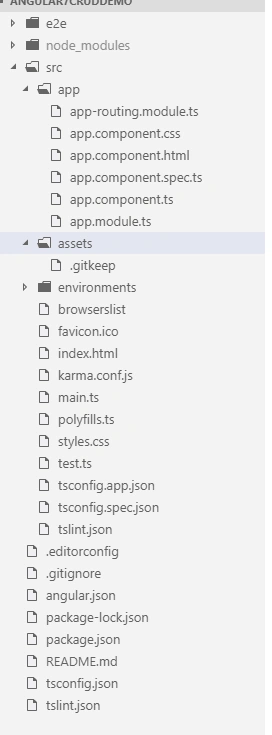
One change we can see from the old version is the addition of the app-routing file which is added from the CLI prompt options while setting up the project.
Now, the question is how can we check if our project is Angular 7 compatible. For that, we need to check the package.json file which has the structure as below.
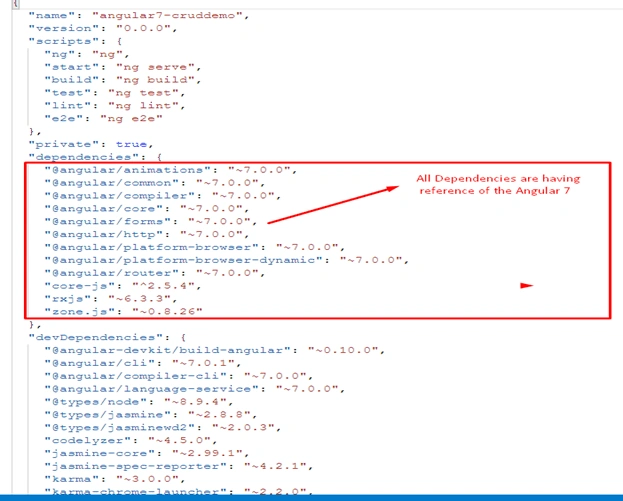
When we see the highlighted section, we can say that the current project is configured to use the latest version of Angular dependencies.
Now, it is time for actual coding. We have divided our coding part into 2 sections - the first one being the UI in Angular 7 and the second one is Web API part in .NET Core and Entity Framework Core. Let us first see the UI part and then, we will see the Web API part with .NET Core and Entity Framework core
Front-end design and implementation using Angular
As we all know the front-end or any Angular application is made up of the components, let’s see what will be the structure of the application. Before that, we should understand what we are going to achieve in this article.
Here, we are going to add the demo application which will be used to list, add, update, and delete the employees. For that, we will have the following directory structure.
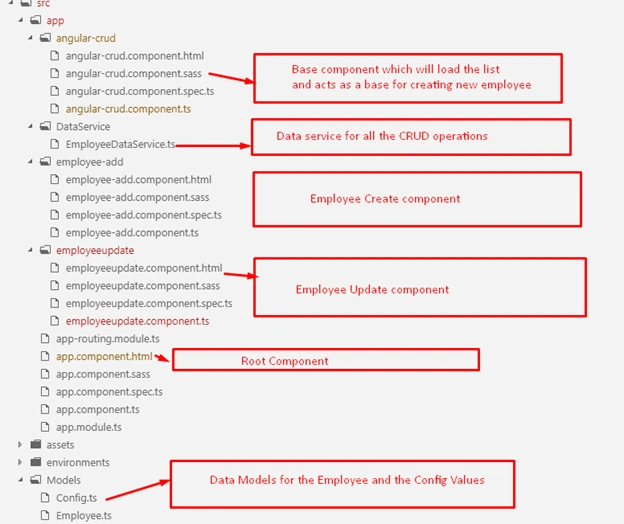
Above is the directory structure of the application where we have 7 components namely -
- Angular-crud.component.ts
This is the component which will list down all the employees and will hold other components. - employee-add.component.ts
This is the component to create the employee record. - app.component.ts
This is the app component where all the components will be loaded through <router-outlet></router-outlet>. - Employeeupdate.component.ts
This is responsible for handling the Edit operation of the Employee record. - DataService.ts
This will hold all the API calls with various verbs using the Httpclient in Angular 7. - Data Models
This folder holds the Employee data model which will be the base for all and the config.ts file which will hold the configuration related data. - App-routing.module.ts
This is the Router which will be added to the application while configuring the project.
Let’s explore these components one by one.
Code Description
employee-Add.component.ts
- import { Component, OnInit,Input, ViewChild, ElementRef, EventEmitter, Output } from '@angular/core';
- import { NgForm } from '@angular/forms';
- import { Employee } from 'src/Models/Employee';
- import { Router } from '@angular/router';
- import {EmployeeDataService} from '../DataService/EmployeeDataService'
- @Component({
- selector: 'app-employee-add',
- templateUrl: './employee-add.component.html',
- styleUrls: ['./employee-add.component.sass']
- })
- export class EmployeeAddComponent implements OnInit {
- @Input() cleardata: boolean = false;
- @Output() nameEvent = new EventEmitter<string>();
- objtempemp:Employee;
- @Input() objemp :Employee=new Employee();;
- @ViewChild('closeBtn') cb: ElementRef;
- constructor(private dataservice:EmployeeDataService,private route:Router) {
- }
- ngOnInit() {
- }
- Register(regForm:NgForm){
- this.objtempemp=new Employee();
- this.objtempemp.email=regForm.value.email;
- this.objtempemp.firstname=regForm.value.firstname;
- this.objtempemp.lastname=regForm.value.lastname;
- this.objtempemp.gender=regForm.value.gender;
- this.dataservice.AddEmployee(this.objtempemp).subscribe(res=>{
- alert("Employee Added successfully");
- this.TakeHome();
- }
- )
- }
- TakeHome(){
- this.nameEvent.emit("ccc");
- this.cb.nativeElement.click();
- this.route.navigateByUrl('');
- }
- }
Employee-add.component.html
- <div class="container" style="border:thin">
- <form #empadd='ngForm' (ngSubmit)="Register(empadd)" class="form-horizontal" style="width:50%" >
- <div class="form-group" >
- <label class="control-label col-sm-2" for="fname" >First Name:</label>
- <div class="col-sm-10">
- <input style="width:50%" type="text" class="form-control"
- width="50%" id="fname" placeholder="Enter first name"
- name="firstname" firstname required [(ngModel)]='objemp.firstname' #firstname="ngModel">
- <span class="help-bpx" *ngIf="firstname.touched && !firstname.valid ">Required</span>
- </div>
- </div>
- <div class="form-group" >
- <label class="control-label col-sm-2" for="email">Last Name:</label>
- <div class="col-sm-10">
- <input style="width:50%" required type="text" class="form-control" width="50%"
- id="lastname" placeholder="Enter Last Name" name="lastname" lastname required [(ngModel)]='objemp.lastname' #lastname="ngModel">
- <span class="help-bpx" *ngIf="lastname.touched && !lastname.valid ">Required</span>
- </div>
- </div>
- <div class="form-group" >
- <label class="control-label col-sm-2" for="Gender">Gender:</label>
- <div class="col-sm-10">
- <select name="gender" gender required [(ngModel)]='objemp.gender' #gender="ngModel">
- <option value="0" selected disabled>Please Select</option>
- <option value="1">Male</option>
- <option value="2">Female</option>
- <span class="help-bpx" *ngIf="gender.touched && !gender.valid ">required</span>
- </select>
- </div>
- </div>
- <div class="form-group" >
- <label class="control-label col-sm-2" for="email">Email:</label>
- <div class="col-sm-10">
- <input #email="ngModel" style="width:50%" type="email" [(ngModel)]='objemp.email' class="form-control" width="50%" id="email" placeholder="Enter email" name="email">
- <span class="help-bpx" *ngIf="email.touched && !email.valid ">**</span>
- </div>
- </div>
- <div class="form-group">
- <div class="col-sm-offset-2 col-sm-10">
- <button id="btnsubmit" type="submit" class="btn btn-primary">Submit</button>
- </div>
- </div>
- </form>
- </div>
- <button style="display:none" type="button" #closeBtn class="btn btn-default" data-dismiss="modal">Close</button>
Above is the code for the Employee Add Component and template for the same.
Code Description
- In this code, we have the import section which is needed for the app.
- In Constructor, we have injected the data service and the Router.
- We have a function Register(regForm:NgForm ). Here, we are using the template-driven approach for adding an employee. So, we have declared the form object of type NgForm.
- In this method, we are subscribing the Addemployee Data service. On the success, we are showing the alert and redirecting the route to the Home component.
- We have a TakeHome method that will emit the method to refresh the parent component and reload the data from there.
In Template, we have added the Form tag and named the form as #empadd here in this. On NgSubmit event of the form, we are calling the Register() which will submit the form along with its values. - For Validation purposes, we are using basic HTML validation.
- In the last line, we have added the code for the Close button which is dummy code and will be fired in the template when the Employee is added successfully.
This is about the Add Component. Let's see the Update component and its template which has the same structure and description as that of the Add Component.
employeeupdate.component.ts
- import { Component, OnInit, ViewChild, Input, EventEmitter, Output, ElementRef } from '@angular/core';
- import { EmployeeDataService } from '../DataService/EmployeeDataService';
- import { Router } from '@angular/router';
- import { NgForm } from '@angular/forms';
- import { Employee } from 'src/Models/Employee';
- @Component({
- selector: 'app-employeeupdate',
- templateUrl: './employeeupdate.component.html',
- styleUrls: ['./employeeupdate.component.sass']
- })
- export class EmployeeupdateComponent implements OnInit
- {
- constructor(private dataservice:EmployeeDataService,private route:Router) {
- }
- @Output() nameEvent = new EventEmitter<string>();
- @ViewChild('closeBtn') cb: ElementRef;
- ngOnInit() {
- }
- @Input() reset:boolean = false;
- @ViewChild('regForm') myForm: NgForm;
- @Input() isReset: boolean = false;
- objtempemp:Employee;
- @Input() objemp :Employee=new Employee();
- EditEmployee(regForm:NgForm)
- {
- this.dataservice.EditEmployee(this.objemp).subscribe(res=>
- {
- alert("Employee updated successfully");
- this.nameEvent.emit("ccc");
- this.cb.nativeElement.click();
- },
- };
- }
employeeupdate.component.html
- <div class="container" style="border:thin">
- <form #EditForm='ngForm' name="editform" (ngSubmit)="EditEmployee(EditForm)" class="form-horizontal" style="width:50%">
- <div class="form-group">
- <label class="control-label col-sm-2" for="fname">First Name:</label>
- <div class="col-sm-10">
- <input style="width:50%" type="text" class="form-control" width="50%" id="fname" placeholder="Enter first name"
- name="firstname" firstname required [(ngModel)]='objemp.firstname' #firstname="ngModel">
- <span class="help-bpx" *ngIf="firstname.touched && !firstname.valid ">Required</span>
- </div>
- </div>
- <div class="form-group">
- <label class="control-label col-sm-2" for="email">Last Name:</label>
- <div class="col-sm-10">
- <input style="width:50%" required type="text" class="form-control" width="50%" id="lastname" placeholder="Enter Last Name"
- name="lastname" lastname required [(ngModel)]='objemp.lastname' #lastname="ngModel">
- <span class="help-bpx" *ngIf="lastname.touched && !lastname.valid ">Required</span>
- </div>
- </div>
- <div class="form-group">
- <label class="control-label col-sm-2" for="Gender">Gender:</label>
- <div class="col-sm-10">
- <select name="gender" gender required [(ngModel)]='objemp.gender' #gender="ngModel">
- <option value="0" selected disabled>Please Select</option>
- <option value="1">Male</option>
- <option value="2">Female</option>
- <span class="help-bpx" *ngIf="gender.touched && !gender.valid ">required</span>
- </select>
- </div>
- </div>
- <div class="form-group">
- <label class="control-label col-sm-2" for="email">Email:</label>
- <div class="col-sm-10">
- <input #email="ngModel" style="width:50%" type="email" [(ngModel)]='objemp.email' class="form-control" width="50%"
- id="email" placeholder="Enter email" name="email">
- <span class="help-bpx" *ngIf="email.touched && !email.valid ">**</span>
- </div>
- </div>
- <div class="form-group">
- <div class="col-sm-offset-2 col-sm-10">
- <button type="submit" class="btn btn-primary">Submit</button>
- </div>
- </div>
- </form>
- </div>
- <button style="display:none" type="button" #closeBtn class="btn btn-default" data-dismiss="modal">Close</button>
Dhruv MauryaPosted Nov 11, 2019, 4:13 AM
Hi, I would like to You Upload sign in and sign up and small crud operation with Token based Authentication or best any type Authentication which is better for any application
Andriy ZapisotskyiPosted Nov 4, 2019, 11:42 AM
Thnaks for sharing, it's useful for me!
Dhruv MauryaPosted Apr 10, 2019, 1:21 AM
Please upload: Login and Signup with the external authentication like Facebook and Gmail and twitter article
Hamid KhanPosted Mar 20, 2019, 6:51 AM
Very good explanation.............Thanks
Saravanakumar SekaranPosted Feb 11, 2019, 11:05 AM
Very nice article !!!
Nithya MohanrajhPosted Dec 10, 2018, 8:55 AM
Keep up your good work of spreading knowledge.
Nithya MohanrajhPosted Dec 10, 2018, 8:55 AM
Very nice explanation of the new features of the Angular 7.Looking forward for the future articles on the Login &Setup and Admin tracking.
Srinivas KPosted Dec 4, 2018, 7:30 AM
Nice explanation. Thanks for sharing.
Vinay Kumar GuptaPosted Dec 2, 2018, 4:34 AM
Nice article please make the video on this that will help much to fresh learners.
Santhosh PatilPosted Nov 29, 2018, 9:52 PM
If you do video on this , very benefited coz event emitter , input , output keywords are confused
Hamid KhanPosted Nov 28, 2018, 10:38 PM
Very good explanation...……….Thanks for sharing
Khaja MoizuddinPosted Nov 28, 2018, 10:21 AM
Nice article mangesh Bhai....