

If you want to apply the drop shadow effect to your UI Element:
Create a System.Windows.Media.Effects.DropShadowBitmapEffect element, and assign
it to the BitmapEffect property of the element you want to have a shadow. Use
the Color property of the DropShadowBitmapEffect element to define the color of
the shadow and the ShadowDepth property to define the size of the shadow on the
target element.
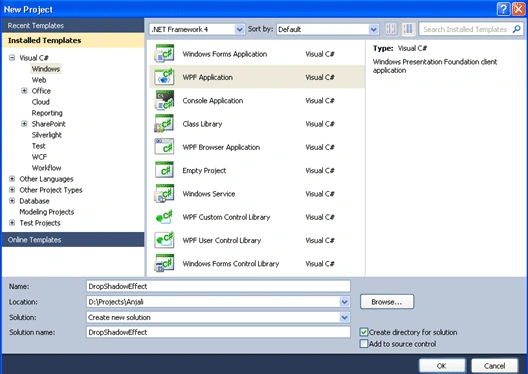
- Open a new project in Visual Studio 2010 and named it as "DropShadowEffects".
- Draw an Ellipse of height= width=150.
- Fill the ellipse with an Image:
<Ellipse.Fill>
<ImageBrush ImageSource="bithday5.bmp" />
</Ellipse.Fill>
- Now Write code as under to fill the Ellipse with an Image and to show the Shadow effect:
<Window x:Class="DropShadowEffect.MainWindow"
xmlns="http://schemas.microsoft.com/winfx/2006/xaml/presentation"| xmlns:x="http://schemas.microsoft.com/winfx/2006/xaml"
Title="MainWindow" Height="350" Width="525"><Ellipse Height="150" Width="150" Stroke="Black" StrokeThickness="1">
<Ellipse.BitmapEffect>
<DropShadowBitmapEffect Color="Black" Direction="-50"
ShadowDepth="40" Softness=".7" />
</Ellipse.BitmapEffect> <Ellipse.Fill>
<ImageBrush ImageSource="bithday5.bmp" />
</Ellipse.Fill>
</Ellipse>
</Window>
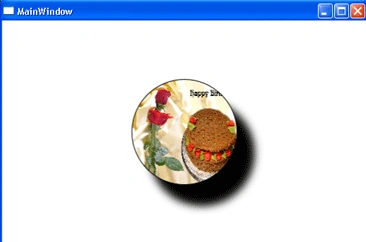
- So the Output would be :
Join the conversation! Your thoughts help the community grow.