

Here we discuss event handling in WPF. Here we manually organize an event via coding. Here we take an example in which, we take a Button control and we set the event of this Button Control via managed code. In this example, we take both of the technique of event handling (XAML or Managed Code). Now we discuss the example:
Step1: First we take a Grid in our WPF project.
<Grid>
<Grid.RowDefinitions>
<RowDefinition Height="50"></RowDefinition>
<RowDefinition Height="50"></RowDefinition>
<RowDefinition Height="50"></RowDefinition>
<RowDefinition Height="50"></RowDefinition>
</Grid.RowDefinitions>
<Grid.ColumnDefinitions>
<ColumnDefinition Width="100"></ColumnDefinition>
<ColumnDefinition Width="*"></ColumnDefinition>
</Grid.ColumnDefinitions>
</Grid>
Step 2: Now we take Two Button Controls (btnxamlevent and btnmanagedevent) and two TextBlocks (txtxamlevent and txtmanagedevent) in our program. When we click on the first Button Normal XAML event handler is Calling and in the second Button we set the event handler code via coding. The answer will be displayed in the TextBlocks according to the code. Now we add the following Code in the Grid:
<Button Margin="10,10,15,17" Name="btnxamlevent" Grid.Row="1">Button 1</Button>
<TextBlock Margin="13,12,45,17" Name="txtxamlevent" Grid.Column="1" Grid.Row="1" Text="Click Me(XAML Event)" />
<Button Margin="10,10,15,17" Name="btnmanagedevent" Grid.Row="2">Button 2</Button>
<TextBlock Margin="13,12,0,17" Name="txtmanagedevent" Grid.Column="1" Grid.Row="2" Text="Click Me(Managed Event)" HorizontalAlignment="Left" Width="140" />
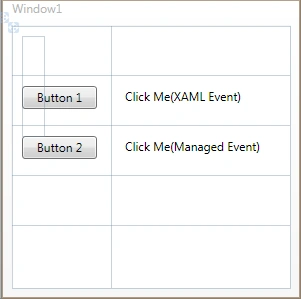
Step 3: Now we add the events in our Button Control. In the XAML event, we should declare it in a .xaml page and in the managed code event handler, which we want to declare we should call it on the .xaml.cs page.
<Button Margin="10,10,15,17" Name="btnxamlevent" Click="btnxamlevent_Click" Grid.Row="1">Button 1</Button>
<Button Margin="10,10,15,17" Name="btnmanagedevent" Grid.Row="2">Button 2</Button>
Step 4: Now we create an event Handler for Button2 (btnmanagedevent) . For this, we should write the following code in the .xaml.cs page after the IntializeComponent() method.
public partial class Window1 : Window
{
public Window1()
{
InitializeComponent();
this.btnmanagedevent.Click += new RoutedEventHandler(btnmanagedevent_Click);
}
}
Step 5: After this we write the following code:
void btnmanagedevent_Click(object sender, RoutedEventArgs e)
{
txtmanagedevent.Text = "My Name is Mahak Garg";
}
Now when we click on Button2, the TextBlock( txtmangedevent) will change the text: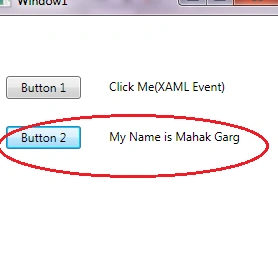
Step 6: Now we write the code for the XAML Event handler; when we double-click on Button1, the event handler will be automatically generated in the .cs page and then we write the following code in it.
private void btnxamlevent_Click(object sender, RoutedEventArgs e)
{
txtxamlevent.Text = "My name is Mahak Garg";
}
The Output will be: 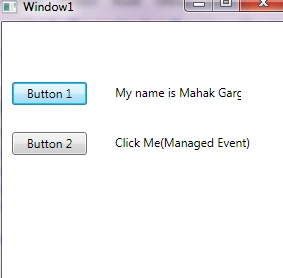
Complete Program:
public Window1()
{
InitializeComponent();
this.btnmanagedevent.Click += new RoutedEventHandler(btnmanagedevent_Click);
}
void btnmanagedevent_Click(object sender, RoutedEventArgs e)
{
txtmanagedevent.Text = "My Name is Mahak Garg";
}
private void btnxamlevent_Click(object sender, RoutedEventArgs e)
{
txtxamlevent.Text = "My name is Mahak Garg";
}
Vivek MalikPosted Oct 25, 2017, 12:46 PM
M facing error "Cannot Assign because it's in a method group" on this this.btnmanagedevent_Click += new RoutedEventHandler(btnmanagedevent_Click);
Nitish SPosted May 16, 2014, 8:09 AM
Gr8 answer....... No one is referring for the number of ways of handling, they are asking for the what are all the different ways to handle the same. If you, @Arun Sharma, are not capable of doing this why the hell are you giving false replies. That too after one long year!!!!!!! Gr8 work Arun Sharma
Arun SharmaPosted May 30, 2013, 8:04 AM
we have 3 different ways to handle event.
Vineet Kumar SainieditedPosted Apr 10, 2012, 6:18 PMEdited Apr 10, 2012, 7:14 PM
Using this post one can easily understand event handling in WPF. How many ways we can handle events in WPF ?