

Introduction
In this article I have explained input validation using the Char.IsLetter( ) method and the Char.IsNumber( ) method.
Char.IsLetter( )
The Char.IsLetter() function allows us to determine if a character is a Unicode letter. If the specified character is a letter then the function Char.IsLetter returns true else returns false.
Syntax :
if (Char.IsLetter(Convert.ToChar(nametxtbox.Text.Chars(0)))) then
Char.IsNumber( )
The Char.IsNumber( ) function determines that a char is a numeric Unicode. IsNumber() is an overloaded function of the Character class. The Character class wraps a value of the primitive type, char, in an object. An object of type Character contains a single field whose type is char. If the specified character is a number then the function Char.IsNumber() returns true else returns false. It can evaluate the type double number and is not restricted to the single character.
Syntax:
if (Char.IsNumber(Convert.ToChar(nametxtbox.Text.Chars(0)))) then
Now I want to show you how to use Char.IsLetter() and Char.IsNumber() functions in a Windows Forms appliation. Let's use the following procedure.
Step 1:
Open Visual Studio then select "Create New Project" --> "F# Console Application".
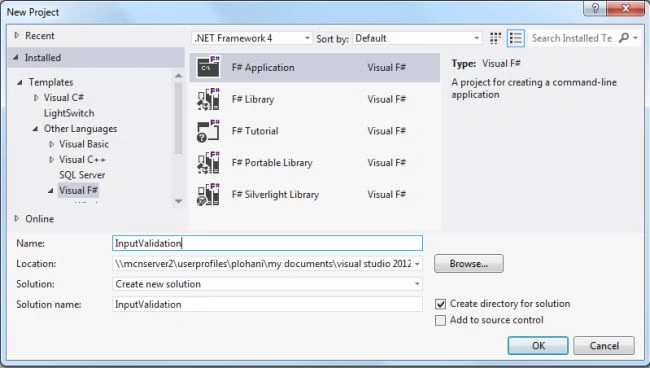
Step 2:
Now go to the Solution Explorer on the right side of the application. Right-click "References" then select "Add references".
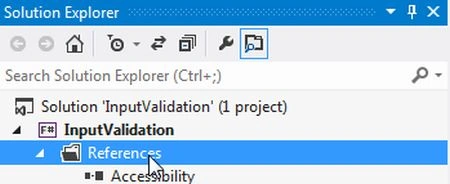
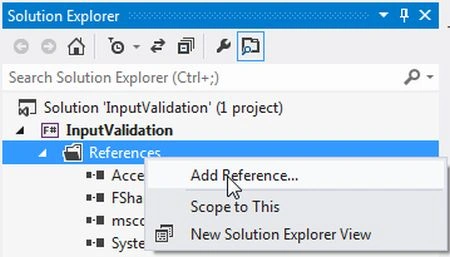
Step 3:
After selecting "Add References", in the framework template you need to select "System.Windows.Forms" and "System.Drawing" while holding down the Ctrl key and Click on "Ok."
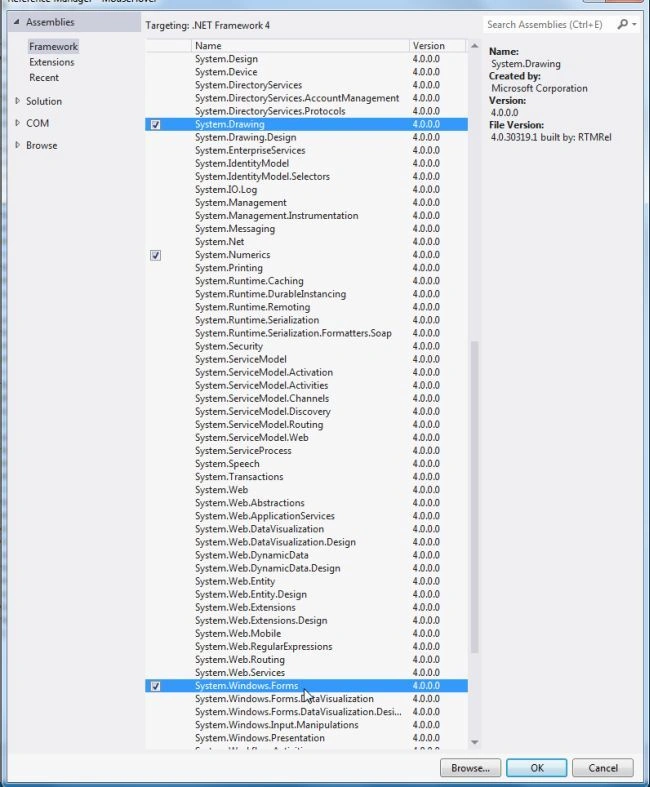
Step 4:
Write the following code in the F# editor:
open System
open System.Windows.Forms
open System.ComponentModel
open System.Drawing
let valform = new Form(Text="Input Validation")
let lblname=new Label(Top=20,Left=20)
let nametxtbox=new TextBox(Top=20,Left=120,Width=120)
let okbutton=new Button(Top=70,Left=80)
let exitbutton=new Button(Top=70,Left=170)
lblname.Text<-"Enter a name :"
exitbutton.Text<-"Exit"
okbutton.Text<-"Ok"
valform.Controls.Add(exitbutton)
valform.Controls.Add(okbutton)
valform.Controls.Add(lblname)
valform.Controls.Add(nametxtbox)
okbutton.Click.Add(fun ok->
if (Char.IsLetter(Convert.ToChar(nametxtbox.Text.Chars(0)))) then
MessageBox.Show(nametxtbox.Text+" "+"is valid name", "Letter Validation",MessageBoxButtons.OKCancel, MessageBoxIcon.Information)|>ignore
if (Char.IsNumber(Convert.ToChar(nametxtbox.Text.Chars(0)))) then
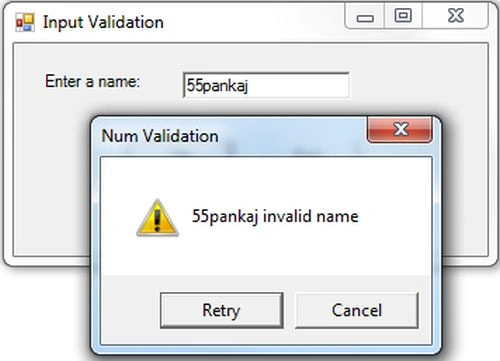
MessageBox.Show(nametxtbox.Text+" "+ "invalid name", "Num Validation",MessageBoxButtons.RetryCancel, MessageBoxIcon.Warning)|>ignore)
exitbutton.Click.Add(fun exit->valform.Close())
Application.Run(valform)
Step 5:
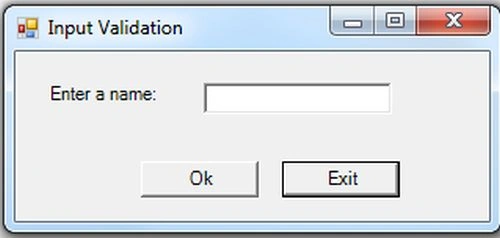
Debug the application by pressing F5 to execute the Windows Forms application. After debugging the application, you will get a Windows Forms application as in the following figure.
Step 6:
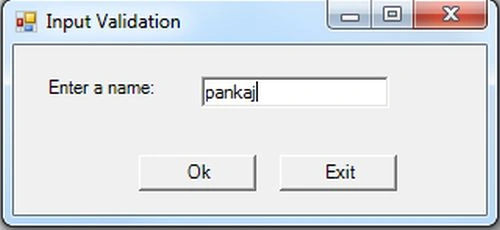
Enter a name starting with any letter.
Step 7:
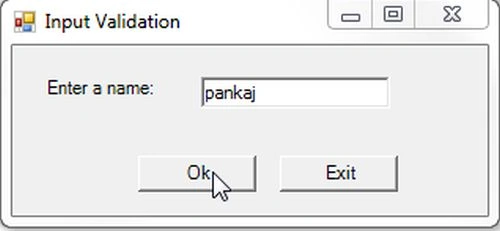
Press the "Ok" button to determine if the name is valid or invalid.
Step 8:
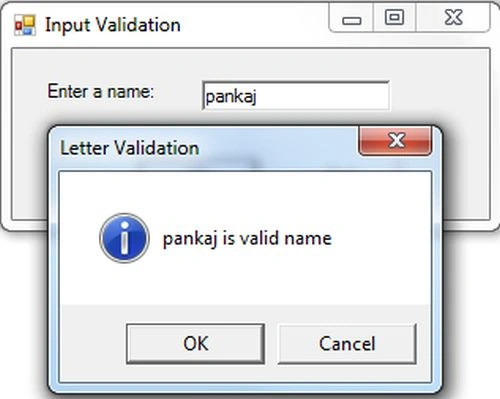
The name you entered is valid because the name starts with the letter.
Step 9:
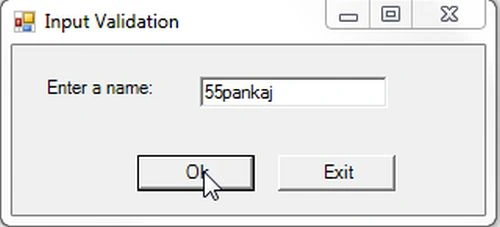
Enter a name starting with a numeric.
Step 10:
Now just click on the "Ok" button to validate the TextBox.
Summary
In this article we explained the Char.Isletter() and Char.IsNumber() and validate the textboxes using these two functions in Windows Forms application.
Join the conversation! Your thoughts help the community grow.