

Introduction
In this article I will create an Empty View application. Here I will implement a text field using code.
To understand it we use the following..
Step 1
Open XCode by double-clicking on it.
Step 2
Create a New XCode Project by clicking on it.
Step 3
Now select Empty View Application and click on Next.
Step 4
Now provide your Product Name and Company Identifier.
Step 5
Select the location where you want to save your project and click on Create.
Step 6
Now here we write the code.
AppDelegate.h
#import <UIKit/UIKit.h>
@interface testviewAppDelegate : UIResponder <UIApplicationDelegate,UITextFieldDelegate>
@property (strong, nonatomic) UIWindow *window;
@property (nonatomic, retain, readonly) UITextField *textFieldNormal;
@end
AppDelegate.m
#import "AppDelegate.h"
#define kTextFieldWidth 260.0
#define kLeftMargin 20.0
#define kTextFieldHeight 30.0
const NSInteger kViewTag = 1;
@implementation AppDelegate
@synthesize textFieldNormal;
- (void)dealloc
{
[_window release];
[super dealloc];
}
- (BOOL)textFieldShouldReturn:(UITextField *)textField
{
// the user pressed the "Done" button, so dismiss the keyboard
[textField resignFirstResponder];
return YES;
}
- (BOOL)application:(UIApplication *)application didFinishLaunchingWithOptions:(NSDictionary *)launchOptions
{
self.window = [[[UIWindow alloc] initWithFrame:[[UIScreen mainScreen] bounds]] autorelease];
// Override point for customization after application launch.
self.window.backgroundColor = [UIColor whiteColor];
CGRect frame = CGRectMake(kLeftMargin, 40.0, kTextFieldWidth, kTextFieldHeight);
textFieldNormal = [[UITextField alloc] initWithFrame:frame];
textFieldNormal.borderStyle = UITextBorderStyleBezel;
textFieldNormal.textColor = [UIColor blackColor];
textFieldNormal.font = [UIFont systemFontOfSize:17.0];
textFieldNormal.placeholder = @"<enter text>";
textFieldNormal.backgroundColor = [UIColor whiteColor];
textFieldNormal.autocorrectionType = UITextAutocorrectionTypeNo; // no auto correction support
textFieldNormal.keyboardType = UIKeyboardTypeDefault; // use the default type input method (entire keyboard)
textFieldNormal.returnKeyType = UIReturnKeyDone;
textFieldNormal.clearButtonMode = UITextFieldViewModeWhileEditing; // has a clear 'x' button to the right
textFieldNormal.tag = kViewTag; // tag this control so we can remove it later for recycled cells
textFieldNormal.delegate = self; // let us be the delegate so we know when the keyboard's "Done" button is pressed
// Add an accessibility label that describes what the text field is for.
[textFieldNormal setAccessibilityLabel:NSLocalizedString(@"NormalTextField", @"")];
[self.window addSubview:textFieldNormal];
[self.window makeKeyAndVisible];
return YES;
}
@end
Step 7
Finally we click on the Run button to show the output.
Step 8
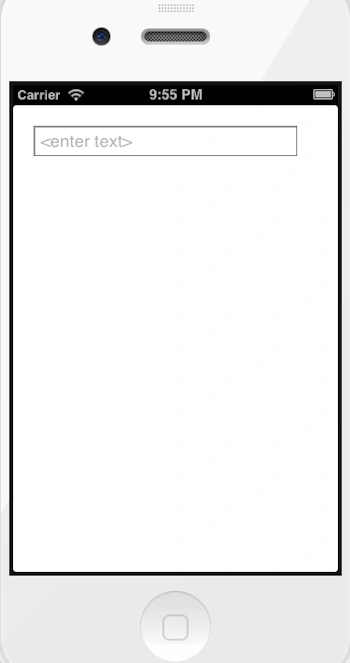
Output1 in iPhone:
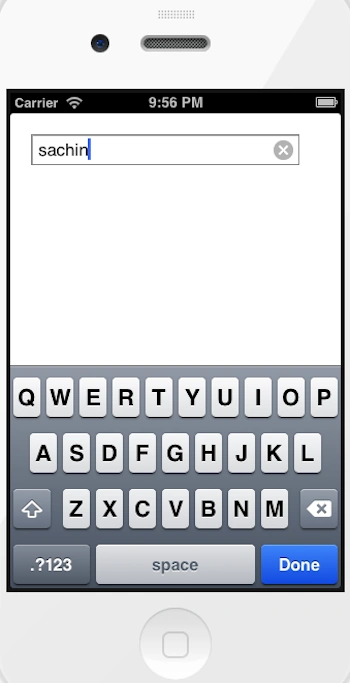
Output2 in iPhone:
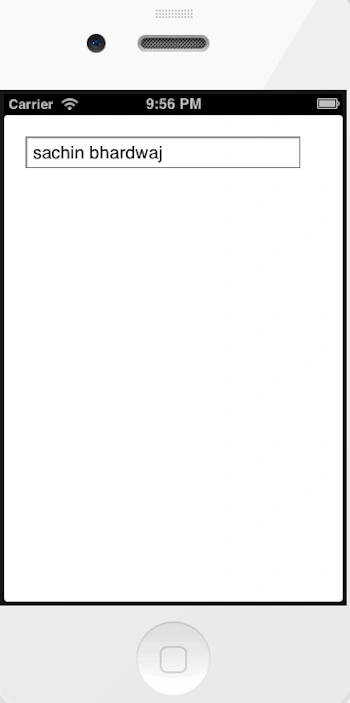
Output3 in iPhone:
Join the conversation! Your thoughts help the community grow.