

I will explain here how to generate a runtime PDF in landscape page mode using Visual Studio Ultimate 2015 Preview.
Briefly, I will generate the runtime PDF using ITextSharp.
Note: I will use the "iTextSharp.dll" as a PDF generator library. You can download it from: Sourceforge and NuGet.
You can find it in the attached file in the "bin" folder of this article but the best way to add the ItextSharp is described in Step B.
Step A: Create a new website named "Website1".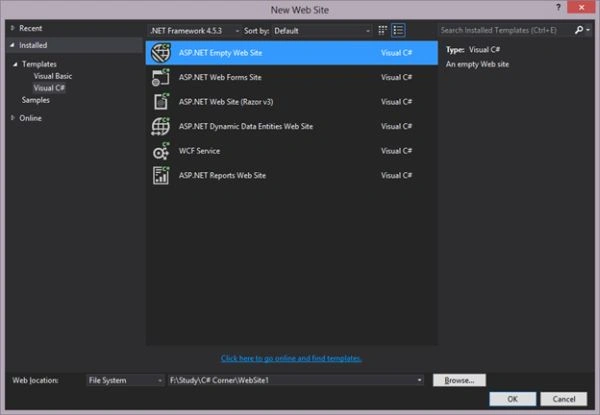
Step B: Add the ItextSharp library from the NuGet package using the following sub-steps:
- Click on Tools
- NuGet Package Manager
- Manage NuGet Packages for Solution
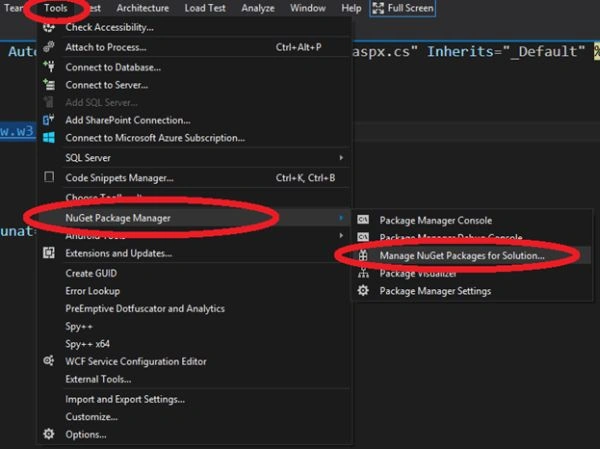
Then a popup windows will open like: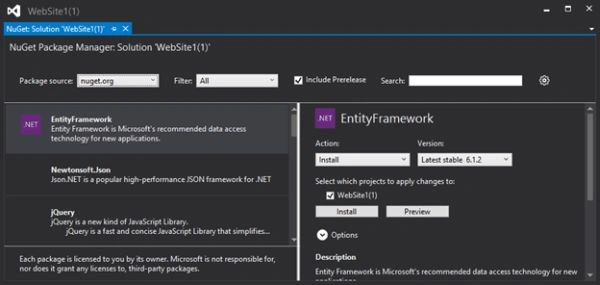
Type "ItextSharp" into the Search TextBox. Then you will get the "ItextSharp" library in the left pane. To add it to the website just click on the Install button of the right pane.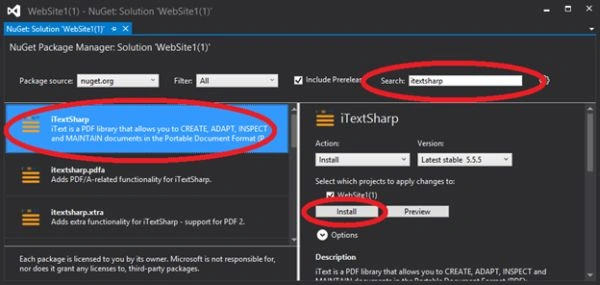
After the installation, you see the "Right" sign in left pane that indicates that library has been installed.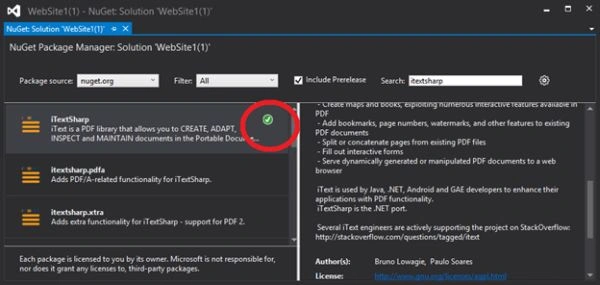
You can also check it from the Solution Explorer.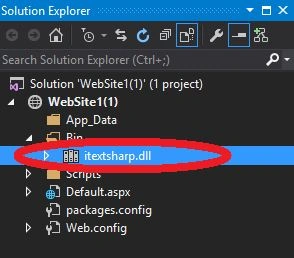
Step C
- Add a button to default page named "Default.aspx" and change the text to "Generate PDF".
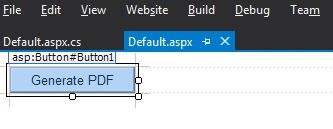
- Double-click on the button to generate an Onclick event (to generate the PDF) on the Form.
- Add the following 2 namespaces to the top of the ".cs" file:
- using iTextSharp.text;
- using iTextSharp.text.pdf;
- using System.IO;
- Write the code to generate the PDF file on the click event of the button:
Here "PageSize.A4.Rotate()" is used for the landscape page.- protected void Button1_Click(object sender, EventArgs e)
- {
- try
- {
- Document pdfDoc = new Document(PageSize.A4.Rotate(), 0, 0, 5, 0);
- PdfWriter pdfWriter = PdfWriter.GetInstance(pdfDoc, HttpContext.Current.Response.OutputStream);
- pdfDoc.Open();
- pdfDoc.Add(new Paragraph("This is Landscape Page"));
- pdfWriter.CloseStream = false;
- pdfDoc.Close();
- Response.Buffer = true;
- Response.ContentType = "application/pdf";
- Response.AddHeader("content-disposition", "attachment;filename=Test.pdf");
- Response.Cache.SetCacheability(HttpCacheability.NoCache);
- }
- catch (Exception ex)
- {
- }
- }
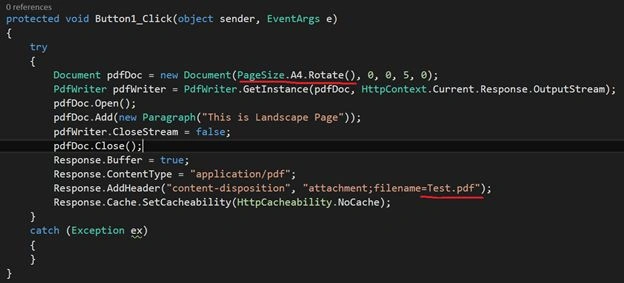
Note:
You can provide any name for the generated file and any text that you want to print in the PDF file. For example here I provided "test.pdf".
Step D
- Run the page that will be like:
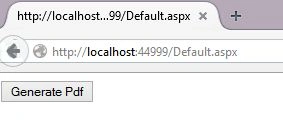
- Click on the "Generate PDF" button and open it.
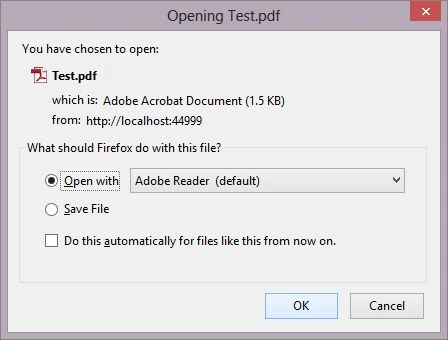
Result: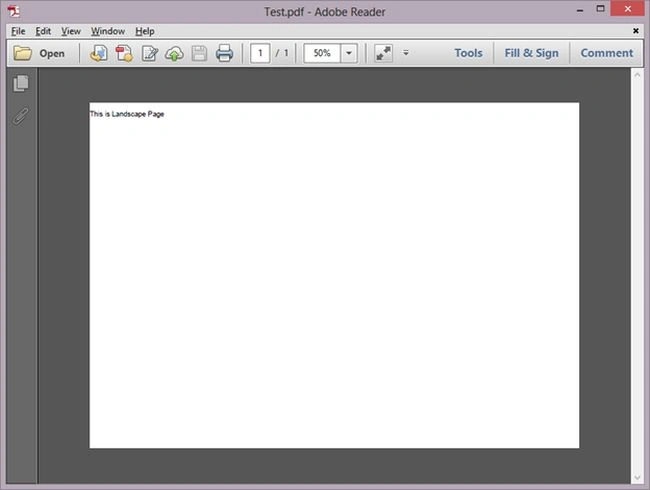
Saineshwar BageriPosted Feb 28, 2015, 11:56 AM
nice one sir
Sibeesh VenuPosted Feb 28, 2015, 10:13 AM
You welcome... :)
Sibeesh VenuPosted Feb 28, 2015, 5:31 AM
Good one....
Rahul Kumar SaxenaPosted Feb 27, 2015, 6:42 AM
Good Work...