

Introduction
In QlikView, a generic database is a table in which the field names are stored as field values in a column, whereas field values are stored in the second column. A generic database can be used for attributes of various objects.
Structure of generic database
Example
In this example, a generic database containing two objects and attributes, like color height, weight and diameter, are common depending on objects and their values.
When we solve this problem with a QlikView generic database, the data is stored in a compact way. When working with this table using a QlikView generic database QlikView creates some internal tables automatically. When we load this table in a QlikView edit script we get multiple list boxes in sheet properties after reloading this process. QlikView generates one field for each unique value of the second column.
Syntax of generic database
Generic ( load statement | Select statement )
For a generic database, we use either a load statement or select statement, it depends on your choice.
Example
For data files: use load statement as in the following:
Generic load * from abc.xls ;
For database table: use load statement as in the following:
Generic select * from table name ;
So let's start with the creation of a generic database.
Step 1: Open the QlikView application
In the first step you need to open the QlikView application then go to File-> New then this window will be opened.
Step 2: Open Edit Script
The second step is to open the edit script window from File-> Edit Script.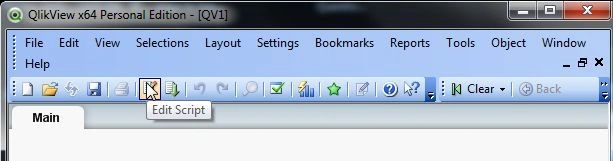
- Then this window will be opened.

Step 3: Select Database
The third step is to select the database from the data tab and click on the Connect Button.
Step 4: Data link property window
In this window we select SQL Server and click on the Next Button.
Step 5: Connection tab
In the connection tab enter the server name and user name and password and select the database from your server and click on Test Connection.


Join the conversation! Your thoughts help the community grow.