

Introduction
In this article we will create a Contact List with edit, delete and add event features in backbone.js. Here will create the four events "button.edit" , "button.Save", "button.cancle" in the contact View.
"click button.delete": "deletePerson",
"click button.edit": "editPerson",
"change select.type": "addType",
"click button.save": "saveEdits",
"click button.cancel": "cancelEdit"
Use the following procedure to create the application.
Step 1
- Start Visual Studio 2013.
- From the Start window select "New project".
- Select "Installed" -> "Template" -> "Visual C#" -> "Web" -> "Visual Studio 2012"and select "ASP.NET Web Application".
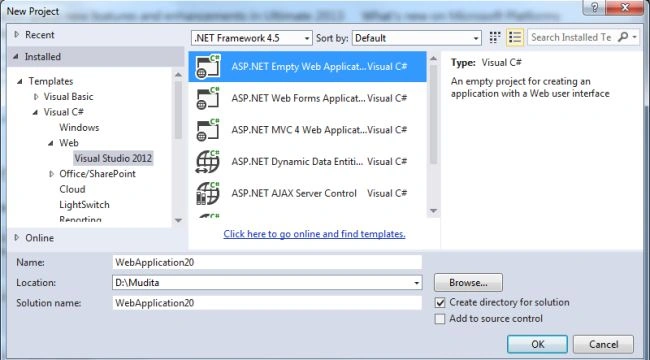
- Click on the "OK" button.
Step 2
Now add an HTML page to the project.
- In the Solution Explorer.
- Right-click on the project and select "Add" -> "HTML page".
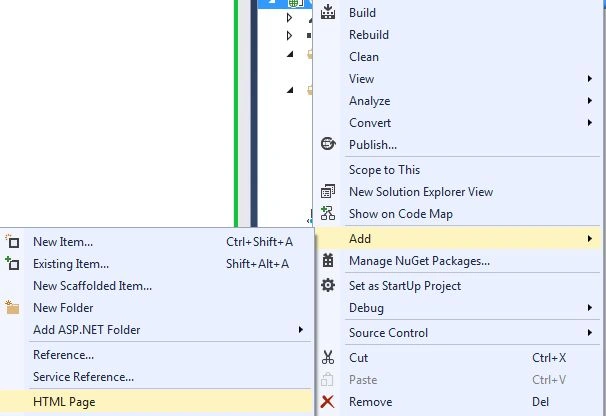
- Change the name of the page.
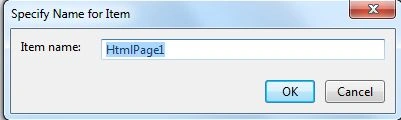
- Click on the "OK" button.
Add the following code:
<!DOCTYPE html>
<html lang="en">
<head>
<meta charset="UTF-8" />
<title>Backbone.js Web App</title>
<link href="style.css" rel="stylesheet" />
</head>
<body>
<div id="persons">
<header>
<div id="filter"><label>Show me:</label></div>
<a id="showForm" href="#">Add new Person</a>
<form id="addPerson" action="#">
<label for="name">Name:</label><input id="name" /><br />
<label for="type">Type:</label><input id="type" /><br />
<label for="address">Address:</label><input id="address" /><br />
<label for="contact">Contact:</label><input id="contact" /><br />
<label for="email">Email_Id:</label><input id="email" /><br />
<button id="add">Add</button>
</form>
</header>
</div>
<script id="personTemplate" type="text/template">
<img src="<%= photo %>" />
<h1><%= name %><span><%= type %></span></h1>
<div><%= address %></div>
<dl>
<dt>Contact:</dt>
<dd><%= contact %></dd>
<dt>Email:</dt>
<dd><a href="mailto:<%= email %>"><%= email %></a></dd>
</dl>
<button class="delete">Delete</button>
<button class="edit">Edit</button>
</script>
<script id="personEditTemplate" type="text/template">
<form action="#">
<input class="name" value="<%= name %>" />
<input id="type" type="hidden" value="<%= type %>" />
<input class="address" value="<%= address %>" />
<input class="contact" value="<%= contact %>" />
<input class="email" value="<%= email %>" />
<button class="save">Save</button>
<button class="cancel">Cancel</button>
</form>
</script>
Now we need to add these scripts file.
<script src="js/jquery-1.7.1.min.js"></script>
<script src="js/json2.js"></script>
<script src="js/underscore-min.js"></script>
<script src="js/backbone-min.js"></script>
<script src="js/main.js"></script>
</body>
</html>
Step 3
Now we add a JavaScript file as in the following:
- In the Solution Explorer.
- Right-click on the project then select "Add" -> "New Item" -> "JavaScript".
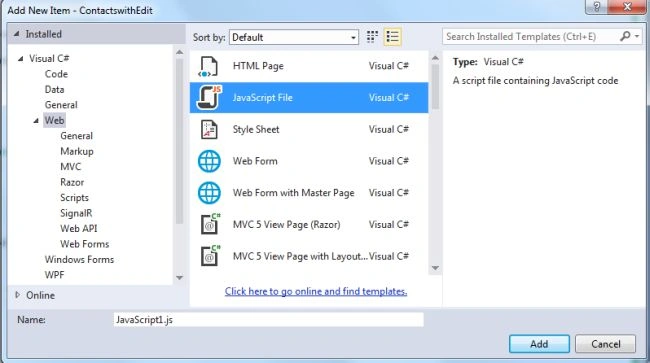
- Click on the "Add" button.
Add the following code:
(function ($) {
//demo data
var persons = [
{ name: "Person 1", address: "Address 1", contact: "0123456789", email: "[email protected]", type: "family" },
{ name: "Person 2", address: "Address 2", contact: "4536782947", email: "[email protected]", type: "family" },
{ name: "Person 3", address: "Address 3", contact: "5647839244", email: "[email protected]", type: "Friend" },
{ name: "Person 4", address: "Address 4", contact: "43890128743", email: "[email protected]", type: "Relative" },
{ name: "Person 5", address: "Address 5", contact: "3456789012", email: "[email protected]", type: "Relative" },
];
//define model
var Person = Backbone.Model.extend({
defaults: {
photo: '/img/winter.jpg',
name: "",
address: "",
contact: "",
email: "",
type: ""
}
});
//define directory collection
var Directory = Backbone.Collection.extend({
model: Person
});
//define person view
var PersonView = Backbone.View.extend({
tagName: "article",
className: "person-container",
template: _.template($("#personTemplate").html()),
editTemplate: _.template($("#personEditTemplate").html()),
render: function () {
this.$el.html(this.template(this.model.toJSON()));
return this;
},
events: {
"click button.delete": "deletePerson",
"click button.edit": "editPerson",
"change select.type": "addType",
"click button.save": "saveEdits",
"click button.cancel": "cancelEdit"
},
//delete a contact
deletePerson: function () {
var removedType = this.model.get("type").toLowerCase();
//remove model
this.model.destroy();
//remove view from page
this.remove();
//re-render select if no more of deleted type
if (_.indexOf(directory.getTypes(), removedType) === -1) {
directory.$el.find("#filter select").children("[value='" + removedType + "']").remove();
}
},
//switch person edit mode
editPerson: function () {
this.$el.html(this.editTemplate(this.model.toJSON()));
//add select to set type
var newOpt = $("<option/>", {
html: "<em>Add new...</em>",
value: "addType"
});
this.select = directory.createSelect().addClass("type").val(this.$el.find("#type").val()).append(newOpt).insertAfter(this.$el.find(".name"));
this.$el.find("input[type='hidden']").remove();
},
addType: function () {
if (this.select.val() === "addType") {
this.select.remove();
$("<input />", {
"class": "type"
}).insertAfter(this.$el.find(".name")).focus();
}
},
saveEdits: function (e) {
e.preventDefault();
var formData = {},
prev = this.model.previousAttributes();
//get form data
$(e.target).closest("form").find(":input").not("button").each(function () {
var el = $(this);
formData[el.attr("class")] = el.val();
});
//use default photo if none supplied
if (formData.photo === "") {
delete formData.photo;
}
//update model
this.model.set(formData);
//render view
this.render();
//if model acquired default photo property, remove it
if (prev.photo === "/img/placeholder.png") {
delete prev.photo;
}
//update persons
_.each(persons, function (person) {
if (_.isEqual(person, prev)) {
persons.splice(_.indexOf(persons, person), 1, formData);
}
});
},
cancelEdit: function () {
this.render();
}
});
//define master view
var DirectoryView = Backbone.View.extend({
el: $("#persons"),
initialize: function () {
this.collection = new Directory(persons);
this.render();
this.$el.find("#filter").append(this.createSelect());
this.on("change:filterType", this.filterByType, this);
this.collection.on("reset", this.render, this);
this.collection.on("add", this.renderPerson, this);
this.collection.on("remove", this.removePerson, this);
},
render: function () {
this.$el.find("article").remove();
_.each(this.collection.models, function (item) {
this.renderPerson(item);
}, this);
},
renderPerson: function (item) {
var personView = new PersonView({
model: item
});
this.$el.append(personView.render().el);
},
getTypes: function () {
return _.uniq(this.collection.pluck("type"), false, function (type) {
return type.toLowerCase();
});
},
createSelect: function () {
var filter = this.$el.find("#filter"),
select = $("<select/>", {
html: "<option value='all'>All</option>"
});
_.each(this.getTypes(), function (item) {
var option = $("<option/>", {
value: item.toLowerCase(),
text: item.toLowerCase()
}).appendTo(select);
});
return select;
},
//add ui events
events: {
"change #filter select": "setFilter",
"click #add": "addPerson",
"click #showForm": "showForm"
},
//Set filter property and fire change event
setFilter: function (e) {
this.filterType = e.currentTarget.value;
this.trigger("change:filterType");
},
//filter the view
filterByType: function () {
if (this.filterType === "all") {
this.collection.reset(persons);
personsRouter.navigate("filter/all");
} else {
this.collection.reset(persons, { silent: true });
var filterType = this.filterType,
filtered = _.filter(this.collection.models, function (item) {
return item.get("type").toLowerCase() === filterType;
});
this.collection.reset(filtered);
personsRouter.navigate("filter/" + filterType);
}
},
//add a new person
addPerson: function (e) {
e.preventDefault();
var formData = {};
$("#addPerson").children("input").each(function (i, el) {
if ($(el).val() !== "") {
formData[el.id] = $(el).val();
}
});
//update data store
persons.push(formData);
//re-render select if new type is unknown
if (_.indexOf(this.getTypes(), formData.type) === -1) {
this.collection.add(new Person(formData));
this.$el.find("#filter").find("select").remove().end().append(this.createSelect());
} else {
this.collection.add(new Person(formData));
}
},
removePerson: function (removedModel) {
var removed = removedModel.attributes;
//if model acquired default photo property, remove it
if (removed.photo === "/img/placeholder.png") {
delete removed.photo;
}
//remove from contacts array
_.each(persons, function (person) {
if (_.isEqual(person, removed)) {
persons.splice(_.indexOf(persons, person), 1);
}
});
},
showForm: function () {
this.$el.find("#addPerson").slideToggle();
}
});
//add routing
var PersonsRouter = Backbone.Router.extend({
routes: {
"filter/:type": "urlFilter"
},
urlFilter: function (type) {
directory.filterType = type;
directory.trigger("change:filterType");
}
});
//create instance of master view
var directory = new DirectoryView();
//create router instance
var personsRouter = new PersonsRouter();
//start history service
Backbone.history.start();
}(jQuery));
Step 4
Now we add a Style Sheet:
- In the Solution Explorer.
- Right-click on the project then select "Add" -> "New Item" -> "Style Sheet".
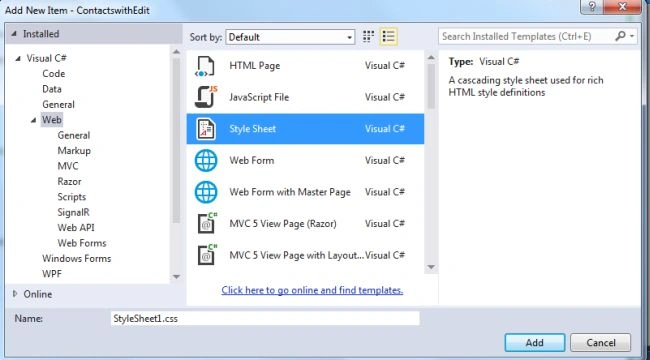
- Click on the "Add" button.
Add the following code:
#persons {width:1300px; margin:auto; }
.person-container { width:400px; padding:10px; border:1px solid #aaa; margin:0 10px 10px 0; position:relative; float:left; font-family:sans-serif; color:#333; background-color:#eee; }
.person-container h1 { margin:0; font-weight:normal; }
.person-container h1 span { float:right; font-size:14px; line-height:24px; font-weight:normal; }
.person-container img { border-width:1px; border-style:solid; border-color:#fff; border-right-color:#aaa; border-bottom-color:#aaa; margin-right:10px; float:left; height:50px ;width:50px;}
.person-container div { margin-bottom:24px; font-size:14px; }
.person-container a { color:#333;}
.person-container dl { margin:0; float:left; font-size:14px; }
.person-container dt, .person-container dd { margin:0; float:left; }
.person-container dt { width:50px; clear:left; }
.person-container button { margin-top:10px; float:right; }
header { margin-bottom:10px; }
header:after { content:""; display:block; height:0; visibility:hidden; clear:both; font-size:0; line-height:0; }
#filter { float:left; }
#showForm { float:right; }
#addPerson { display:none; width:466px; float:right; clear:both; font-family:sans-serif; font-size:14px; }
#addPerson label { width:60px; margin-right:10px; text-align:right; line-height:25px; }
#addPerson label, #addPerson input { display:block; margin-bottom:10px; float:left; }
#address { width:380px; margin-left:2px; }
#addPerson label[for="name"], #addPerson label[for="address"], #addPerson label[for="contact"] { clear:both; }
#addPerson button { display:block; margin:10px 10px 0 0; float:right; clear:both; }
.person-container input, .person-container select { display:block; margin:0; float:left; }
.person-container .name, .person-container .address { clear:left; }
.person-container input { margin:0 10px 3px 0; }
.person-container .address { width:395px; margin-right:0; }
.person-container .contact { width:90px; }
.person-container form button { margin:5px 0 0; }
Step 5
Now execute the application.
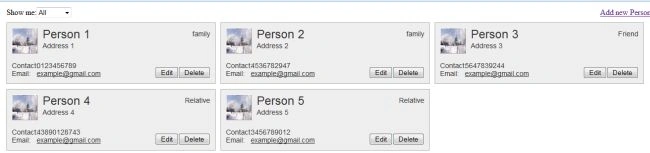
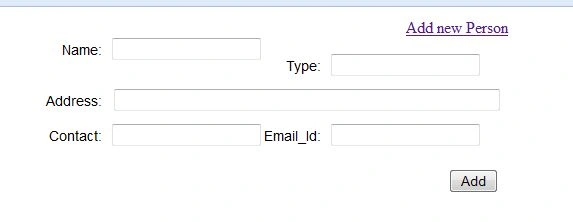
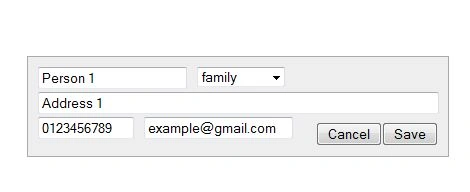
We can see the output like this. There is a display of the record for the person with edit and save buttons and an Add new Data link is displayed.
amal amalPosted Aug 6, 2020, 12:24 AM
Y it doesn't have search box
Abhishek JaiswalPosted Feb 9, 2014, 8:48 AM
gud one ...!