

Initial chamber
Step 1: Open Visual Studio 2010 and create an empty Website. Give a suitable name [gridview_demo].
Step 2: In Solution Explorer you will get your empty website, Add a web form, SQL Database. Here are the steps:
For Web Form:
gridview_demo (Your Empty Website) - Right Click, Add New Item, Web Form. Name it gridview_demo.aspx.
For SQL Server Database:
gridview_demo (Your Empty Website) - Right Click, Add New Item, SQL Server Database. [Add Database inside the App_Data_folder].
Database chamber
Step 3: Get to your Database [Database.mdf], we will create two table, then tbl_employee, Go to the database.mdf, Table, Add New table, design your table like this:
Table - tbl_employee [Don’t forget to make ID, Identity Specification - Yes]
Tbl_employee:

Tbl_qualification:

Design chamber
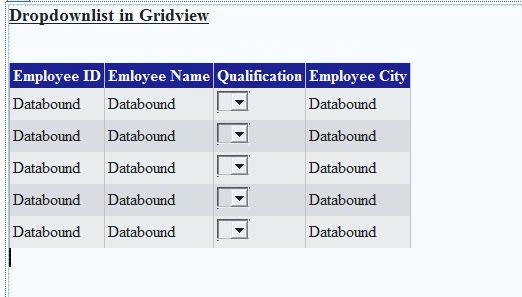
Step 4: Now open your gridview_demo.aspx file, where we create our design so that our application works.
gridview_demo.aspx
- <%@ Page Language="C#" AutoEventWireup="true" CodeFile="Default.aspx.cs" Inherits="_Default" %>
- <!DOCTYPE html PUBLIC "-//W3C//DTD XHTML 1.0 Transitional//EN" "http://www.w3.org/TR/xhtml1/DTD/xhtml1-transitional.dtd">
- <html xmlns="http://www.w3.org/1999/xhtml">
- <head runat="server">
- <title></title>
- </head>
- <body>
- <form id="form1" runat="server">
- <div>
- <asp:GridView ID="GridView1" runat="server" AutoGenerateColumns="False"
- BackColor="White" BorderColor="#999999" BorderStyle="None" BorderWidth="1px"
- CellPadding="3" DataKeyNames="id" GridLines="Vertical"
- onrowdatabound="GridView1_RowDataBound">
- <AlternatingRowStyle BackColor="#DCDCDC" />
- <Columns>
- <asp:TemplateField HeaderText="Employee ID">
- <EditItemTemplate>
- <asp:TextBox ID="TextBox1" runat="server" Text='<%# Bind("id") %>'></asp:TextBox>
- </EditItemTemplate>
- <ItemTemplate>
- <asp:Label ID="Label1" runat="server" Text='<%# Bind("id") %>'></asp:Label>
- </ItemTemplate>
- </asp:TemplateField>
- <asp:TemplateField HeaderText="Emloyee Name">
- <EditItemTemplate>
- <asp:TextBox ID="TextBox2" runat="server" Text='<%# Bind("name") %>'></asp:TextBox>
- </EditItemTemplate>
- <ItemTemplate>
- <asp:Label ID="Label2" runat="server" Text='<%# Bind("name") %>'></asp:Label>
- </ItemTemplate>
- </asp:TemplateField>
- <asp:TemplateField HeaderText="Qualification">
- <EditItemTemplate>
- <asp:TextBox ID="TextBox3" runat="server"></asp:TextBox>
- </EditItemTemplate>
- <ItemTemplate>
- <asp:DropDownList ID="DropDownList1" runat="server">
- </asp:DropDownList>
- </ItemTemplate>
- </asp:TemplateField>
- <asp:TemplateField HeaderText="Employee City">
- <EditItemTemplate>
- <asp:TextBox ID="TextBox4" runat="server" Text='<%# Bind("city") %>'></asp:TextBox>
- </EditItemTemplate>
- <ItemTemplate>
- <asp:Label ID="Label4" runat="server" Text='<%# Bind("city") %>'></asp:Label>
- </ItemTemplate>
- </asp:TemplateField>
- </Columns>
- <FooterStyle BackColor="#CCCCCC" ForeColor="Black" />
- <HeaderStyle BackColor="#000084" Font-Bold="True" ForeColor="White" />
- <PagerStyle BackColor="#999999" ForeColor="Black" HorizontalAlign="Center" />
- <RowStyle BackColor="#EEEEEE" ForeColor="Black" />
- <SelectedRowStyle BackColor="#008A8C" Font-Bold="True" ForeColor="White" />
- <SortedAscendingCellStyle BackColor="#F1F1F1" />
- <SortedAscendingHeaderStyle BackColor="#0000A9" />
- <SortedDescendingCellStyle BackColor="#CAC9C9" />
- <SortedDescendingHeaderStyle BackColor="#000065" />
- </asp:GridView>
- </div>
- </form>
- </body>
- </html>
Code chamber
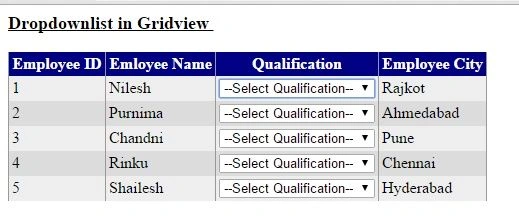
Step 5: Open gridview_demo.aspx.cs and write some code so that our application works.
- using System;
- using System.Collections.Generic;
- using System.Linq;
- using System.Web;
- using System.Web.UI;
- using System.Web.UI.WebControls;
- using System.Data;
- using System.Data.SqlClient;
- public partial class _Default : System.Web.UI.Page
- {
- SqlConnection con = new SqlConnection(@"Data Source=.\SQLEXPRESS;AttachDbFilename=|DataDirectory|\Database.mdf;Integrated Security=True;User Instance=True");
- protected void Page_Load(object sender, EventArgs e)
- {
- if (!Page.IsPostBack)
- {
- refreshdata();
- }
- }
- public void refreshdata()
- {
- con.Open();
- SqlCommand cmd = new SqlCommand("select * from tbl_employee", con);
- SqlDataAdapter sda = new SqlDataAdapter(cmd);
- DataTable dt = new DataTable();
- sda.Fill(dt);
- con.Close();
- GridView1.DataSource = dt;
- GridView1.DataBind();
- }
- protected void GridView1_RowDataBound(object sender, GridViewRowEventArgs e)
- {
- if (e.Row.RowType == DataControlRowType.DataRow)
- {
- con.Open();
- DropDownList DropDownList1 = (e.Row.FindControl("DropDownList1") as DropDownList);
- SqlCommand cmd = new SqlCommand("select * from tbl_qualification", con);
- SqlDataAdapter sda = new SqlDataAdapter(cmd);
- DataTable dt = new DataTable();
- sda.Fill(dt);
- con.Close();
- DropDownList1.DataSource = dt;
- DropDownList1.DataTextField = "qualification";
- DropDownList1.DataValueField = "qualification";
- DropDownList1.DataBind();
- DropDownList1.Items.Insert(0, new ListItem("--Select Qualification--", "0"));
- }
- }
- }

Hope you liked this. Thank you for reading. Have a good day.
Phillip HoustonPosted Dec 14, 2023, 12:45 PM
I've downloaded the zip file and have the code working in a solution. What I can't figure out is how to set the DDL value to the value of the grid item. I have two grid items like: Id=1, Item="Item 1", Unit=1 AND Id=2, Item="Item 3", Unit=2. I load my Units DDL with Id=1, Name=Each AND Id=2, Name=Bottle. When I load my page the DDL only show select. I would appreciate your input on this.
indradeo kumarPosted Oct 19, 2021, 8:36 AM
Thanks for help.
Mario VasquezPosted Jul 18, 2021, 12:45 AM
OK. now how do i read the dropdownlist field ?
William AlexanderPosted Dec 23, 2020, 6:51 AM
This doesn't work. No matter how many ways I try, the dt table comes out ddlEditProjectNameP.DataSource = dt on error System.NullReferenceException HResult=0x80004003 Message=Object reference not set to an instance of an object.
PROGRAMING TUTORIALPosted Jun 2, 2020, 7:38 AM
Https://www.youtube.com/watch?v=ot3N2a3Hpcg
PROGRAMING TUTORIALPosted Jun 2, 2020, 7:38 AM
Thanks for this https://www.youtube.com/watch?v=ot3N2a3Hpcg
PROGRAMING TUTORIALPosted Jun 2, 2020, 7:37 AM
Thanks for this
indradeo kumarPosted Jul 26, 2019, 7:13 AM
How to save it
soham jainPosted Oct 31, 2018, 9:41 AM
Pls help me with this.... i have dynamically added rows in gridview in that i have dropdownlist and now i want that "if i selected an item in dropdownlist" called product name then the price of the product will apper in price column section"
حمودددي السعيدPosted Jul 31, 2018, 11:59 AM
How to add drop down list in grid vie for status attendees?
Muhammad AhmedPosted Sep 13, 2017, 3:45 AM
Great article Mr. Nilesh jadav very nice
Shoaib MalikPosted Aug 5, 2017, 6:55 AM
Nilesh suppose if we have to use selectedindexchanged and also retain the selected value .how would we do it?
Arul RPosted Oct 28, 2015, 5:31 AM
Good one !!!
Santhakumar MunuswamyPosted Oct 18, 2015, 4:39 AM
Good one
Sibeesh VenuPosted Oct 9, 2015, 5:17 AM
Nice Share
Mukesh KumarPosted Oct 9, 2015, 3:31 AM
Great article
Rajeesh MenothPosted Oct 9, 2015, 1:38 AM
Good Explanation...
Harshad PansuriyaPosted Oct 9, 2015, 1:35 AM
Nice one