

In my previous article, I demonstrated how to host a WPF control within a windows application and in this tutorial I will show how to host a windows form control within a WPF application. To do so, I invite you to follow this walkthrough.
Walkthrough:
- Open Visual Studio 2008 and create a new project, a WPF application and name it myWpfApplication
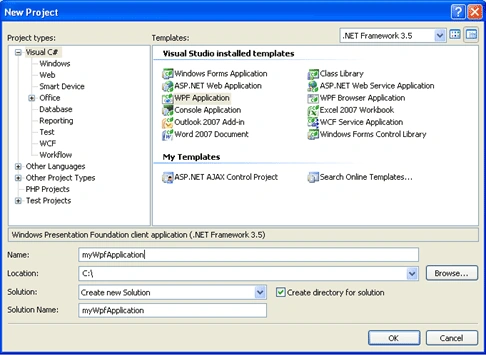
Figure1
- The new WPF form called Window1 appears in addition to the XAML code editor
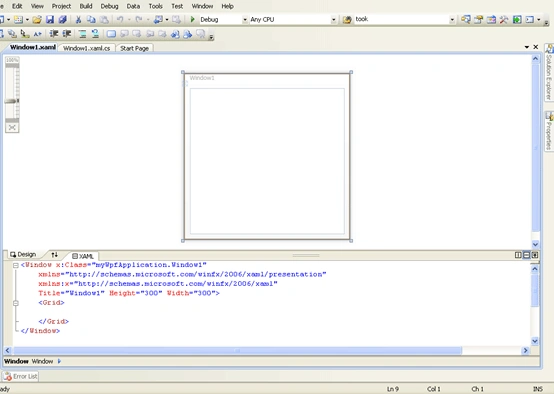
Figure 2
- Expand the project node in the solution explorer and right click the references menu item, then click add reference context menu item.
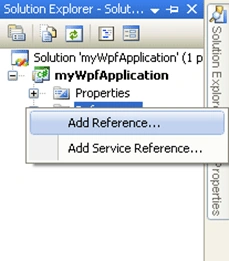
Figure 3
- Select the .Net tab then add WindowsFormsIntegration assembly reference to the solution.
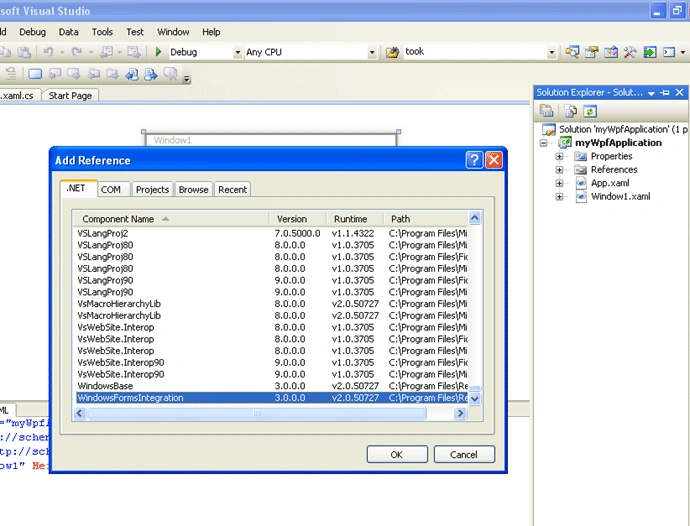
Figure 4
- Then add another reference, it will be our well known Windows forms assembly
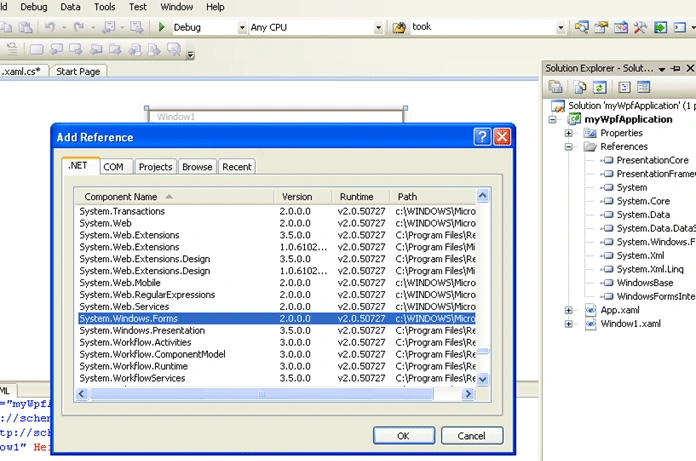
Figure 5
- Now, as the references are added, switch to the C# code by right clicking the Window1 and clicking the view code context menu item
Do add the two namespaces
using System.Windows.Forms;
using System.Windows.Forms.Integration;
- Expand the toolbox and go to the bottom, you find there an element witch called WindowsFormHost
- Drag and drop it into the WPF window or simply add this couple of lines of XAML code into the XAML editor
<my:WindowsFormsHost Margin="18,20,38,73" Name="windowsFormsHost1">
</my:WindowsFormsHost>
- Take a look on the XAML code, it will look like this
<Window x:Class="myWpfApplication.Window1"
xmlns="http://schemas.microsoft.com/winfx/2006/xaml/presentation"
xmlns:x="http://schemas.microsoft.com/winfx/2006/xaml"
xmlns:wf="clr-namespace:System.Windows.Forms.Integration;assembly=WindowsFormsIntegration"
Title="Window1" Height="300" Width="300" xmlns:my="clr-namespace:System.Windows.Forms.Integration;assembly=WindowsFormsIntegration"
Loaded="Window_Loaded">
<Grid>
<WindowsFormsHost Height="100" Margin="39,27,39,0" Name="windowsFormsHost1" VerticalAlignment="Top" >
</WindowsFormsHost>
</Grid>
</Window>
- Within the WindowsFormHost tag, add those lines:
<WindowsFormsHost Height="100" Margin="39,27,39,0" Name="windowsFormsHost1" VerticalAlignment="Top" >
<wf:ElementHost BackColor="Beige">
<Button Background="Bisque" Margin="39,27,39,27" Click="Button_Click">Click me please!</Button>
</wf:ElementHost>
</WindowsFormsHost>
- Now, switch to the code behind zone, you find there the button click event handler related stub, then implement it as follows
private void Button_Click(object sender, RoutedEventArgs e)
{
System.Windows.Forms.MessageBox.Show("My parent is the hosted window form","Message");
}
- Do run the application and observe
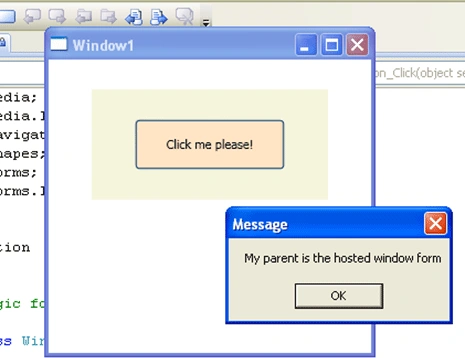
Figure 6
That's it.
Good Dotneting!!!
Muhammad ZubairPosted Jan 13, 2018, 1:16 AM
How to set a name property to button???
betsyPosted May 6, 2011, 9:09 AM
If I add a picturebox to a wpf page will I be able to use the drag and dropping of images with the same code as 2.0?
preetha deviPosted Nov 8, 2010, 2:42 AM
Hai Bechir Bejaoui, nice article Bechir , can u please assist me how to implement all window control in asp.net.thanks in advance.
fayaz_2008Posted Feb 25, 2009, 1:52 PM
Can we add Container Control like PictureBox in WindowsFormsHost using above procedure.