

Introduction
Learn from the basic text controls to your layout files, generally we have four types of Text Controls in Android:
- TextView
- EditText
- AutoCompleteTextView
- MultiCompleteTextView
TextView
TextView controls are usually included as
part of your Activity's layout resource file. TextView has an interesting
feature which is that it can automatically create a link based on the content of
the Text; if the Text is an URL, an e-mail address or a phone number then when
the user clicks on the textview the default intent launches whether it is the
web browser or the dialer.
The property which we use for the linking is android:autoLink=""
Let's create
the application to understand TextView
-
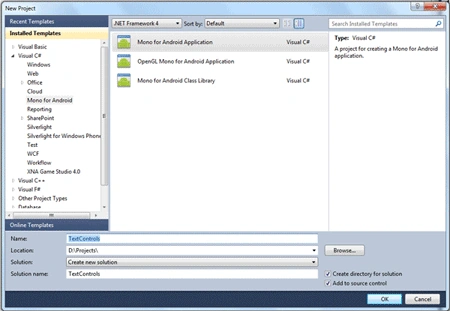
First, create a new android
application
-
Go to Main.axml in
Resources/Layout and do these changes
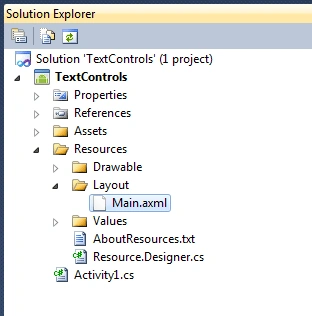 In the above code, you see android:text property which is used to insert the text in normal textview and the other property android:textColor used to change the color of the text.
- <?xml version="1.0" encoding="utf-8"?>
- <LinearLayout xmlns:android="http://schemas.android.com/apk/res/android"
- android:orientation="vertical"
- android:layout_width="fill_parent"
- android:layout_height="fill_parent"
- >
- <TextView
- android:layout_width="fill_parent"
- android:layout_height="wrap_content"
- android:text="You can create a number of different Text controls in your Android application.
- you can configure, style, and manipulate the controls in a variety of ways, we have so many useful attributes which
- we can use within the application to change the style, position etc."
- android:textColor="#ff0fffff"
- />
- <TextView
- android:layout_width="fill_parent"
- android:layout_height="wrap_content"
- android:text="TextView controls are usually included as part of your Activity's layout resource file
- TextView have an interesting feature which is automatically create the link based on the content of the Text if
- its is an URL, an e-mail or a phone number so that when the user clicks on the textview the default intent whether it is the web browser or the dialer launches."
- android:textColor="#ff000fff"
- />
- </LinearLayout>
Output
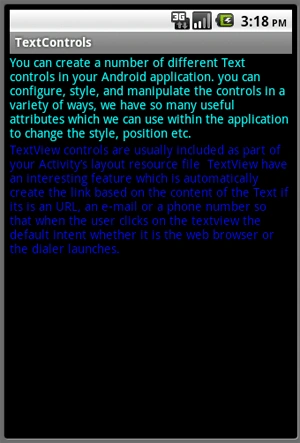
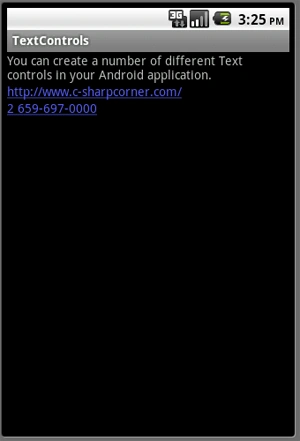
As I said about android:autoLink the property we used with textview to detect whether it is a web, email, phone and address information. like if I write any website URL or any phone number in textview and android:autoLink="all" the property was not used with the textview than the URL shows as simple text and if I use android:autoLink="all" property then it will automatically show as a clickable link.
Change the Main.axml like below to see the effect of android:autoLink="all" property:
Output- <?xml version="1.0" encoding="utf-8"?>
- <LinearLayout xmlns:android="http://schemas.android.com/apk/res/android"
- android:orientation="vertical"
- android:layout_width="fill_parent"
- android:layout_height="fill_parent"
- >
- <TextView
- android:layout_width="fill_parent"
- android:layout_height="wrap_content"
- android:text="You can create a number of different Text controls in your Android application."
- />
- <TextView
- android:layout_width="fill_parent"
- android:layout_height="wrap_content"
- android:text="http://www.c-sharpcorner.com/"
- android:autoLink="all"
- />
- <TextView
- android:layout_width="fill_parent"
- android:layout_height="wrap_content"
- android:text="2 659-697-0000"
- android:autoLink="all"
- />
- </LinearLayout>
EditText
EditText is a subclass of the TextView
class, it is functionally rich and customizable and enables users to edit text,
it is like the TextBox.
Let's create the application
to understand
EditText
-
First, create a new android
application
-
Go to Main.axml in
Resources/Layout and do these changes
- <?xml version="1.0" encoding="utf-8"?>
- <LinearLayout xmlns:android="http://schemas.android.com/apk/res/android"
- android:orientation="vertical"
- android:layout_width="fill_parent"
- android:layout_height="fill_parent"
- >
- <EditText
- android:layout_width="fill_parent"
- android:layout_height="wrap_content"
- android:capitalize="characters"
- android:autoText="true"
- />
- <EditText
- android:layout_width="fill_parent"
- android:layout_height="wrap_content"
- android:capitalize="words"
- android:autoText="true"
- />
- <EditText
- android:layout_width="fill_parent"
- android:layout_height="wrap_content"
- android:capitalize="none"
- android:autoText="true"
- />
- <EditText
- android:layout_width="fill_parent"
- android:layout_height="wrap_content"
- android:password="true"
- />
- </LinearLayout>
In the above code, you see we use three types of
properties
autoText, capitalize and
password
same as android provides many other properties like
singleLine
etc. But these three are the main which is used with EditText:
- autoText :
It is used to make the EditText in such a manner that it is able to correct
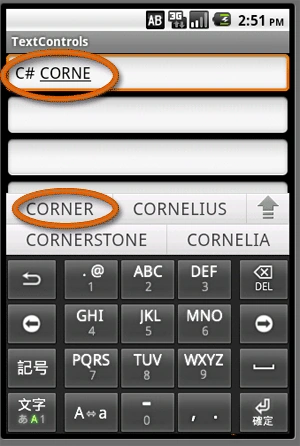
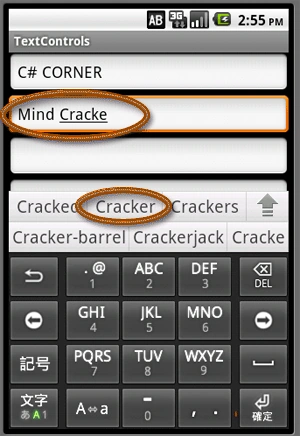
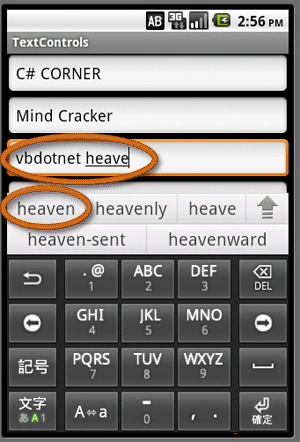
the common spelling mistakes. you will see the effect of autoText property in the below images with the capitalize property of EditText, the possible correct matching spelling will come according to the text which you entered.
-
capitalize :
This is used to specify the capitalization condition of the text. It further
have three conditions:
--characters : When you set capitalize property as characters, then all the characters or words which you enter will show in the upper case.
--words : When you set capitalize property as words, then the first character of each words will show in upper case and rest in lower case.
--none : When you set capitalize property as none, then all the characters or words which you enter will show in lower case.
- password :
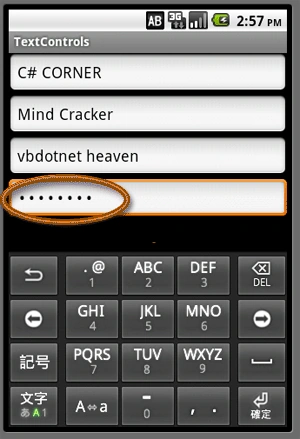
password property is used to make a password type EditText or TextBox.
Means the typed characters are displayed as bullets (on Windows) or
asterisks.
AutoCompleteTextView
An autocompletetextview is an editable text view that shows completion
suggestions automatically while the user is typing. We can show string items in
autocompletetextview. So that items will display according to the characters we
give.
MultiCompleteTextView
I will explain in deep about the last two categories of Text control, "AutoCompleteTextView and MultiCompleteTextView", in my next article.
Summary
Hope you like this article. Post your comments and feedback so that I can improve myself.
Thank You........
Ritha BPosted Apr 30, 2012, 2:05 AM
nice ... Ritha.B
Mahesh ChandPosted Jul 26, 2011, 9:01 AM
You should show how to use these controls I In the app. Not just create but how to access text from the controls.