

In SharePoint 2010, you can rate a document or item from 0-5 using the rating settings. In SharePoint 2013 they have added a new option in Rating settings called Likes. I have a custom list named Custom in which I will enable the Likes option and show you how Number of Likes works. Click on List Settings in the ribbon interface. Click on Rating settings under General settings section. You can find a new option called Likes as shown in the following figure.
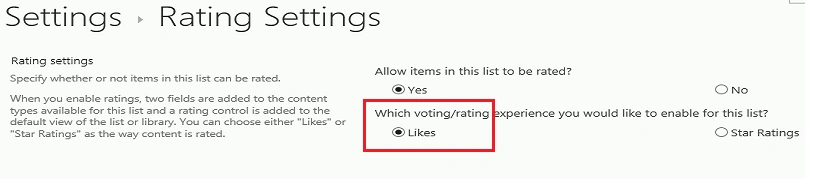
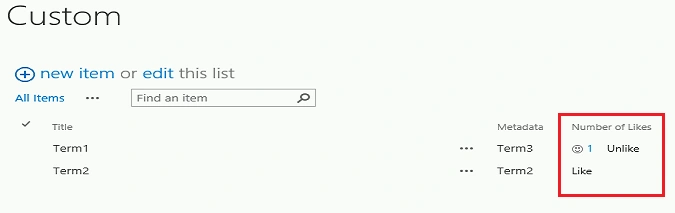
Select Likes and click on Ok. Now in the list you can find a new
column called Number of likes where the user can like anitem and the number
of likes for that item will be displayed as shown in figure.
Vinay PatilPosted Oct 24, 2015, 3:55 AM
Hi Vijai, Nice Post I tried same, but I have PowerPivot library and it does not display anything under that column. It is just blank.. can you please suggest ..