

In this blog, we will see how to export an HTML table to a CSV file, using the simple tabletoCSV jQuery plugin.
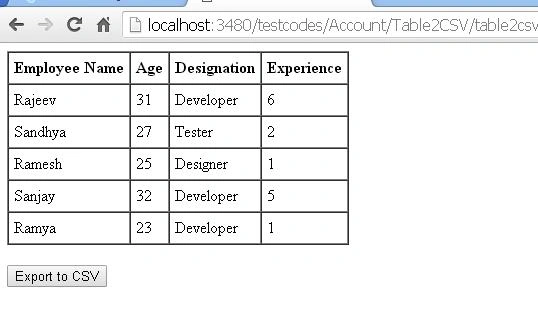
First, we will create an HTML table, which shows the employee details and an Export to CSV button, as shown below.
- <div>
- <table id="mytable" cellpadding="5" border="1" cellspacing="0">
- <thead>
- <tr>
- <th>
- Employee Name
- </th>
- <th>
- Age
- </th>
- <th>
- Designation
- </th>
- <th>
- Experience
- </th>
- </tr>
- </thead>
- <tbody>
- <tr>
- <td>
- Rajeev
- </td>
- <td>
- 31
- </td>
- <td>
- Developer
- </td>
- <td>
- 6
- </td>
- </tr>
- <tr>
- <td>
- Sandhya
- </td>
- <td>
- 27
- </td>
- <td>
- Tester
- </td>
- <td>
- 2
- </td>
- </tr>
- <tr>
- <td>
- Ramesh
- </td>
- <td>
- 25
- </td>
- <td>
- Designer
- </td>
- <td>
- 1
- </td>
- </tr>
- <tr>
- <td>
- Sanjay
- </td>
- <td>
- 32
- </td>
- <td>
- Developer
- </td>
- <td>
- 5
- </td>
- </tr>
- <tr>
- <td>
- Ramya
- </td>
- <td>
- 23
- </td>
- <td>
- Developer
- </td>
- <td>
- 1
- </td>
- </tr>
- </tbody>
- </table>
- <br />
- <button onclick="exporttocsv()">
- Export to CSV</button>
- </div>
Running the page will look as shown below.
Now, we reference the jQuery file and tabletoCSV file in our head section.
- <script src="jquery.min.1.11.1.js" type="text/javascript"></script>
- <script src="jquery.tabletoCSV.js" type="text/javascript"></script>
Now, we write our exporttocsv() function.
- <script type="text/javascript">
- function exporttocsv() {
- $("#mytable").tableToCSV({
- filename: 'employeelist'
- });
- }
- </script>
In the script given above, filename is the name given to the downloading CSV file.
Hence, now we will run the page and click Export to CSV button.
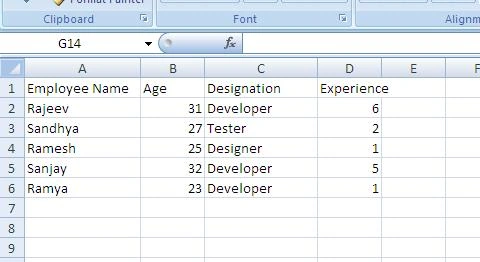
Our CSV file will be downloaded. On opening the file, we can see the data of our table, as shown below.
That's it. Our HTML table to CSV exporting is complete.
Reference
jquery-table2csv - http://www.jqueryscript.net/table/jQuery-Plugin-To-Export-Table-Data-To-CSV-File-table2csv.html
Summary
In this blog, we have learned how to export an HTML table to a CSV file, using tabletoCSV jQuery plugin.
Hence, now we will run the page and click Export to CSV button.
Our CSV file will be downloaded. On opening the file, we can see the data of our table, as shown below.
That's it. Our HTML table to CSV exporting is complete.
Reference
jquery-table2csv - http://www.jqueryscript.net/table/jQuery-Plugin-To-Export-Table-Data-To-CSV-File-table2csv.html
Summary
In this blog, we have learned how to export an HTML table to a CSV file, using tabletoCSV jQuery plugin.
I hope this will be helpful.
chsss shsssPosted Jul 24, 2017, 3:34 AM
Small, issue doesn't work with Page Index
Vaibhav DeshmukhPosted Jun 13, 2017, 1:51 AM
Thanks...But I added reference still it showing me TypeError: $(...).table2csv is not a function$("#mytable").table2csv({