

Server logs are a treasure trove of information. They can tell you a lot about system performance, user activity, and potential issues. But it’s hard to find those issues manually. You have to look through logs, and it’s hard to do that for a lot of logs. That’s where anomaly detection comes in. Anomaly detection is a machine learning technique that can automatically find irregularities. With .NET 9 and ML.NET, Microsoft’s open-source machine learning framework, developers can build strong anomaly detection systems within the .NET ecosystem. In this article, we’ll look at what ML.NET can do and how to use it to detect problems in server logs with .NET 9, using a real-world example.
What is ML.NET?
ML.NET is a powerful, cross-platform machine learning framework designed for .NET developers. It allows you to create, train, and deploy custom machine learning models directly in C# or F# without requiring extensive data science expertise. Launched by Microsoft, ML.NET supports a wide range of scenarios.
- Classification: Binary (e.g., spam detection) or multi-class (e.g., categorizing support tickets).
- Regression: Predicting future values (e.g., sales forecasting).
- Clustering: Grouping similar data points (e.g., segmenting customers).
- Anomaly Detection: Finding outliers in datasets (e.g., identifying irregularities in server logs).
- Time-Series Analysis: Finding trends and outliers in sequential data.
- Recommendation Systems: Suggesting products or content based on user behavior.
ML.NET’s strengths include its integration with .NET tools like Visual Studio, support for pre-trained models (e.g., ONNX, TensorFlow), and the Model Builder GUI for simplified development. Whether you’re processing small datasets or scaling to enterprise-level applications, ML.NET offers flexibility and performance, making it an ideal choice for embedding intelligence into .NET 9 projects.
Project Overview: Detecting Error Spikes in Server Logs
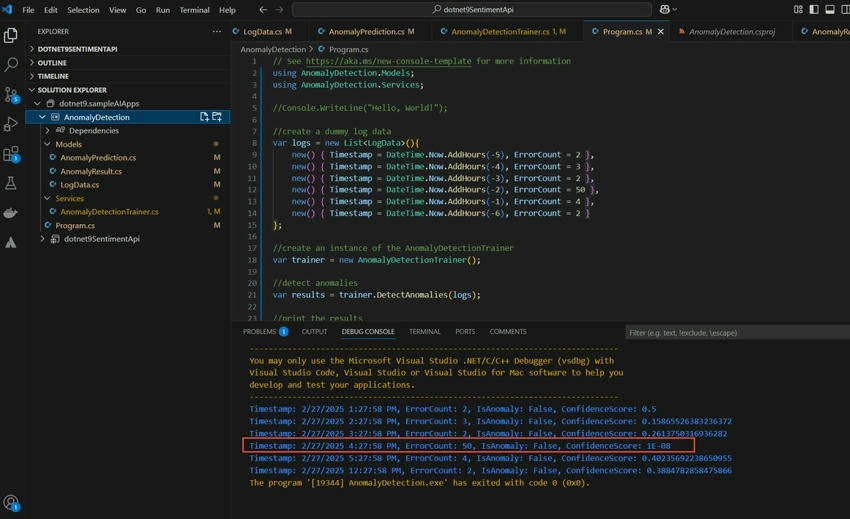
We’re going to create a .NET 9 console application that uses ML.NET to find unusual activity in server log data. We’re especially looking at error counts over time. This example is like a real-world situation where a sudden increase in errors could mean there’s a problem with the server. This would let administrators fix the problem before it gets worse.
Step 1. Setting Up the Environment.
Please find the complete source code: Click Here
To begin, ensure you have,
- .NET 9 SDK: Installed from the official Microsoft site.
- Visual Studio Code (or Visual Studio): For coding and debugging. I will be using VS Code for this project.
- ML.NET Packages: Added via NuGet.
Let’s start. If you have C# Dev Kit, then you can create the project in VS Code or use below command.
Create a new console application.
dotnet new console -n AnomalyDetection -f net9.0
cd AnomalyDetection
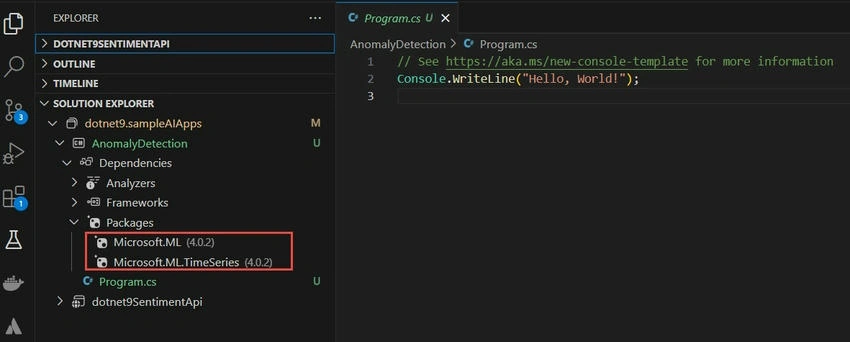
Add the ML.NET NuGet packages.
dotnet add package Microsoft.ML
dotnet add package Microsoft.ML.TimeSeries
Step 2. Defining the Data Models.
Create a Models folder and add two classes.
- LogData.cs: Represents server log entries with timestamps and error counts.
namespace AnomalyDetection.Models; public record LogData { public DateTime Timestamp { get; set; } public float ErrorCount { get; set; } } - AnomalyPrediction.cs: Represents the model’s output, indicating whether an anomaly is detected.
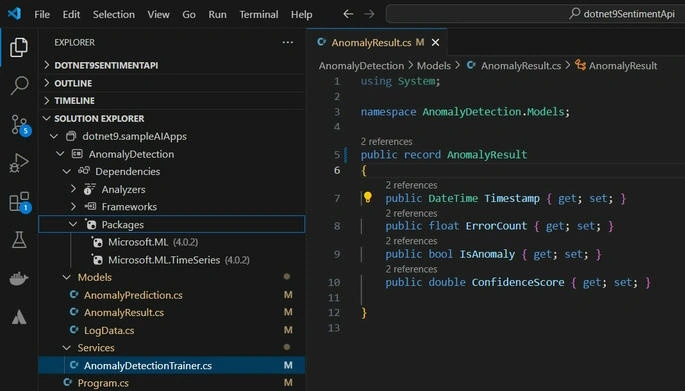
using Microsoft.ML.Data; namespace AnomalyDetection.Models; public record AnomalyPrediction { [VectorType(3)] public double[] Prediction { get; set; } = []; } - AnomalyResult.cs: Represents the output result from the model.
namespace AnomalyDetection.Models;

public record AnomalyResult
{
    public DateTime Timestamp { get; set; }
    public float ErrorCount { get; set; }
    public bool IsAnomaly { get; set; }
    public double ConfidenceScore { get; set; }

}
Step 3. Implementing Anomaly Detection Logic with ML.NET.
Create a Services folder and add AnomalyDetector.cs.
using System;
using AnomalyDetection.Models;
using Microsoft.ML;

namespace AnomalyDetection.Services;

public class AnomalyDetectionTrainer
{
    private readonly MLContext _mlContext;
    private ITransformer _model;

    public AnomalyDetectionTrainer()
    {
        _mlContext = new MLContext(seed: 0);
        TrainModel();
    }

    private void TrainModel()
    {
        // Simulated training data (in practice, load from a file or database)
        var data = GetTrainingData();

        var dataView = _mlContext.Data.LoadFromEnumerable(data);

        // Define anomaly detection pipeline
       var pipeline = _mlContext.Transforms.DetectIidSpike(
                outputColumnName: "Prediction",
                inputColumnName: nameof(LogData.ErrorCount),
                confidence: 95.0, // Double instead of int
                pvalueHistoryLength: 5
            );

        // Train the model
        _model = pipeline.Fit(dataView);

    }

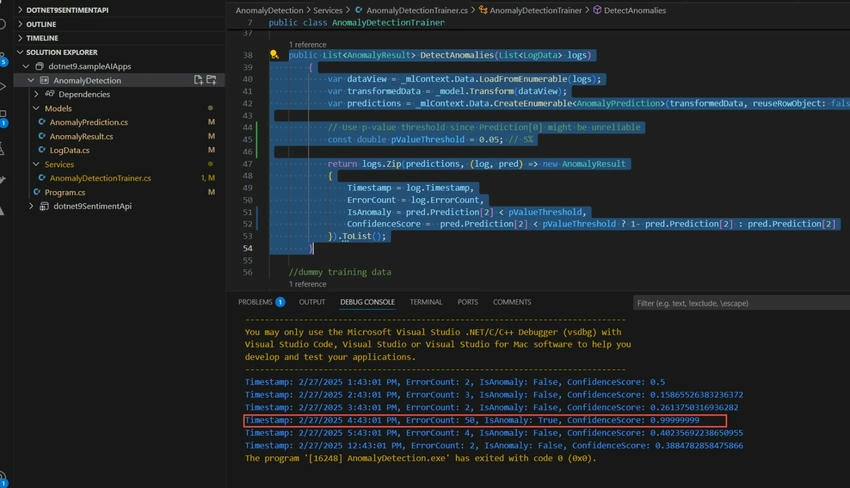
    public List<AnomalyResult> DetectAnomalies(List<LogData> logs)
        {
            var dataView = _mlContext.Data.LoadFromEnumerable(logs);
            var transformedData = _model.Transform(dataView);
            var predictions = _mlContext.Data.CreateEnumerable<AnomalyPrediction>(transformedData, reuseRowObject: false);

            return logs.Zip(predictions, (log, pred) => new AnomalyResult
            {
                Timestamp = log.Timestamp,
                ErrorCount = log.ErrorCount,
                IsAnomaly = pred.Prediction[0] == 1,
                ConfidenceScore = pred.Prediction[1]
            }).ToList();
        }

    //dummy training data
    private List<LogData> GetTrainingData()
    {
        return new List<LogData>(){
            new() { Timestamp = DateTime.Now.AddHours(-5), ErrorCount = 2 },
            new() { Timestamp = DateTime.Now.AddHours(-4), ErrorCount = 3 },
            new() { Timestamp = DateTime.Now.AddHours(-3), ErrorCount = 2 },
            new() { Timestamp = DateTime.Now.AddHours(-2), ErrorCount = 50 }, // Anomaly: Spike!
            new() { Timestamp = DateTime.Now.AddHours(-1), ErrorCount = 4 },
            new() { Timestamp = DateTime.Now.AddHours(-6), ErrorCount = 2 }
        };
    }
}
Join the conversation! Your thoughts help the community grow.