

In this article, we are going to learn how to read the uploaded Excel file without using "Microsoft.Interop.Excel" library. Instead of it, we are going to use some third party component. Here, I am going to use NPOI library file, which was available in NuGet Package Manager. We also have some other third party components ExcelDataReader etc.
What is NPOI?
This project is the .NET version of POI Java project at http://poi.apache.org/. POI is an open source project, which can help you read/write XLS, DOC, PPT files. It has a wide Application.
For example, you can use it to
- Generate an Excel report without Microsoft Office suite installed on your Server and more efficient than call Microsoft Excel ActiveX at the background;
- Extract text from Office documents to help you implement full-text indexing feature (most of time this feature is used to create search engines).
- Extract images from Office documents
- Generate Excel sheets, which contains formulas
To know more about this package, refer the link https://npoi.codeplex.com/
Step 1
Install NPOI library from NuGet Package Manager.
Install NPOI library from NuGet Package Manager.
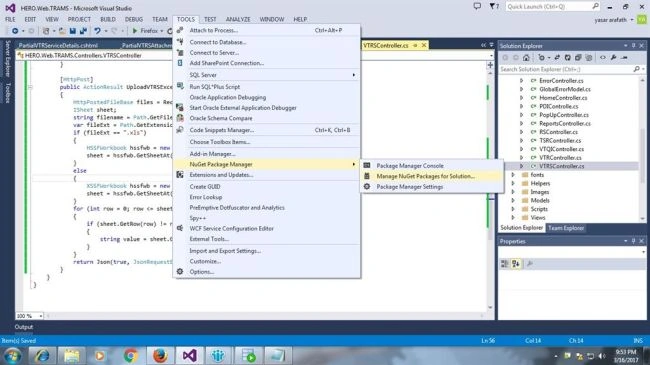
Tools -> Nuget Package Manager -> Manager NuGet Package for the solution.
Step 2
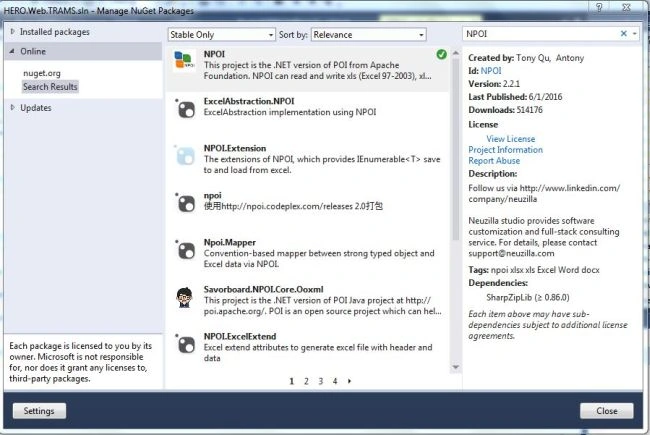
A dialog Window will open. On the right corner of the dialog, we have search box option. In this, search NPOI. If you found NPOI lib in this, click Install button to install the library in our project reference.
Step 3
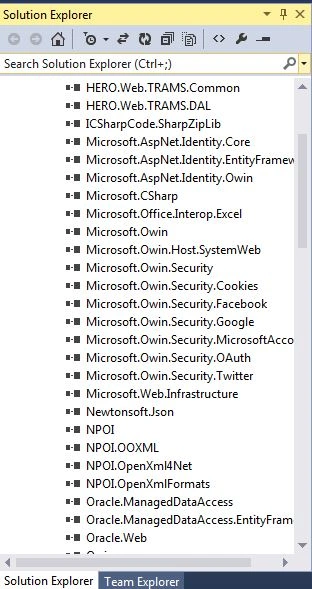
Now, you can see the installed NPOI package in our Project Reference.
Now, you can see the installed NPOI package in our Project Reference.
Step 4
Create an Action Method to create a view page.
Create an Action Method to create a view page.
- [HttpGet]
- public ActionResult UploadExcel()
- {
- return View();
- }
Create a view for "UploadExcel", to create it, right click on action ->add view->view name ->click OK.
- <form id="ExcelUpload">
- <div>
- <input type="file" id="ExcelFileUpload" class="file">
- <span style="color:red;font:bolder;" id="fileErrorMessage"></span>
- <button type="button" onclick="UploadExcel()">Upload</button>
- </div>
- </form>
- <script>
- $(document).ready(function () {
- //validating uploaded file whether it is Excel or not while uploading
- $("#ExcelFileUpload").change(function () {
- fileErrorMessage.innerHTML = '';
- var vtrUpload = $("#ExcelFileUpload").val().toLowerCase();
- var regexVTRUpload = new RegExp("(.*?)\.(xlsx|xls)$");
- if (!(regexVTRUpload.test(vtrUpload))) {
- fileErrorMessage.innerHTML = 'Please select .xls or .xlsx files';
- }
- });
- });
- function UploadExcel()
- {
- var formdata = new FormData(); //FormData object
- var fileInput = document.getElementById('ExcelFileUpload');
- var filename = fileInput.files[0].name
- var extension = filename.split('.').pop().toUpperCase();
- if (extension != "XLS" && extension != "XLSX") {
- fileErrorMessage.innerHTML = 'Please select .xls or .xlsx files';
- }
- else
- {
- //Iterating through each files selected in fileInput
- for (i = 0; i < fileInput.files.length; i++) {
- //Appending each file to FormData object
- formdata.append(fileInput.files[i].name, fileInput.files[i]);
- }
- $.ajax({
- url: '@Url.Action("ReadExcelFile", "ExcelUpload")', //ReadExcelFile is a Action Name and ExcelUpload is Controller name
- type: 'POST',
- data: formdata, // Posting the uploaded excel file to controller
- async: false,
- success: function (data) {
- if (data) {
- Alert("Upload successfully")
- }
- },
- cache: false,
- contentType: false,
- processData: false
- });
- }
- }
- </script>
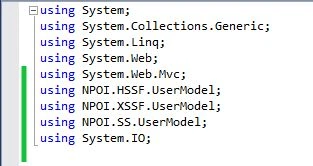
Creat the ActionResult to read the uploaded Excel file. Prior to it, the header file was given below to read the uploaded Excel file.
Step 6
Create the ActionResult to read the Excel file.
Create the ActionResult to read the Excel file.
- [HttpPost]
- public ActionResult ReadExcelFile()
- {
- HttpPostedFileBase files = Request.Files[0]; //Read the Posted Excel File
- ISheet sheet; //Create the ISheet object to read the sheet cell values
- string filename = Path.GetFileName(Server.MapPath(files.FileName)); //get the uploaded file name
- var fileExt = Path.GetExtension(filename); //get the extension of uploaded excel file
- if (fileExt == ".xls")
- {
- HSSFWorkbook hssfwb = new HSSFWorkbook(files.InputStream); //HSSWorkBook object will read the Excel 97-2000 formats
- sheet = hssfwb.GetSheetAt(0); //get first Excel sheet from workbook
- }
- else
- {
- XSSFWorkbook hssfwb = new XSSFWorkbook(files.InputStream); //XSSFWorkBook will read 2007 Excel format
- sheet = hssfwb.GetSheetAt(0); //get first Excel sheet from workbook
- }
- for (int row = 0; row <= sheet.LastRowNum; row++) //Loop the records upto filled row
- {
- if (sheet.GetRow(row) != null) //null is when the row only contains empty cells
- {
- string value = sheet.GetRow(row).GetCell(0).StringCellValue; //Here for sample , I just save the value in "value" field, Here you can write your custom logics...
- }
- }
- return Json(true, JsonRequestBehavior.AllowGet); //return true to display the success message
- }
NPOI is an open source component and you can use it everywhere.
Ramesh PalanivelPosted Apr 24, 2018, 12:01 AM
Where you get error in the code?
Mohsin InamdarPosted Apr 23, 2018, 11:36 AM
Hi, this code is not working.
Aryan MittalPosted Jun 16, 2017, 3:44 AM
Sheet = hssfwb.GetSheetAt(0); //get first Excel sheet from workbook in this Line Chek
Aryan MittalPosted Jun 16, 2017, 3:44 AM
Hi,I have Get the error In this Line