

If your application is a not single page application, you need to navigate to another page to do some other operations and also open another activity in an Android application.
Let’s see the steps given below.
Create new Android project, as shown below.
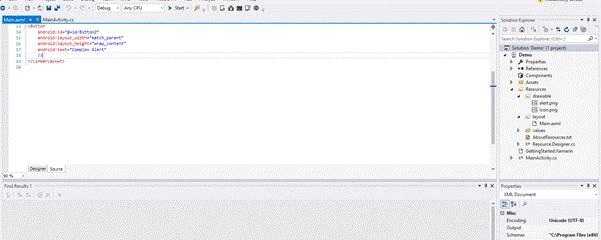
Now, go to your Solution Explorer. Right click on the layout folder and add new layout page, as shown below.

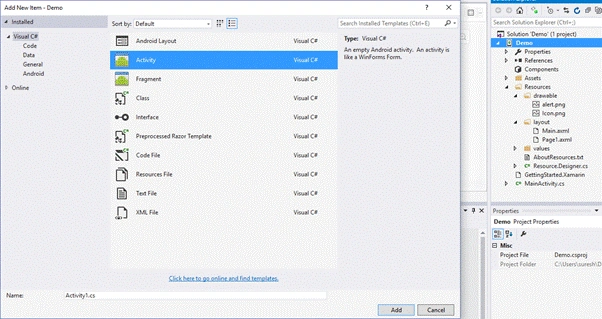
Now, add new activity file by right clicking on your project and adding a new activity, as shown below.
Subsequently, go to your Main.axml page and write the code given below. One button is for going to page1 and another is for opening activity1.
- <?xml version="1.0" encoding="utf-8"?>
- <LinearLayout xmlns:android="http://schemas.android.com/apk/res/android"
- android:orientation="vertical"
- android:layout_width="match_parent"
- android:layout_height="match_parent"
- >
- <Button
- android:id="@+id/Button1"
- android:layout_width="match_parent"
- android:layout_height="wrap_content"
- android:text="Go to page1"
- />
- <Button
- android:id="@+id/Button2"
- android:layout_width="match_parent"
- android:layout_height="wrap_content"
- android:text="Open Activity1"
- />
- </LinearLayout>
First, get the properties for Button1 and Button2 and subscribe to the button click event.
- protected override void OnCreate(Bundle bundle)
- {
- base.OnCreate(bundle);
- // Set our view from the "main" layout resource
- SetContentView(Resource.Layout.Main);
- Button button1 = FindViewById<Button>(Resource.Id.Button1);
- button1.Click += Button_Click;
- Button button2 = FindViewById<Button>(Resource.Id.Button2);
- button2.Click += Button2_Click;
- }
- private void Button_Click(object sender, EventArgs e)
- {
- SetContentView(Resource.Layout.Page1);
- }
- private void Button2_Click(object sender, EventArgs e)
- {
- Intent intent = new Intent(this, typeof(Activity1));
- StartActivity(intent);
- }

Now, add the code given below that shows we are in the activity1.
- public class Activity1: Activity
- {
- protected override void OnCreate(Bundle savedInstanceState) {
- base.OnCreate(savedInstanceState);
- Android.App.AlertDialog.Builder dialog = new AlertDialog.Builder(this);
- AlertDialog alert = dialog.Create();
- alert.SetTitle("Alert");
- alert.SetMessage("Activity1 opened");
- alert.SetButton("OK", (c, ev) => {
- });
- alert.Show();
- }
- }


Emmanuel ImohiPosted May 19, 2017, 2:15 AM
Make sense to the simple