

This is my third article on UiPath. I have already explained the basics about UiPath in my previous articles. “Sequence” and “Activity” are key concepts in UiPath. Please refer to my below articles to get started with UiPath and RPA.
- An Introduction To Robotic Process Automation (RPA) With UiPath
- Data Scraping From A Website And Save To SQL Server Using UiPath (RPA)
So far, we created projects using “Process” type only. In this article, we will discuss the Flowcharts in UiPath and how to control the application flow. We will create a simple number guessing game application with Flowchart.
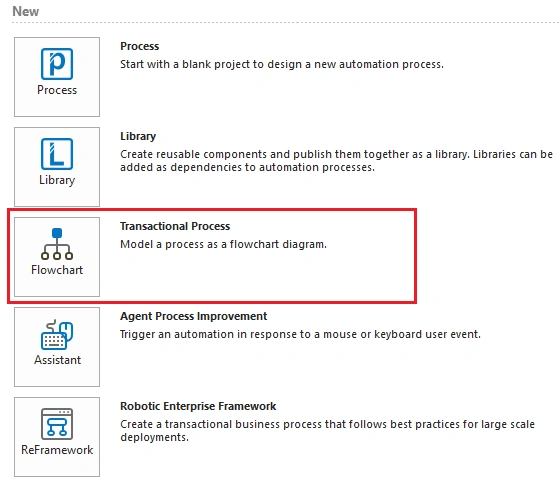
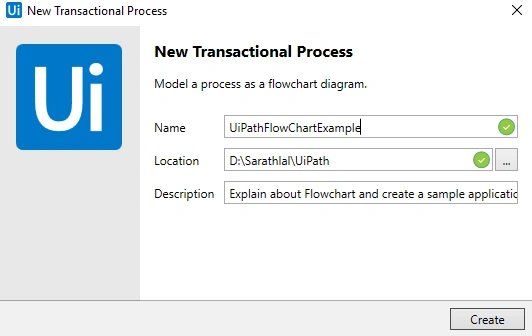
Create a UiPath Project with Transactional Process type
The most important aspect of flowcharts is that, unlike sequences, they present multiple branching and logical operators, that enable you to create a variety of business processes and connect the activities in multiple ways. Flowcharts can be used in large projects to small projects that can be reused in other projects as well.
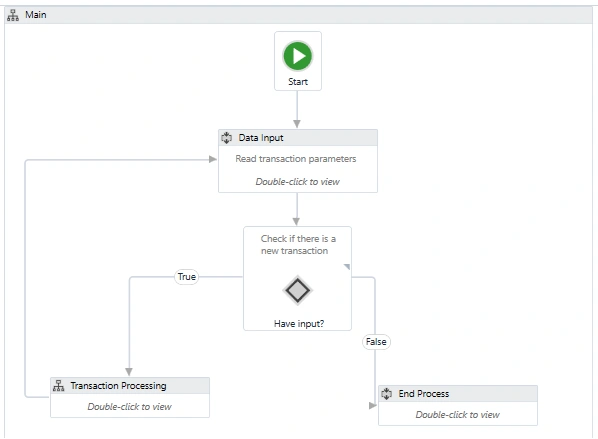
We can remove all the activities from this default flowchart.
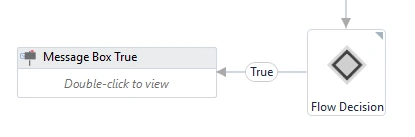
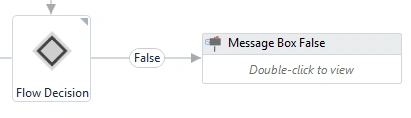
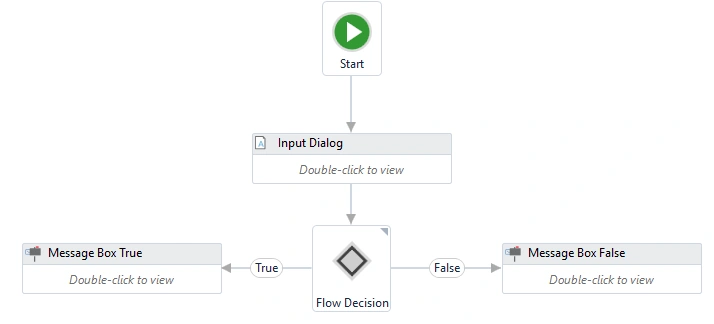
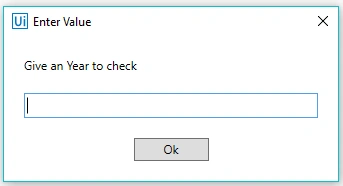
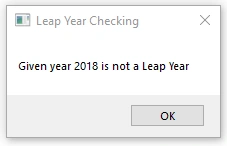
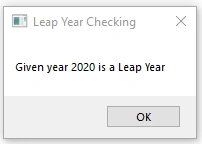
In this example project, we will check if a year is a leap year or not. We can get a year value from input dialog box and check the year using “Flow Decision” activity. This “Flow Decision” activity has both a “True” part and a “False” part. If the mod value of the year is zero, the year is a leap year; otherwise not.

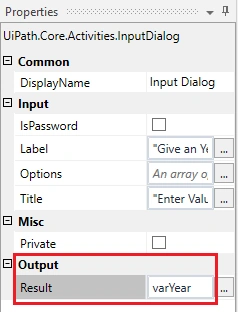
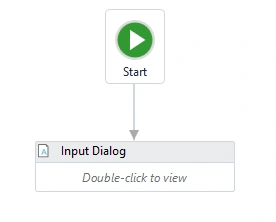
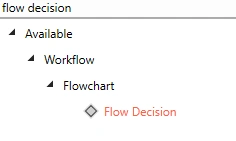
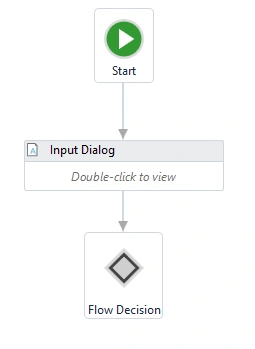
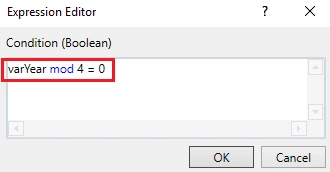
As I mentioned earlier, “Flow Decision” has both a “True” part and a “False” part. We will add Message Box to both conditions.
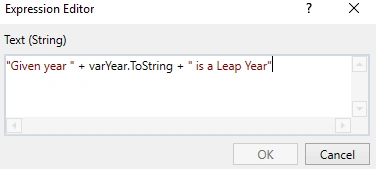
First, we can add a message to the True condition.
Modify current project as number guessing the application
We can assign a random number to a variable and get a value from the user. We will check this input value with the above variable and if the values are the same, it will show the message box and exit the application. Otherwise, the system will again check which value is greater and which value is lesser and show the corresponding messages. Again, continue the process and get a new value from the user. If the new value does not match, repeat the process again. The process will end only after the user gives a correct value which will match with a random number, which we have already kept in the variable.
We can use “Assign” activity for this purpose. Please drag this activity and assign a variable to it.
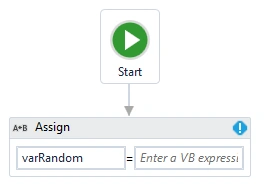
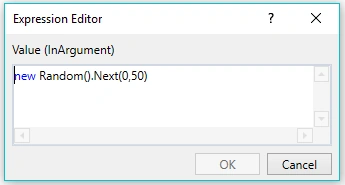
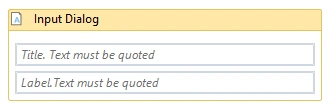
We have assigned a random value from 0 to 50. We can add “Input Dialog” to guess the user a number between 0 and 50 (You can change it to any random number).
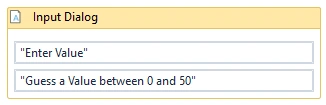
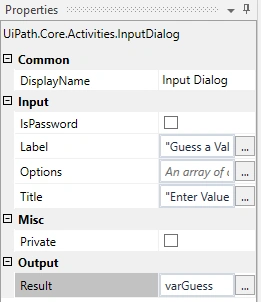
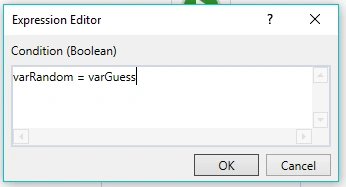
We can add a message box for True part of the Flow Decision. If the user guesses a value which is equal to a random number, it will show a successful message.
So far, our flowchart looks like below. We must add a few more activities.
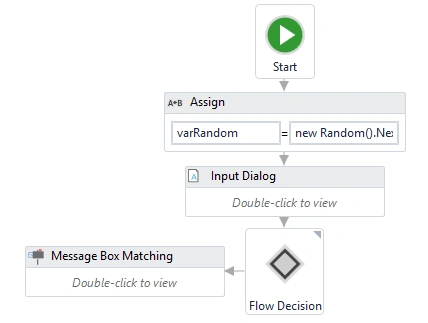

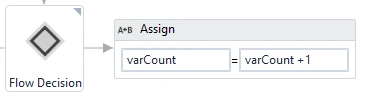
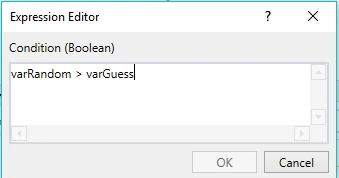
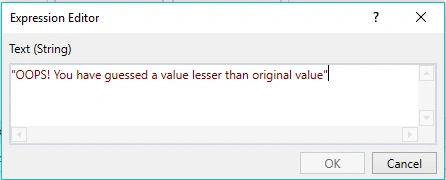
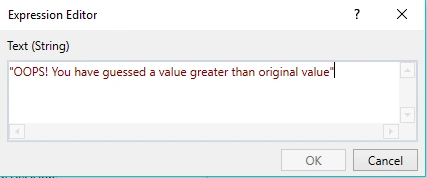
After showing above messages, the process will again ask the user to guess a new value and repeat all these flows again until the user guesses the correct value.
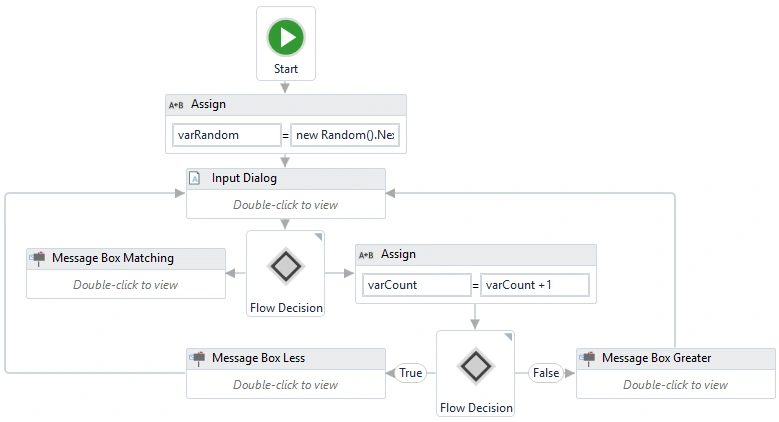
We can run the project now. User can enter a value between 0 and 50.
I have given the value as “30”.
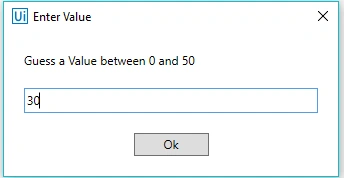
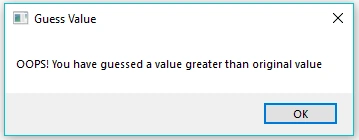
It will ask one more input value again.
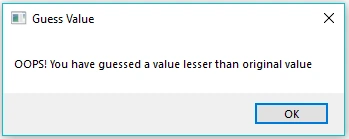
Now we can analyze that the random number falls between “21” and “29”.
We can try any number between these two numbers. After a few more guesses, I found the exact number.
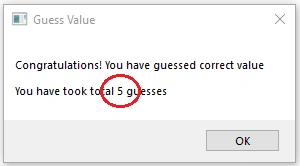
Please note, we have got the total number of guesses from the counter variable which we have used in our project.
Join the conversation! Your thoughts help the community grow.