

Introduction
Apache Cordova (formerly PhoneGap) is a popular mobile application development framework. Apache Cordova is an open-source mobile development framework. Cordova is a platform which is used to build mobile apps, using HTML, CSS and JS. We can think of Cordova as a container to connect our Web app with the native mobile functionalities. Web Applications cannot use native mobile functionalities by default. This is where Cordova comes in. It offers a bridge for the connection between the Web app and the mobile device.
Prerequisites
Apache Cordova (formerly PhoneGap) is a popular mobile application development framework. Apache Cordova is an open-source mobile development framework. Cordova is a platform which is used to build mobile apps, using HTML, CSS and JS. We can think of Cordova as a container to connect our Web app with the native mobile functionalities. Web Applications cannot use native mobile functionalities by default. This is where Cordova comes in. It offers a bridge for the connection between the Web app and the mobile device.
Prerequisites
- Visual Studio 2017 RC
Step 1
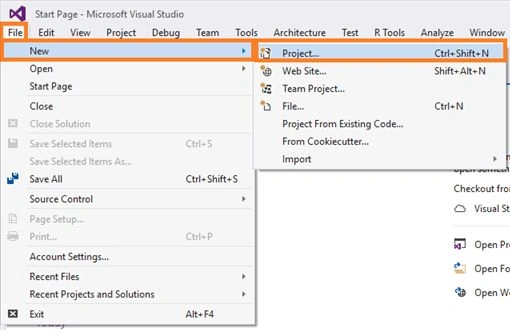
Click File--> select New--> select Project. The project needs to be clicked after opening all the types of projects in Visual Studio
Click File--> select New--> select Project. The project needs to be clicked after opening all the types of projects in Visual Studio
or click (Ctrl+Shift+N).
Step 2
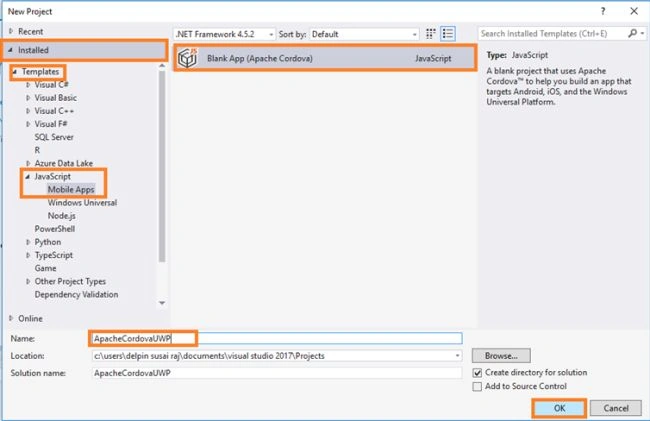
After opening the New Project, select Installed-->Templates-->JavaScript-->Mobile Apps-->choose the Blank app (Apache Cordova). Now, give your app; a name (Ex:sample) and give the path of your project. Afterwards, click OK.
Step 3
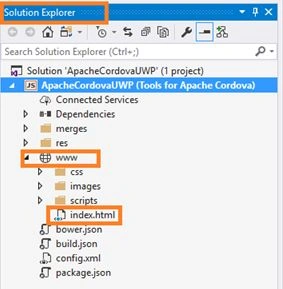
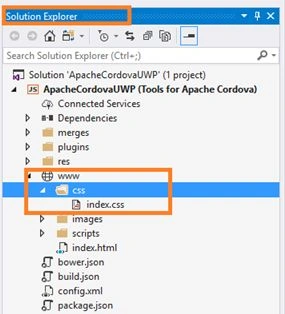
Now, go to Solution Explorer. In Solution Explorer, get all the files and sources in your project.
Subsequently, select Your Project-->www-->double click to open Index.html page. In this, the page is main view of your app. In this page, you can write HTML code.
Step 4
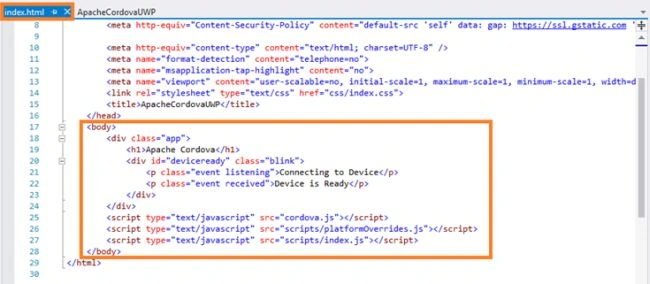
After opening index.html page, you can see the default HTML code. If you want, you can edit HTML code.
Step 5
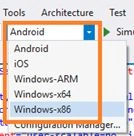
Now, you can run your app. Choose, your platform on configuration manager, which shows the list of platform Android, iOS, Windows-ARM, Windows-x64 and Windows-x86.
Step 6
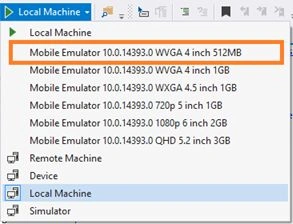
After choosing the platform, if you choose Windows, it shows the list Windows device, Local Machine and Emulators. If you want to run Windows Emulator, choose Windows 10 Emulator and run your app.
Output
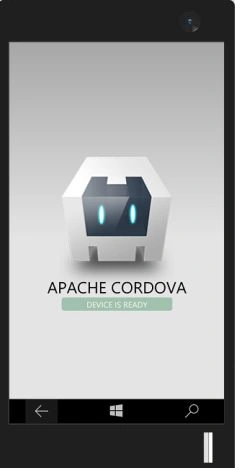
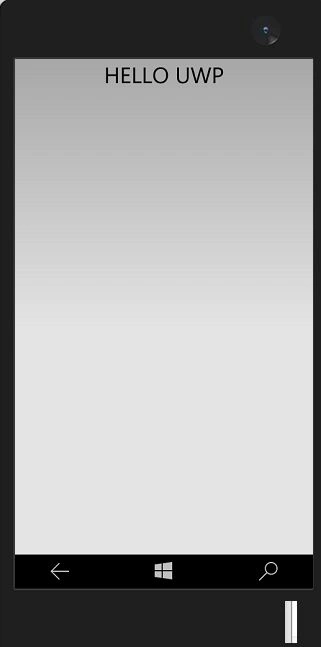
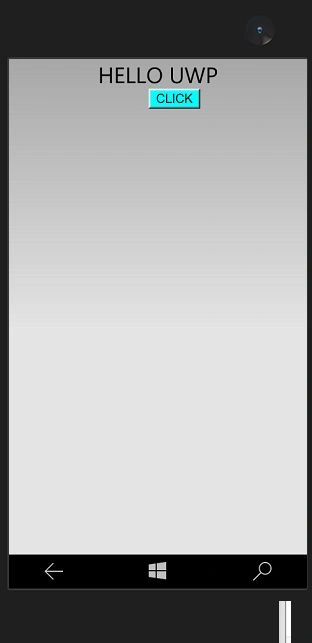
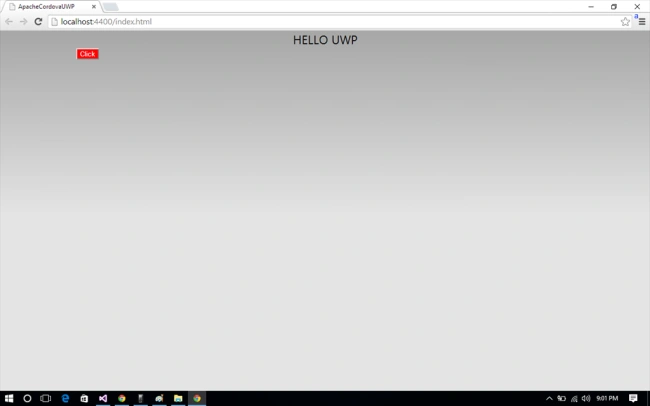
After few seconds, the app will start running on your Emulator. You will see that Apache Cordova app works successfully.
Step 7
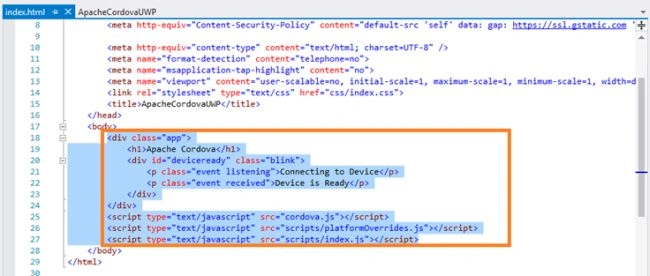
In this step, you want to edit your app. Delete the default HTML code and write the code, as per your desire.
Step 2
After opening the New Project, select Installed-->Templates-->JavaScript-->Mobile Apps-->choose the Blank app (Apache Cordova). Now, give your app; a name (Ex:sample) and give the path of your project. Afterwards, click OK.
Step 3
Now, go to Solution Explorer. In Solution Explorer, get all the files and sources in your project.
Subsequently, select Your Project-->www-->double click to open Index.html page. In this, the page is main view of your app. In this page, you can write HTML code.
Step 4
After opening index.html page, you can see the default HTML code. If you want, you can edit HTML code.
Step 5
Now, you can run your app. Choose, your platform on configuration manager, which shows the list of platform Android, iOS, Windows-ARM, Windows-x64 and Windows-x86.
Step 6
After choosing the platform, if you choose Windows, it shows the list Windows device, Local Machine and Emulators. If you want to run Windows Emulator, choose Windows 10 Emulator and run your app.
Output
After few seconds, the app will start running on your Emulator. You will see that Apache Cordova app works successfully.
Step 7
In this step, you want to edit your app. Delete the default HTML code and write the code, as per your desire.
Step 8
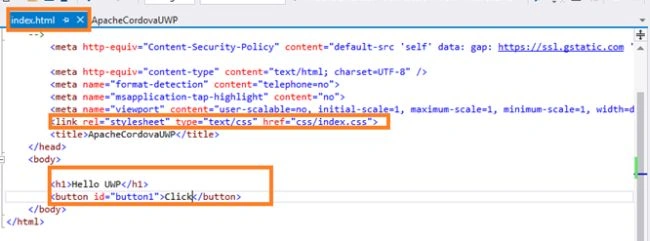
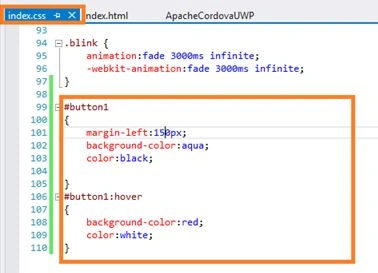
Now, you can write the code given below.
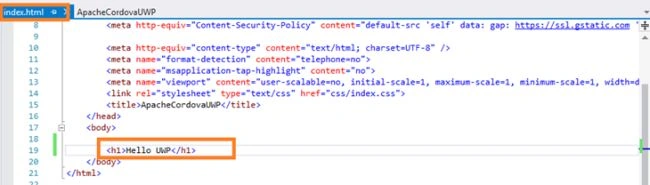
Index.HTML
Now, you can write the code given below.
Index.HTML
- <!DOCTYPE html>
- <html>
- <head>
- <!--
- Customize the content security policy in the meta tag below as needed. Add 'unsafe-inline' to default-src to enable inline JavaScript.
- For details, see http://go.microsoft.com/fwlink/?LinkID=617521
- -->
- <meta http-equiv="Content-Security-Policy" content="default-src 'self' data: gap: https://ssl.gstatic.com 'unsafe-eval'; style-src 'self' 'unsafe-inline'; media-src *">
- <meta http-equiv="content-type" content="text/html; charset=UTF-8" />
- <meta name="format-detection" content="telephone=no">
- <meta name="msapplication-tap-highlight" content="no">
- <meta name="viewport" content="user-scalable=no, initial-scale=1, maximum-scale=1, minimum-scale=1, width=device-width">
- <link rel="stylesheet" type="text/css" href="css/index.css">
- <title>ApacheCordovaUWP</title>
- </head>
- <body>
- <h1>Hello UWP</h1>
- </body>
- </html>
Delpin Susai RajPosted Mar 7, 2017, 4:34 AM
You want install this app in android phone , simply connect your phone. it will show the run menu you can run it.
Delpin Susai RajPosted Mar 7, 2017, 4:32 AM
Sorry i did't understand your question. which api
SubashPosted Mar 7, 2017, 3:12 AM
Android phones we share and install how we put api in windows mobile?
SubashPosted Mar 7, 2017, 3:11 AM
Nice i have one doubt how we check api in windows phone