

Introduction
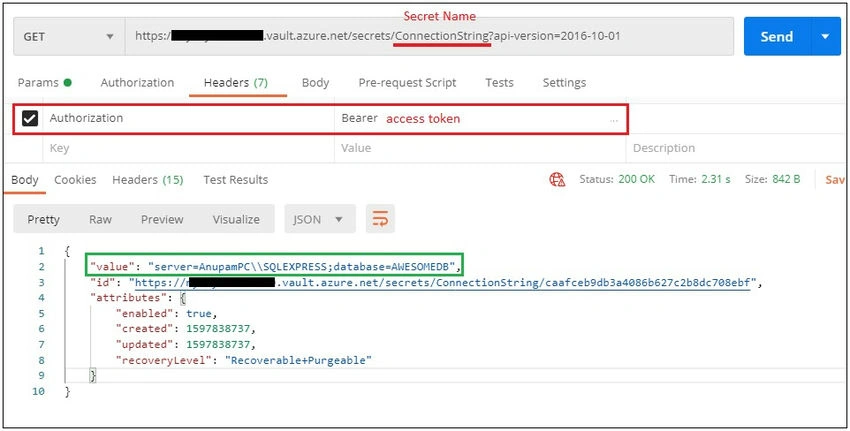
Azure Key Vault service is used to store cryptographic keys, certificates, and secrets. This article demonstrates how to access a secret stored in Azure Key Vault through a REST API call using Postman. Similarly, from any application you can call an HTTP request to retrieve a secret's value.
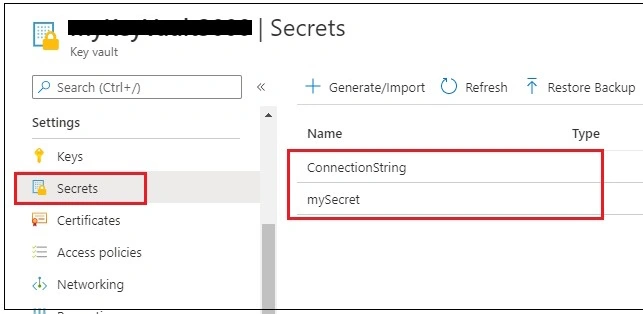
I am assuming that you already have a Key Vault service instance in Azure with some Secrets. In case you don’t have it, you can check Microsoft documentation to create it.
The Approach
First, we need to register our application in Azure Active Directory. Whenever you register an application in Azure AD, an application object is mapped to the service principle.
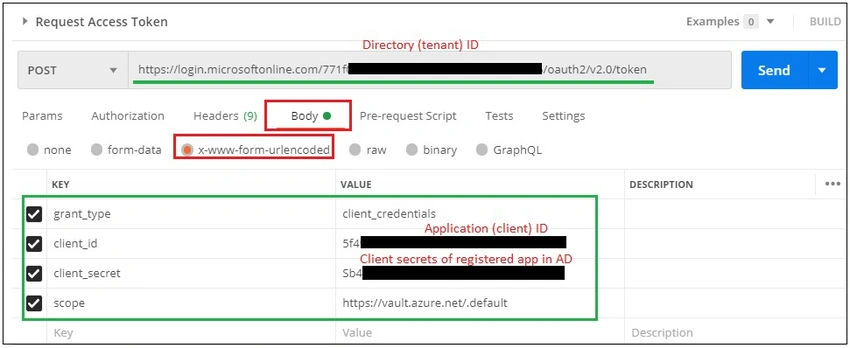
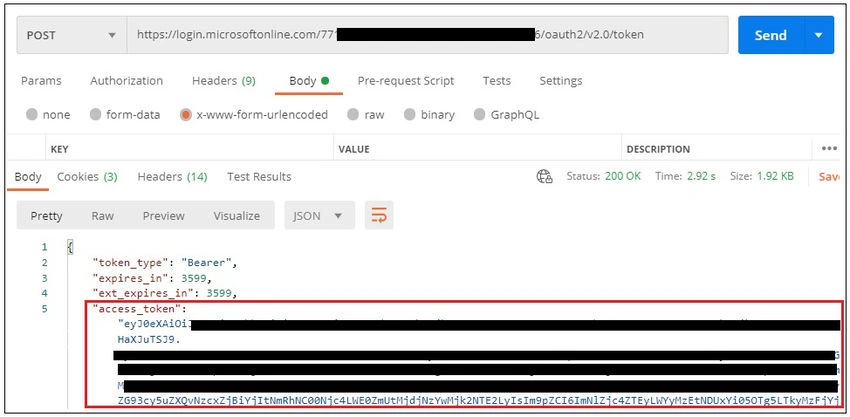
Then we need to add that service principle into the access policies of the key vault. Once all the setup is done in Azure, we will go ahead and request an access token from Postman and then we will call key vault API to retrieve secrets using an access token.
Register the App in the Azure Active Directory
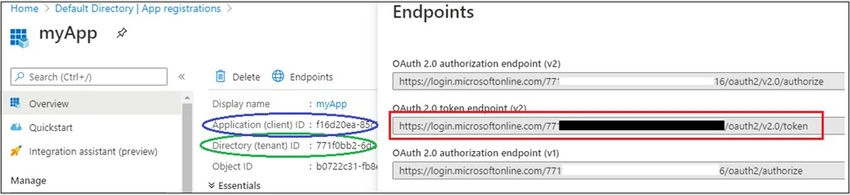
When you register an application in Azure AD, it basically describes the application to Azure AD and what permissions the application should have when it accesses services across Azure. The application can authenticate via the Microsoft Identity platform. The Microsoft Identity platform implements OAuth 2.0 authorization that helps a third-party application access web-hosted resources.
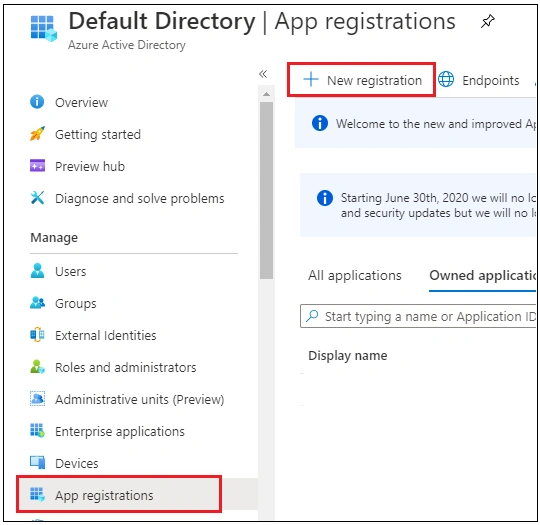
Go to Azure Active Directory => App Registrations => New registration.
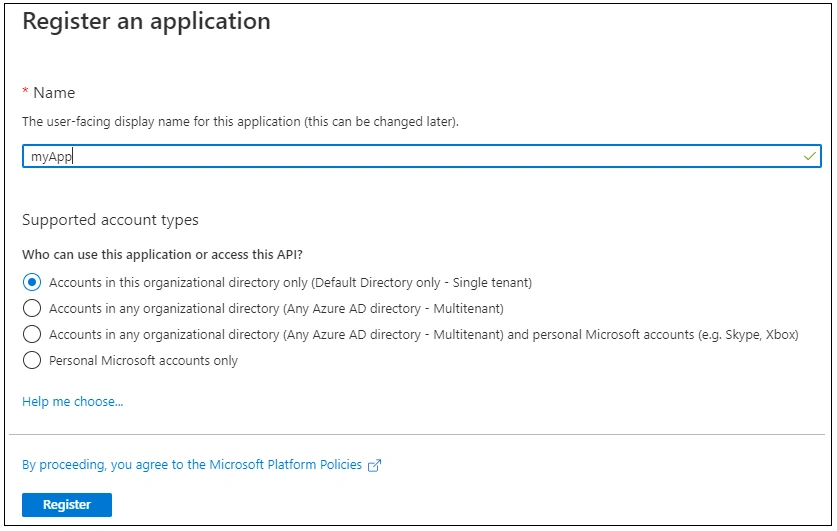
Provide the application name and then click Register.
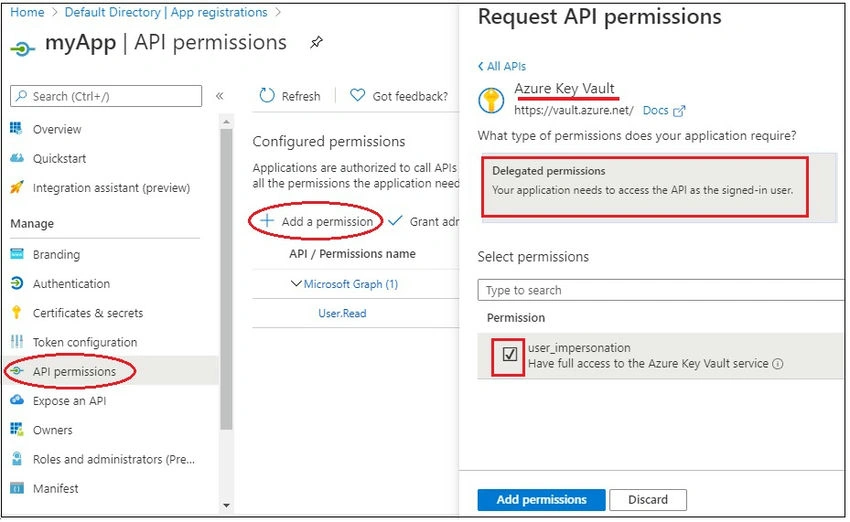
Now Click on API permissions of the app that we just added => Click on Add permission => Click on Azure Key Vault and Select. Then check on the permissions check box and select delegated permissions => Click Add permission.
Now we need to generate client secret which will be required for the authentication of the calling application. It basically acts like a password. Let's go ahead and generate a new secret. Go to the certificates and secrets section => click on new client secret => Give a name to the client secret => Add.
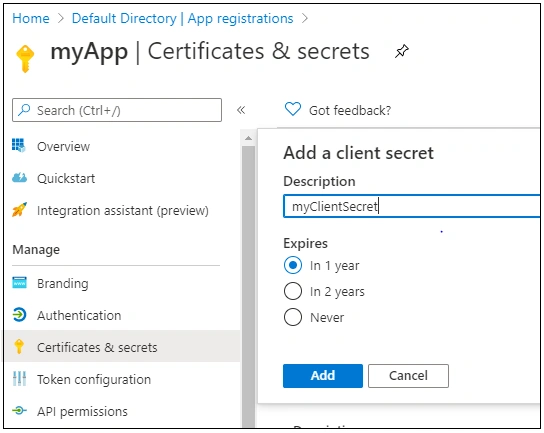
Please note that, or you can only copy the value of your client's secret one time. Copy the secret value and keep it in a secure location. This value will be required during the rest call.
Add access policies to the Key Vault
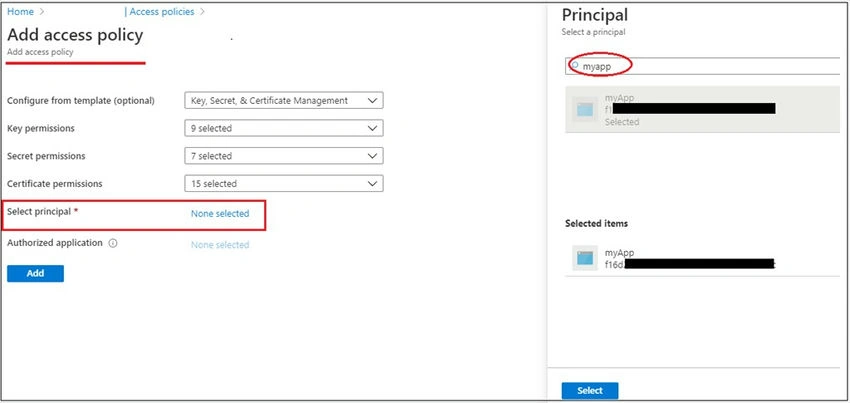
Now we have to authorize the Azure AD app into a key vault. To do this, go to Azure Key vault service => Select the key vault => click on the “Access Policies” section of the key vault, and then click on “+Add Access Policy” => Grant “get” permissions on Secret permission => Click on search of select principle and select the Azure AD application created earlier (in my case “myApp”) => Click on Add and Save.
Join the conversation! Your thoughts help the community grow.