

Before proceeding to this tutorial please go to ASP.NET MVC Membership Provider.
In the previous tutorial we learned how to use membership provider in ASP.NET. Here we will learn how to Display Roles for the users in ASP.NET MVC Membership.
First proceeding to this we need to add a class or we need a model name which is Role. Add this role model inside the account model.
Add the following code to the account model.cs class.
- [Table("webpages_Roles")]
- public class Role
- {
- [Required(ErrorMessage = "Enter Role name")]
- [StringLength(100, ErrorMessage = "The {0} must be at least {2} characters long.", MinimumLength = 6)]
- public string RoleName
- {
- get;
- set;
- }
- [Key]
- [DatabaseGeneratedAttribute(DatabaseGeneratedOption.Identity)]
- public int RoleId
- {
- get;
- set;
- }
- }
- [HttpGet]
- public ActionResult UserRole()
- {
- return View(new Role());
- }
- [HttpPost]
- public ActionResult UserRole(Role role)
- {
- return View(role);
- }
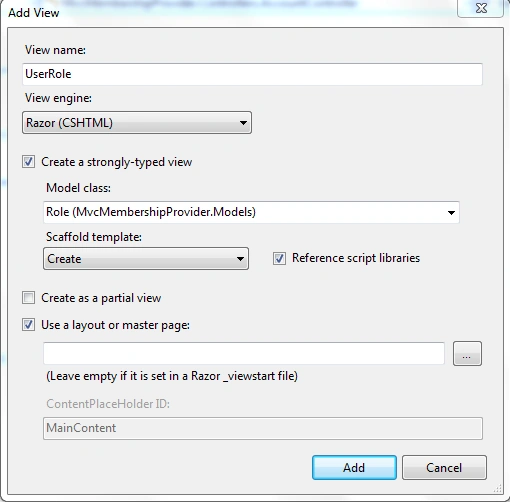
It will add a view for you and you will see this view under the account folder in View.
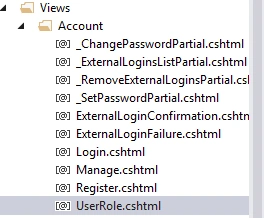
Now run your application and login to the page which you created account before. After logging in to account, navigate to the following URL
http://localhost:50526/Account/UserRole
When you will hit this URL it will go to user Role view and page will look like this
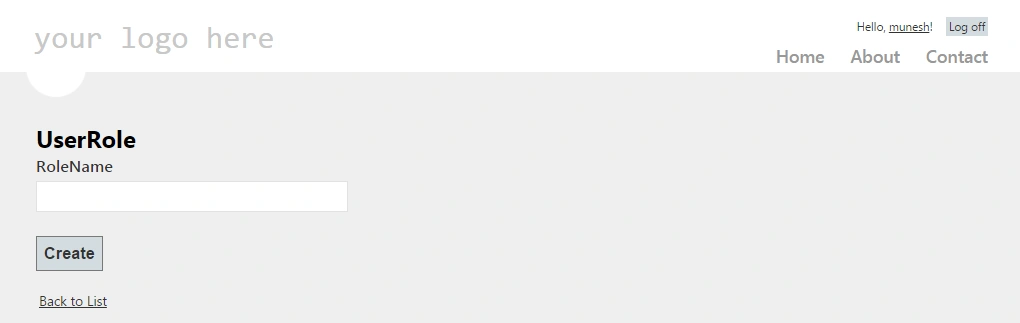
After making this view we need to insert role to database so for that we need to add code to insert data into database , so for that we need to add code in HttpPost method of UserRole action method.
Inside this action method there is a property whose name is [Roles.RoleExists(role.RoleName) ]to check that this Role already exists or not in database, it returns Boolean value. So write the following code in UserRoleAction method.
- [HttpPost]
- public ActionResult UserRole(Role role)
- {
- if (ModelState.IsValid)
- {
- if (Roles.RoleExists(role.RoleName))
- {
- ModelState.AddModelError("Error", " This Rolename already exists");
- return View(role);
- }
- else
- {
- Roles.CreateRole(role.RoleName);
- return RedirectToAction("RoleIndex", "Account");
- }
- }
- else
- {
- ModelState.AddModelError("Error", "Please enter proper Username and Password");
- }
- return View(role);
- }
Assign Roles to the user And Display the Role
For displaying all the user roles we will use code first approach so for that we have to create a class name, “userContext” which will be inherited from the “DbContext” class. If you are in internet application then it already exists in account model at top. Code for this class is like following:
- public class UsersRoleContext: DbContext
- {
- public UsersRoleContext(): base("DBConnectionForMembership")
- {}
- public DbSet < Role > UserRoles
- {
- get;
- set;
- }
- }
Now we need to add action method for displaying the role of users and add a action methos in account controller class name is “DisplayRoleForUsers”.
- [HttpGet]
- public ActionResult DisplayRoleForUsers()
- {
- IEnumerable < Role > ListRoles;
- using(UsersRoleContext db = new UsersRoleContext())
- {
- ListRoles = db.UserRoles.ToList();
- }
- return View(ListRoles);
- }
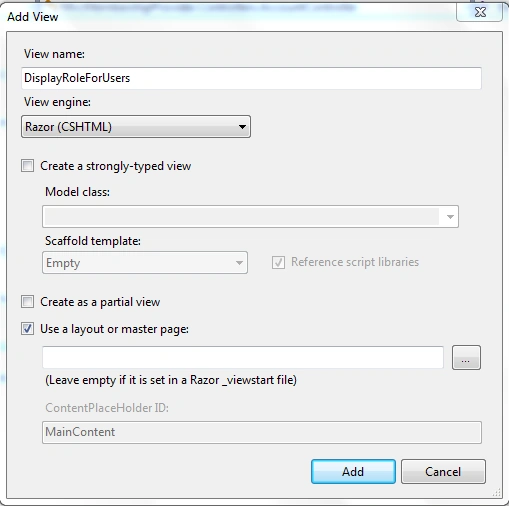
Now this view will create an empty view and for showing role of user we need a grid.
Adding MVC Grid to application
For adding grid to the application right click on the application and select “Nuget package manager”.
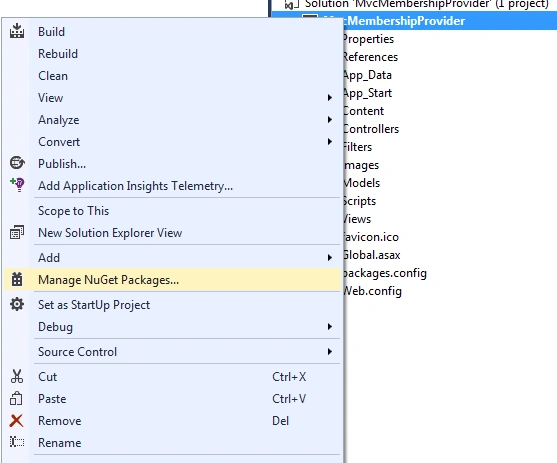
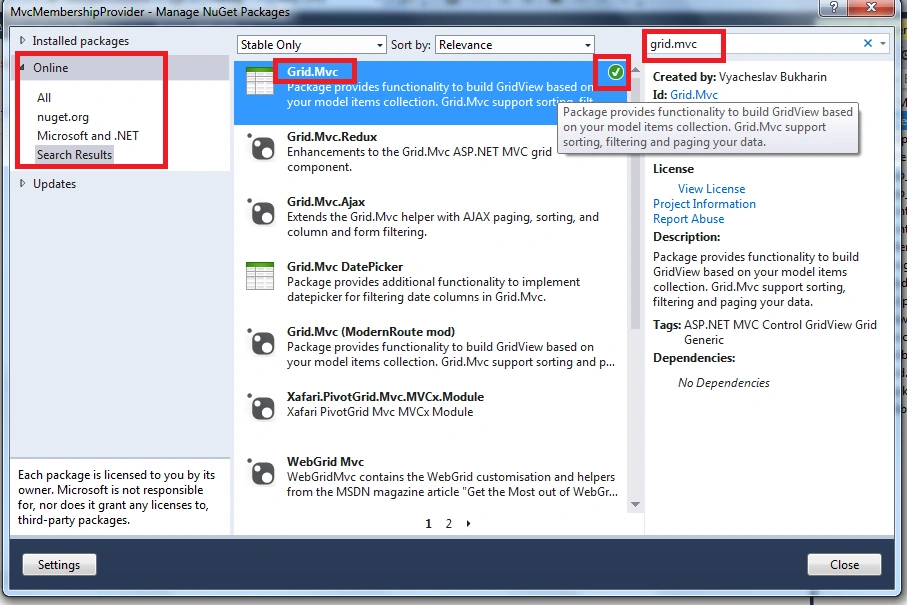
After clicking on nugget packet manager a window will open there you search “Grid.Mvc” under online panel. And install this grid to the application.
After adding grid to the application go the “DisplayRoleForUsers” view.
Add grid.mvc to this view
Write the following code to this view:
- @model IEnumerable<MvcMembershipProvider.Models.Role>
- @using GridMvc.Html
- @{
- ViewBag.Title = "Display roles for users";
- }
- <h2>DisplayAllRoles</h2>
- <link href="~/Content/Gridmvc.css" rel="stylesheet" />
- <link href="~/bootstrap/css/bootstrap.min.css" rel="stylesheet" />
- <script src="~/Scripts/jquery-1.9.1.min.js"></script>
- <script src="~/Scripts/gridmvc.js"></script>
- @Html.Grid(Model).Columns(columns =>
- {
- columns.Add(c => c.RoleId).Titled("Role ID").SetWidth(300);
- columns.Add(c => c.RoleName).Titled("RoleName").Filterable(true).SetWidth(300);
- }).WithPaging(5).Sortable(true)
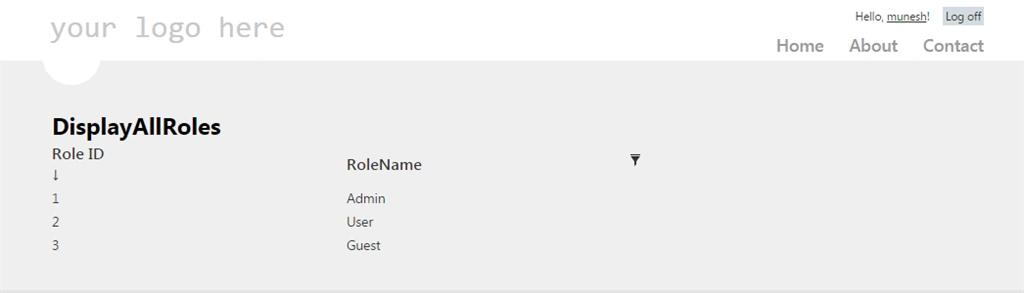
http://localhost:50526/Account/DisplayRoleForUsers
Nishan AryalPosted Apr 14, 2017, 7:15 AM
Hi, thanks for sharing this article. I have a question. What if I want to list users with roles name in Table. I have users with different roles and I want to display all users with Username and Email with assigned roles (Role Name) in View.
Humayun Kabir MamunPosted May 24, 2016, 1:03 AM
Nice...
Vignesh ManiPosted May 23, 2016, 3:50 PM
nice
Munesh SharmaPosted May 23, 2016, 1:54 PM
thank you
Debasis SahaPosted May 23, 2016, 1:46 PM
Good One..
Kuppurasu NagarajPosted May 23, 2016, 1:34 PM
Nice Sharing..