

In the last article we learned how to change styles in a text box, but in the auto suggest box we have to implement it at a deep level.
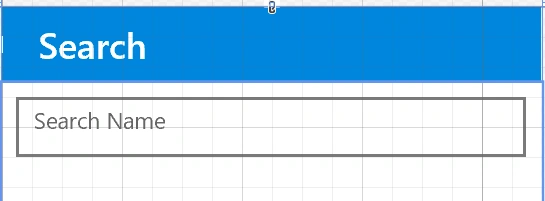
Before starting let’s see what exactly we are going to implement in the below images.
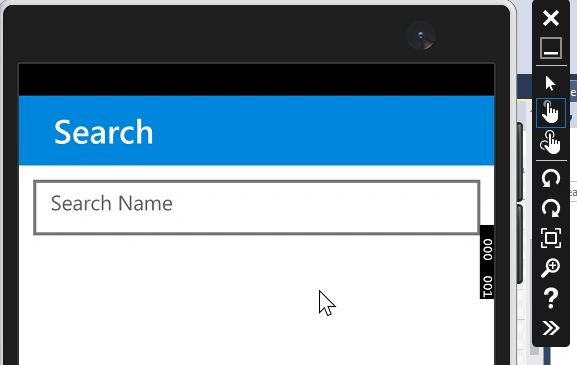
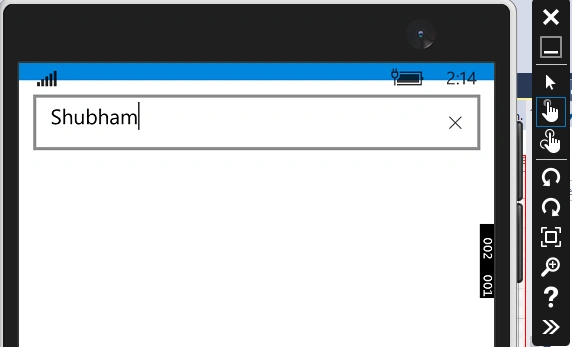
In the above image you can see AutoSuggestBox border color is #8d8d8d. Now if I click on AutoSuggestBox to write something then after focus its border color will change into a blue color -- see the below image,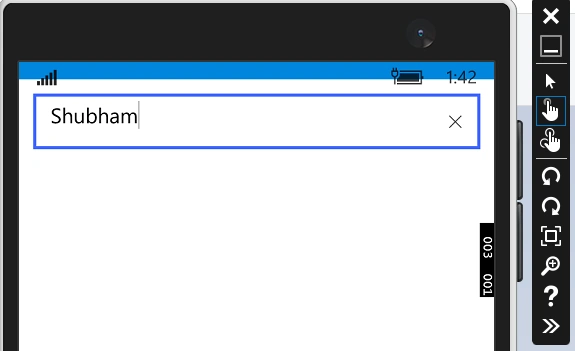
This is my main motive to write this article to describe how can we change border color of AutoSuggestBox on focus. Follow these steps.
- Create project in Microsoft visual studio blend 2015.
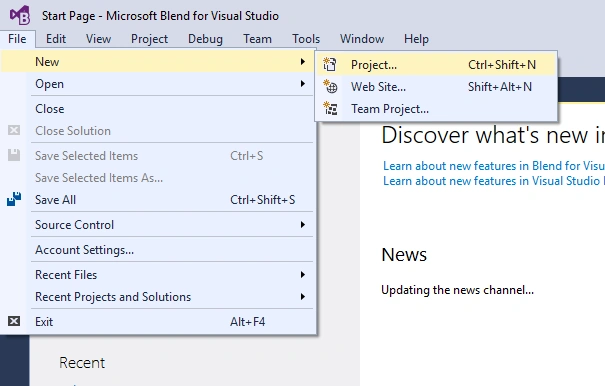
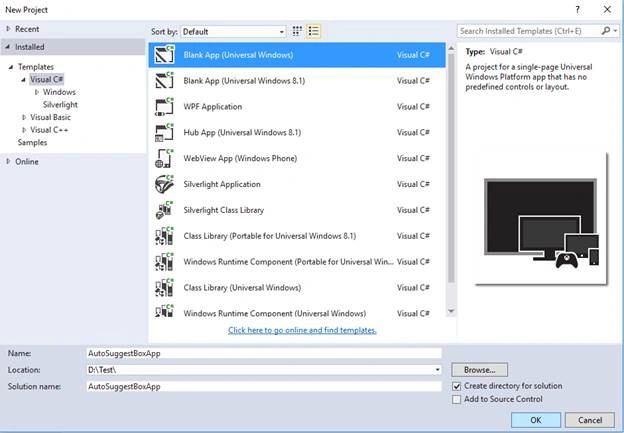
- Create App with any name at any location,
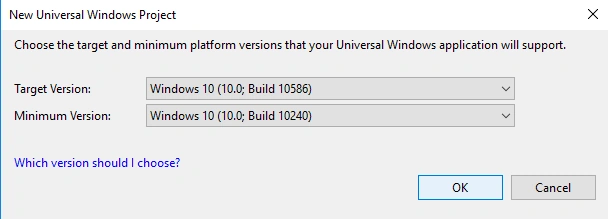
- On the page write the code,
- <Page
- x:Class="AutoSuggestBoxApp.MainPage"
- xmlns="http://schemas.microsoft.com/winfx/2006/xaml/presentation"
- xmlns:x="http://schemas.microsoft.com/winfx/2006/xaml"
- xmlns:local="using:AutoSuggestBoxApp"
- xmlns:d="http://schemas.microsoft.com/expression/blend/2008"
- xmlns:mc="http://schemas.openxmlformats.org/markup-compatibility/2006"
- mc:Ignorable="d">
- <Grid Background="{ThemeResource ApplicationPageBackgroundThemeBrush}">
- <Grid.RowDefinitions>
- <RowDefinition Height="50"/>
- <RowDefinition Height="220"/>
- </Grid.RowDefinitions>
- <Grid.ColumnDefinitions>
- <ColumnDefinition Width="*"/>
- </Grid.ColumnDefinitions>
- <Grid Grid.Row="0" Background="#0086dc">
- <TextBlock Text="Search" Foreground="White" HorizontalAlignment="Left" VerticalAlignment="Center" FontSize="24" FontWeight="SemiBold" Margin="25,0,0,0"></TextBlock>
- </Grid>
- <Grid Grid.Row="1">
- <AutoSuggestBox VerticalAlignment="Top" PlaceholderText="Search Name" Height="40" Padding="8" Margin="10" BorderBrush="#8d8d8d" BorderThickness="1"></AutoSuggestBox>
- </Grid>
- </Grid>
- </Page>
- In the above code I have made 1 AutoSuggestBox Example.
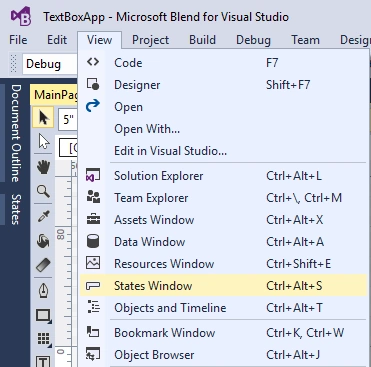
- Lets change the border color on focus, open the state window
Then add a state group
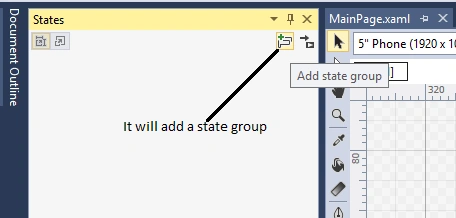
Then add a state group and a new state in it. Name that new state focused,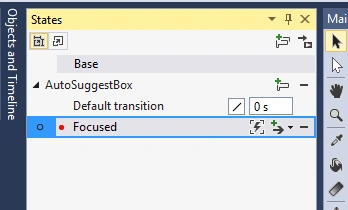
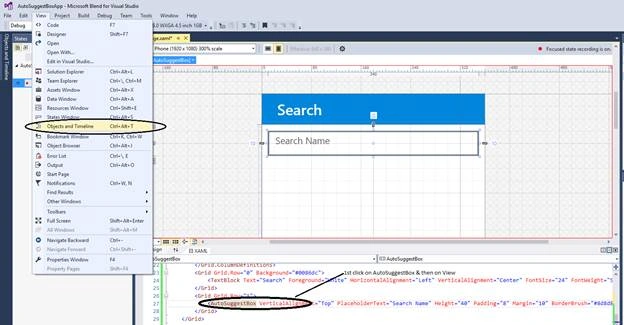
- Now click on AutoSuggestBox and then open objects and Timeline
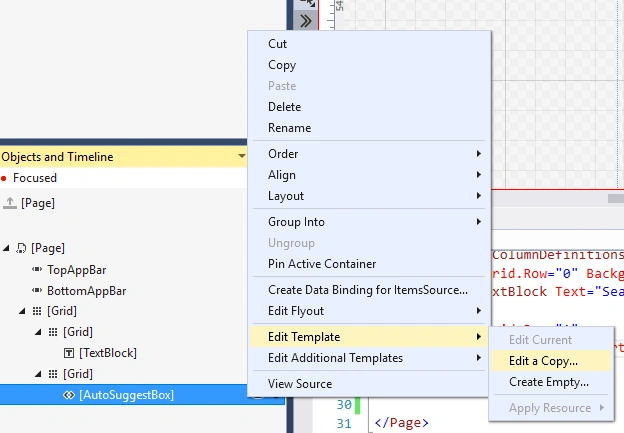
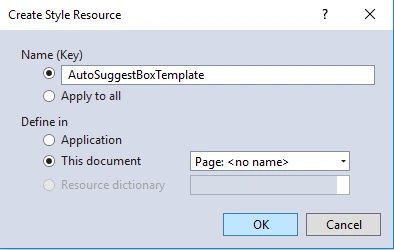
Then Edit Template of AutoSuggestBox
Now we can see in below image that AutoSuggestBox contains only Orientation state and two components in it
1. TextBox
2. SuggestionsPopup
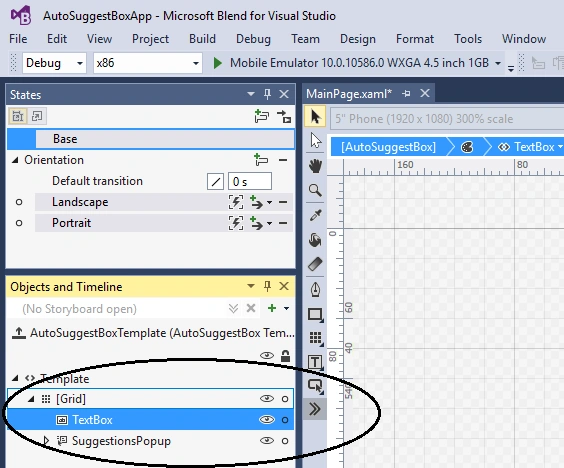
And to change the border color now we have to edit the template of the Textbox in the AutoSuggestBox.
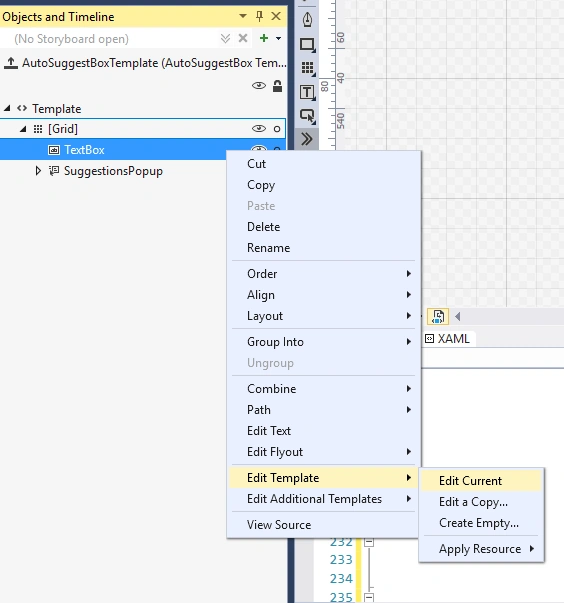
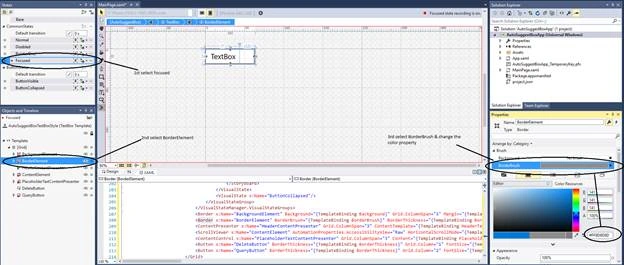
And then change the BorderBrush Property,
- Now run the app and check.
In Visual state Manager you will get another Element to implement like Background Element, Content Element etc.
nitin kumarPosted Dec 28, 2018, 12:00 AM
Nice.................
Vignesh ManiPosted Jul 12, 2016, 4:27 PM
Nice
Shobana JPosted Jul 12, 2016, 4:05 AM
Nice one
kalu singh raoPosted Jul 12, 2016, 1:27 AM
Nice...