

Before Go To This Session Just Visit My Previous Article As mentioned In Below Link.
Description
Here i will show you after insert records how to export the record in pdf format using jquery. use the iTextSharp HTML to PDF conversion library in ASP.Net MVC Razor.First the data will be populated from database using Entity Framework and then the records from the database will be displayed as HTML in ASP.Net MVC Razor.Then the same HTML will be converted to PDF file using the iTextSharp HTML to PDF conversion library and then later the PDF file is downloaded using iTextSharp XMLWorkerHelper library in ASP.Net MVC Razor.
Link To Source Code
Steps To Be Followed
Step1
Create an mvc application named "SatyaExportMVC".

Step1
Create an mvc application named "SatyaExportMVC".
Step2
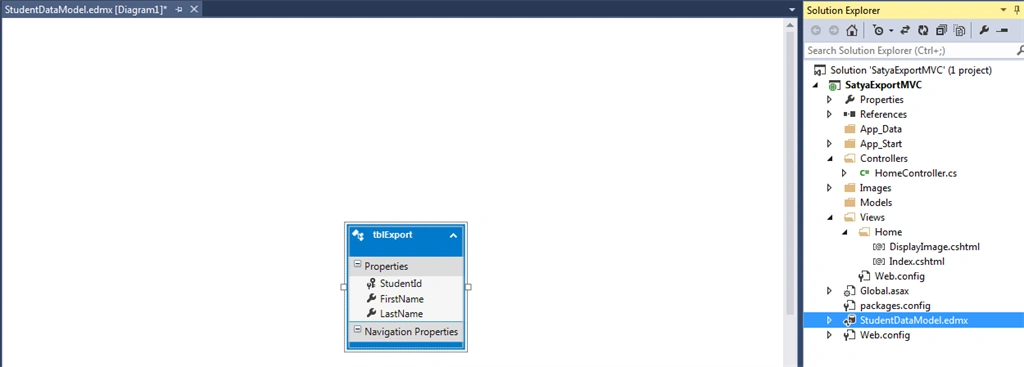
Craete one table called "tblexport".
Script
Craete one table called "tblexport".
Script
- SET ANSI_NULLS ON
- GO
- SET QUOTED_IDENTIFIER ON
- GO
- CREATE TABLE [dbo].[tblExport](
- [StudentId] [int] IDENTITY(1,1) NOT NULL,
- [FirstName] [nvarchar](50) NULL,
- [LastName] [nvarchar](50) NULL,
- PRIMARY KEY CLUSTERED
- (
- [StudentId] ASC
- )WITH (PAD_INDEX = OFF, STATISTICS_NORECOMPUTE = OFF, IGNORE_DUP_KEY = OFF, ALLOW_ROW_LOCKS = ON, ALLOW_PAGE_LOCKS =
- ON) ON [PRIMARY]
- ) ON [PRIMARY]
- GO
Create one entity data model named"StudentDataModel.edmx".
Step4
Installing and adding reference of iTextSharp XMLWorkerHelper Library.
Description
You will need to import the following namespaces.
Action method performs File Download and hence the return type is set to FileResult. The HTML of the Grid sent from the View is extracted from the GridHtml parameter. The HTML is read using an object of StringReader class which is then supplied to the ParseXHtml method of the XMLWorkerHelper class object which converts it to PDF document and saves to the MemoryStream class object. Finally the MemoryStream class object is converted to Byte Array and exported and downloaded as PDF file using the File function.
Step6
Create one view named "Index.cshtml" as described in my earlier session.
Then create another view named "DisplayImage.cshtml".
Code ref
Code Description
For displaying the records, an HTML Table is used. A loop will be executed over the Model which will generate the HTML Table rows with the Customer records.
HTML Hidden Field element which is used to send the Grid HTML content to the Controller’s Action method Finally there’s an HTML Submit button enclosed inside a Form with the Action method specified as Export.When this Button will be clicked, first the HTML of the Grid (Html Table) is extracted and set into the Hidden Field element and finally the Form is submitted.
Jquery Ref
Installing and adding reference of iTextSharp XMLWorkerHelper Library.
- Right Click the Project in Solution Explorer and click Manage NuGet Packages from the Context Menu.
- Now you will need to look for iTextSharp XMLWorker package and once found, you need to click the Install Button.
Step5
Code For HomeController.cs.
- using System;
- using System.Data;
- using System.Linq;
- using System.Web;
- using System.Web.Mvc;
- using System.IO;
- using iTextSharp.text;
- using iTextSharp.text.pdf;
- using iTextSharp.tool.xml;
- using iTextSharp.text.html.simpleparser;
- using System.Web.UI.WebControls;
- using System.Web.UI;
- namespace ImageuploadingDemo.Controllers
- {
- public class HomeController : Controller
- {
- public ActionResult Index()
- {
- return View();
- }
- public ActionResult FileUpload()
- {
- StudentEntities db = new StudentEntities();
- tblExport student = new tblExport();
- student.FirstName = Request.Form["firstname"];
- student.LastName = Request.Form["lastname"];
- db.tblExports.Add(student);
- db.SaveChanges();
- return RedirectToAction("../home/DisplayImage/");
- }
- public ActionResult DisplayImage()
- {
- return View();
- }
- [HttpPost]
- [ValidateInput(false)]
- public FileResult Export(string GridHtml)
- {
- using (MemoryStream stream = new System.IO.MemoryStream())
- {
- StringReader sr = new StringReader(GridHtml);
- Document pdfDoc = new Document(PageSize.A4, 10f, 10f, 10f, 10f);
- PdfWriter writer = PdfWriter.GetInstance(pdfDoc, stream);
- pdfDoc.Open();
- XMLWorkerHelper.GetInstance().ParseXHtml(writer, pdfDoc, sr);
- pdfDoc.Close();
- return File(stream.ToArray(), "application/pdf", "StudentDetails.pdf");
- }
- }
- }
- }
You will need to import the following namespaces.
- using System;
- using System.Data;
- using System.Linq;
- using System.Web;
- using System.Web.Mvc;
- using System.IO;
- using iTextSharp.text;
- using iTextSharp.text.pdf;
- using iTextSharp.tool.xml;
- using iTextSharp.text.html.simpleparser;
- using System.Web.UI.WebControls;
- using System.Web.UI;
- public FileResult Export(string GridHtml)
- {
- using (MemoryStream stream = new System.IO.MemoryStream())
- {
- StringReader sr = new StringReader(GridHtml);
- Document pdfDoc = new Document(PageSize.A4, 10f, 10f, 10f, 10f);
- PdfWriter writer = PdfWriter.GetInstance(pdfDoc, stream);
- pdfDoc.Open();
- XMLWorkerHelper.GetInstance().ParseXHtml(writer, pdfDoc, sr);
- pdfDoc.Close();
- return File(stream.ToArray(), "application/pdf", "StudentDetails.pdf");
- }
- }
Create one view named "Index.cshtml" as described in my earlier session.
Then create another view named "DisplayImage.cshtml".
Code ref
- @using ImageuploadingDemo;
- @{
- ViewBag.Title = "DisplayImage";
- }
- <link rel="stylesheet" href="https://maxcdn.bootstrapcdn.com/bootstrap/3.3.7/css/bootstrap.min.css">
- <script src="https://ajax.googleapis.com/ajax/libs/jquery/3.2.1/jquery.min.js"></script>
- <script src="https://maxcdn.bootstrapcdn.com/bootstrap/3.3.7/js/bootstrap.min.js"></script>
- <head>
- <style>
- .linkbtnfull {
- background-color: #f44336;
- color: white;
- font-size: medium;
- padding: 14px 25px;
- text-align: center;
- text-decoration: none;
- display: inline-block;
- }
- table {
- font-family: arial, sans-serif;
- border-collapse: collapse;
- width: 100%;
- }
- td, th {
- border: 1px solid #dddddd;
- text-align: left;
- padding: 8px;
- }
- tr:nth-child(even) {
- background-color: #dddddd;
- }
- </style>
- </head>
- @{
- StudentEntities db = new StudentEntities();
- }
- @Html.ActionLink("Go To Insert Page>>", "Index", "Home", null, new { @class = "linkbtnfull" })
- <body>
- <h2 style="background-color: blue;color: white; text-align: center; font-style: oblique">Students Profile
- Export</h2>
- @using (Html.BeginForm("Export", "Home", FormMethod.Post))
- {
- <div style="text-align: center;background-color:yellowgreen;width:100%">
- <input type="hidden" name="GridHtml" />
- @*<input type="submit" id="btnSubmit" value="Export" />*@
- <span style="font-family: Arial Black;color:red; font-size:larger;font-style: oblique">Export PDF</span>
- <input type="image" id="btnSubmit" src="~/Images/Pdf.png" value="Pdf" />
- </div>
- <br />
- @*<input type="hidden" name="GridHtml" />
- <input type="submit" id="btnSubmit" value="Export" />*@
- <div id="Grid">
- <table align="center" border="1" cellpadding="4" cellspacing="4">
- <thead>
- <tr>
- <th style="background-color: Yellow;color: blue">First Name</th>
- <th style="background-color: Yellow;color: blue">Last Name</th>
- </tr>
- </thead>
- <tbody>
- @foreach (var item in db.tblExports)
- {
- <tr>
- <td>@item.FirstName</td>
- <td>@item.LastName</td>
- </tr>
- }
- </tbody>
- </table>
- </div>
- }
- <script type="text/javascript" src="http://ajax.googleapis.com/ajax/libs/jquery/1.8.3/jquery.min.js"></script>
- <script type="text/javascript">
- $(function () {
- $("#btnSubmit").click(function () {
- $("input[name='GridHtml']").val($("#Grid").html());
- });
- });
- </script>
- </body>
For displaying the records, an HTML Table is used. A loop will be executed over the Model which will generate the HTML Table rows with the Customer records.
- @foreach (var item in db.tblExports)
- {
- <tr>
- <td>@item.FirstName</td>
- <td>@item.LastName</td>
- </tr>
- }
- <div style="text-align: center;background-color:yellowgreen;width:100%">
- <input type="hidden" name="GridHtml" />
- @*<input type="submit" id="btnSubmit" value="Export" />*@
- <span style="font-family: Arial Black;color:red; font-size:larger;font-style: oblique">Export PDF</span>
- <input type="image" id="btnSubmit" src="~/Images/Pdf.png" value="Pdf" />
- </div>
- <br />
- <script type="text/javascript">
- $(function () {
- $("#btnSubmit").click(function () {
- $("input[name='GridHtml']").val($("#Grid").html());
- });
- });
- </script>
OUTPUT
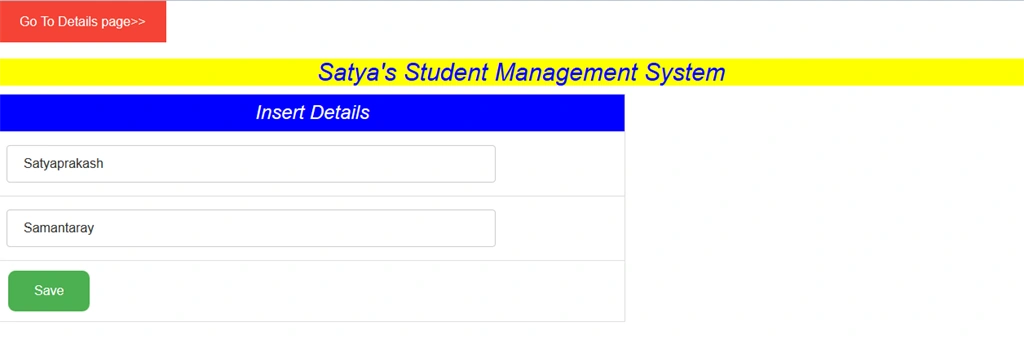
Insert Record
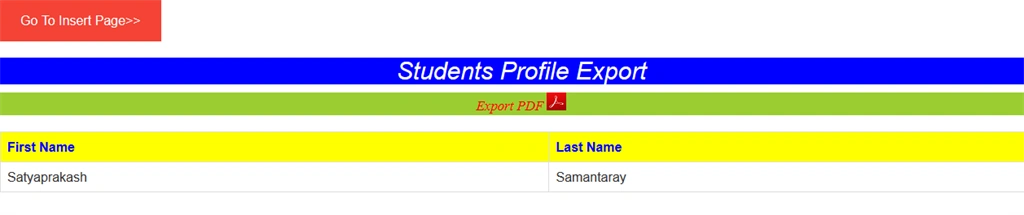
Display record
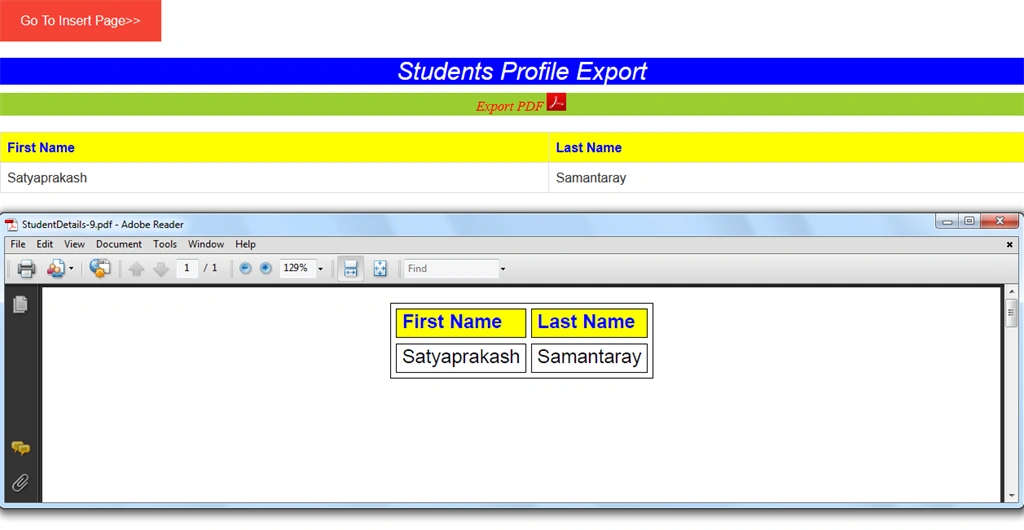
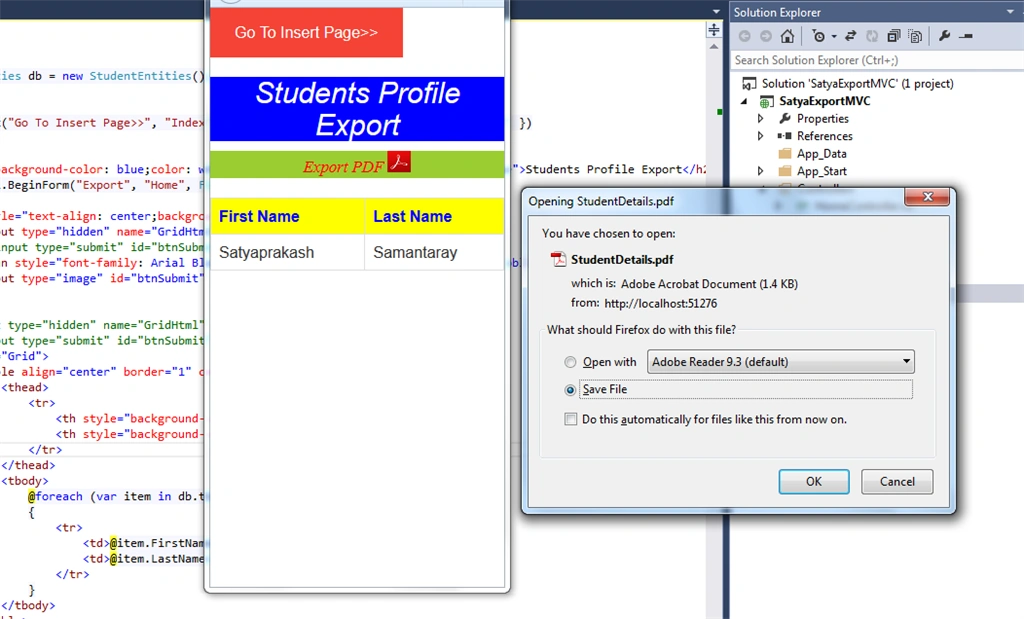
Export To Pdf
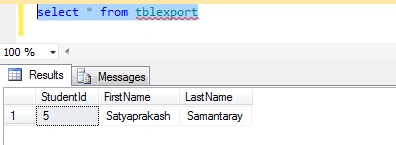
Check Backend
Mobile View
Insert Record
Display record
Export To Pdf
Check Backend
Mobile View
Summary
Initially the data will be populated from database using Entity Framework and then the records from the database will be displayed as HTML in ASP.Net MVC Razor.Then the same HTML will be converted to PDF file using the iTextSharp HTML to PDF conversion library and then later the PDF file is downloaded using iTextSharp XMLWorkerHelper library in ASP.Net MVC Razor.
Initially the data will be populated from database using Entity Framework and then the records from the database will be displayed as HTML in ASP.Net MVC Razor.Then the same HTML will be converted to PDF file using the iTextSharp HTML to PDF conversion library and then later the PDF file is downloaded using iTextSharp XMLWorkerHelper library in ASP.Net MVC Razor.
Phunsuk WangduPosted Sep 6, 2022, 1:55 AM
Hi, it doesn't work once i include an image on the pdf to be downloaded.
Farhan AhmedPosted Jul 24, 2018, 4:59 AM
Nice work........
Amedee GassePosted Dec 2, 2017, 2:04 AM
This article was written in 2017. Can you please tell me why you use the older iText 5 XMLWorker and don't use the newer iText 7 pdfHTML?
L APosted Nov 5, 2017, 2:38 AM
Great article Satyaprakash. I followed the steps shown in the article, but when i click 'Export as Pdf ' inside Html.BeginForm("exportPDF", "Home", FormMethod.Post) - 404 error occurs. I did create an method to handle [HTTP POST].