

Introduction
In this article, we learn about creating a GITHub account, pushing local code to a GITHub repository, CI & CD (YAML) configuration using the GITHub repository, and publishing code in Azure Web App services.
Now, go here to create your own repository in GitHub.
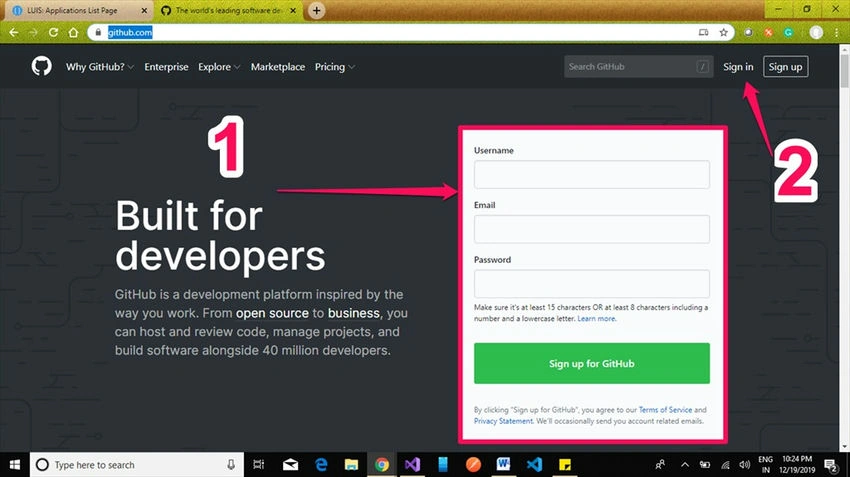
- Sign up with email ID and password, new registration is approved once you’re done with the confirmation mail.
- If you’re already a registered member with a GitHub account, you can click on the Sign-In option, as shown in the figure below.
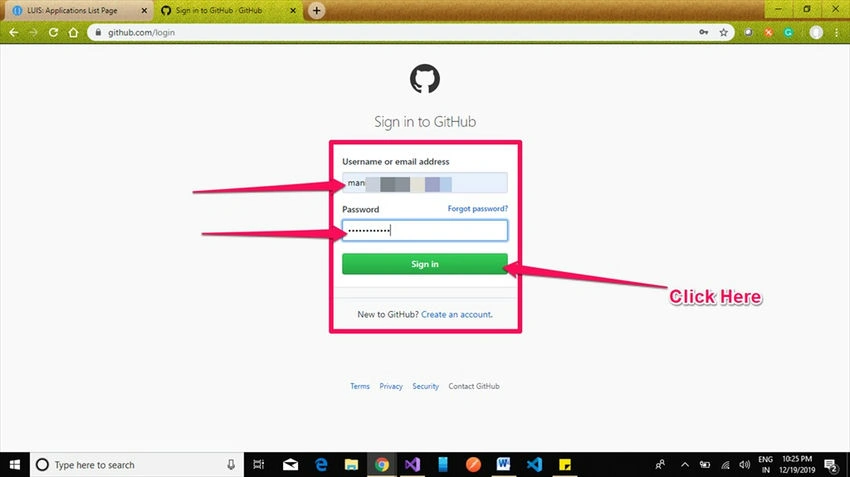
Once you’ve clicked in Sign-In, the page is redirected to the login page and filled in with username or email address and password. Click on Sign-in button as shown in the below figure.
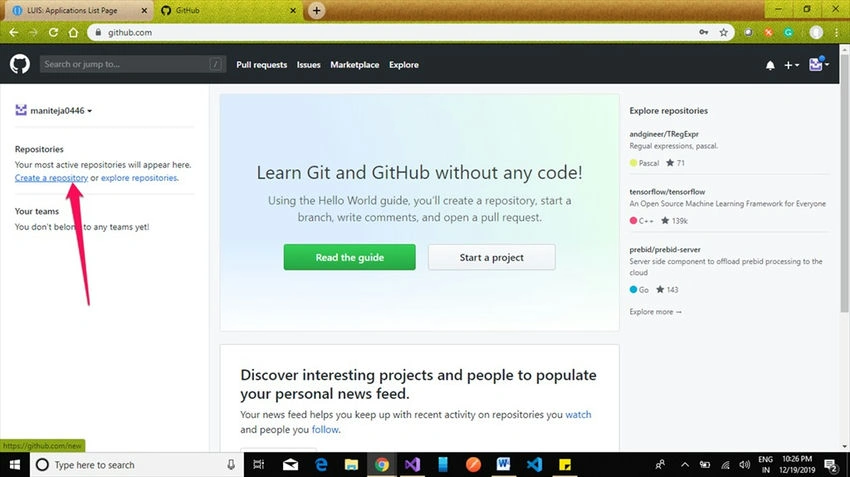
Once login is successful, it will redirect to the dashboard page, as shown in the figure below. Now, we’ll create a new repository to maintain our code. Click as shown in the figure below.
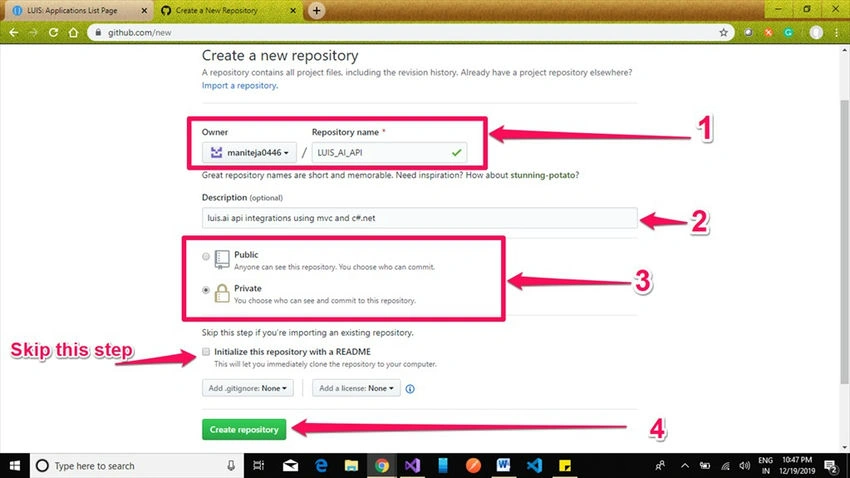
- Give a valid repository name for our project.
- Description of the repository.
- Give valid access to commit your codes and access your files.
- Fill in all the above options and Click on the Create Repository button.
A new repository is created and now we can copy commands and keep them in Notepad to run in the developer command prompt.
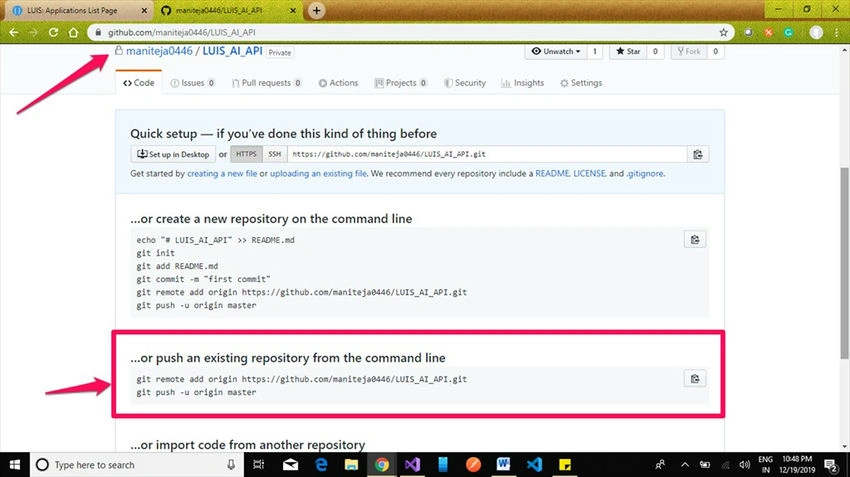
Now create any web application by using Visual Studio SDK or you can use your existing application for this activity.
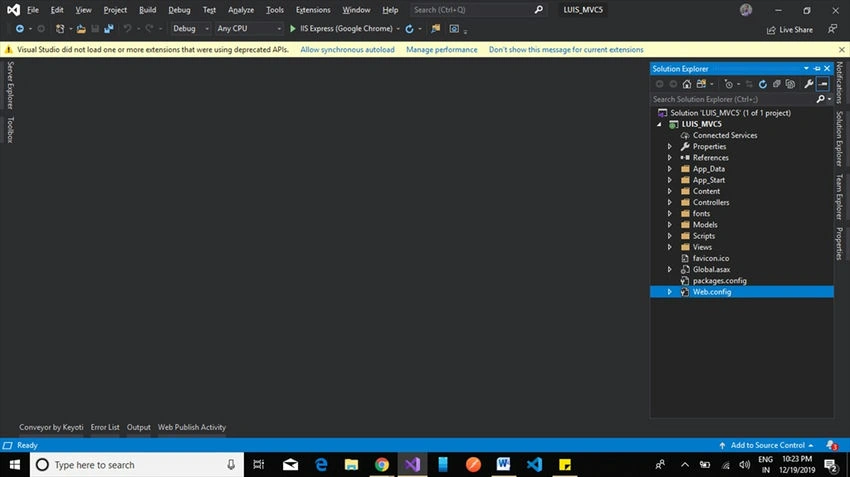
Right-click on Solution and click on ‘Add Solution to Source Control’.
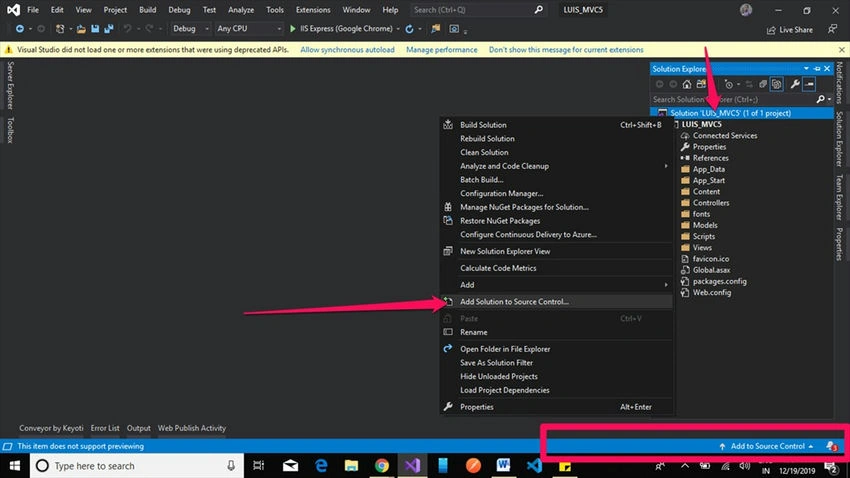
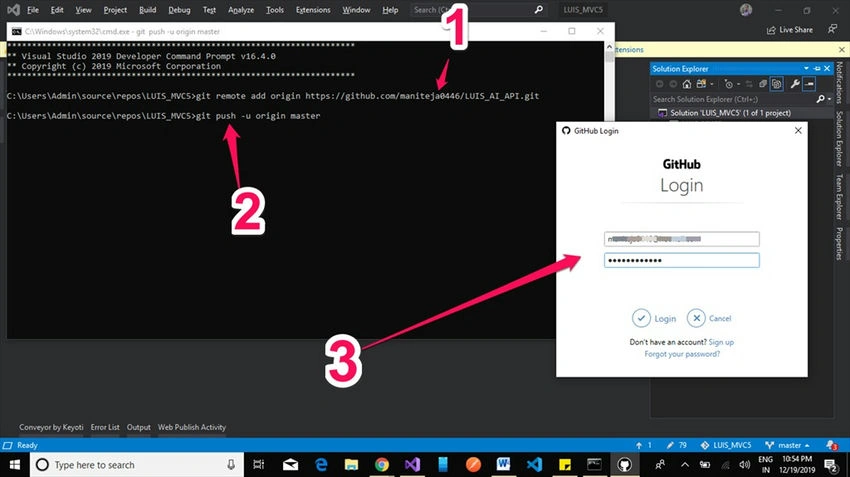
Once the Solution is added to source control, it will be added to the master origin. Go to ‘Tools’ => Command Line => Developer Command Prompt.
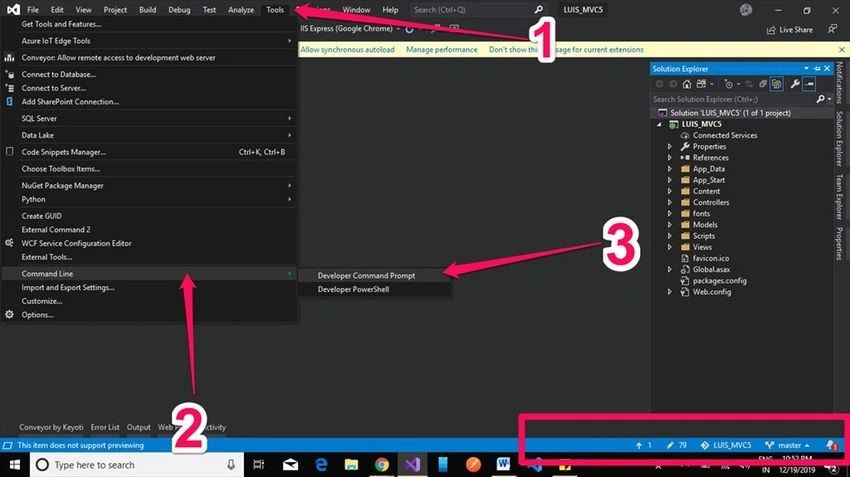
Now enter our git code to push code from local to GitHub repository. It will redirected to GitHub credentials for valid operation.
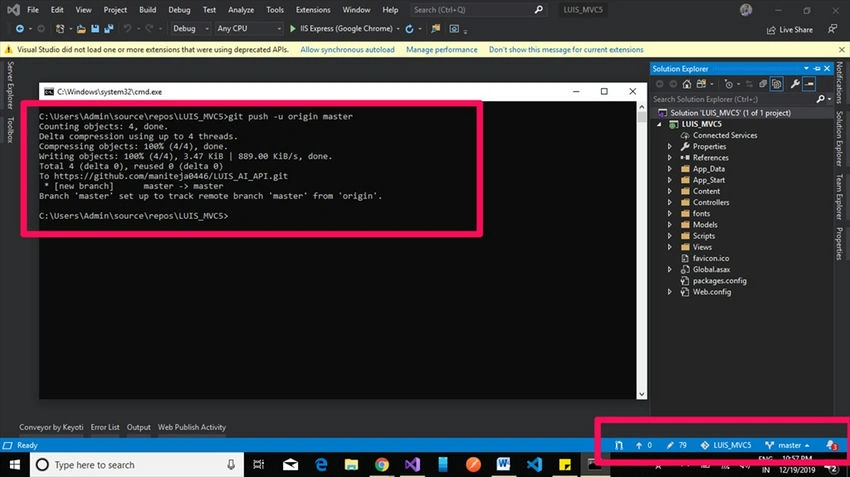
Once our code is successfully pushed to the Github repository, we get the below log details as shown in the below screenshot.
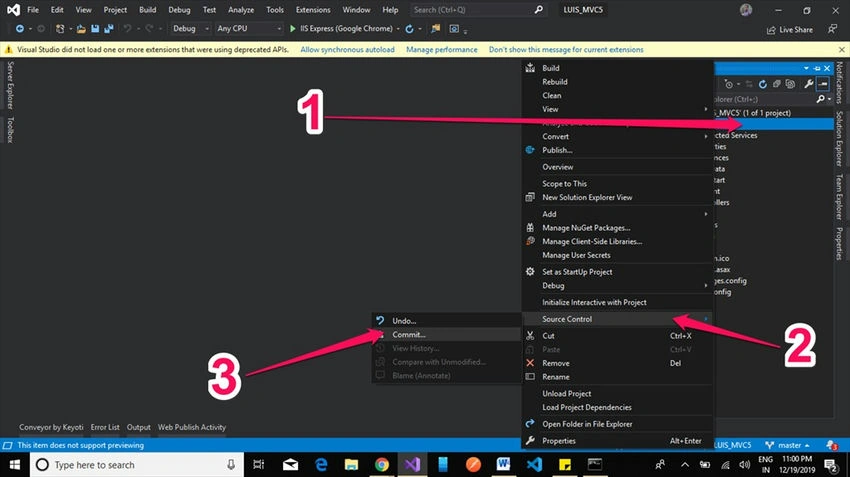
Now we need to push files to the repository, Right Click on Project => Source Control => Click on the ‘Commit’ option.
Check all files are staged in the ‘Staged Changes’ category, provide valid comments for commit, and Click on the ‘Commit Staged’ option. Don’t forget to push code from ‘Outgoing commits’.
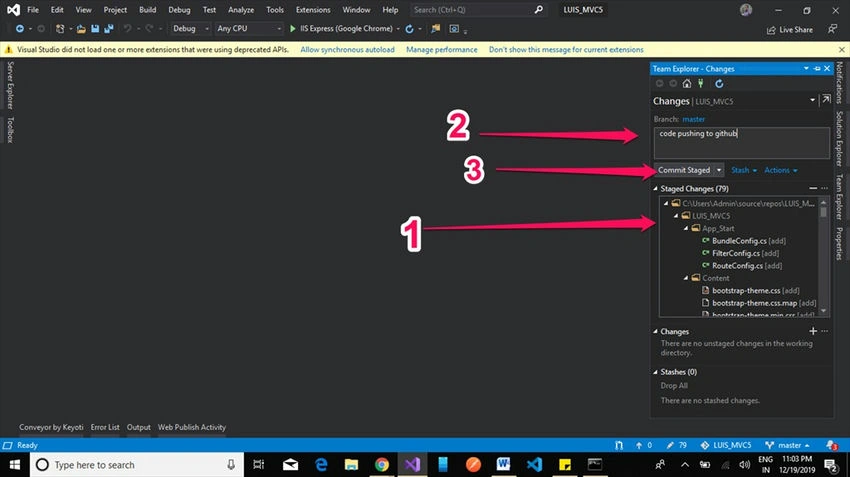
Once you stage changes it will go to outgoing commits, from outgoing commits you need to push to repository.
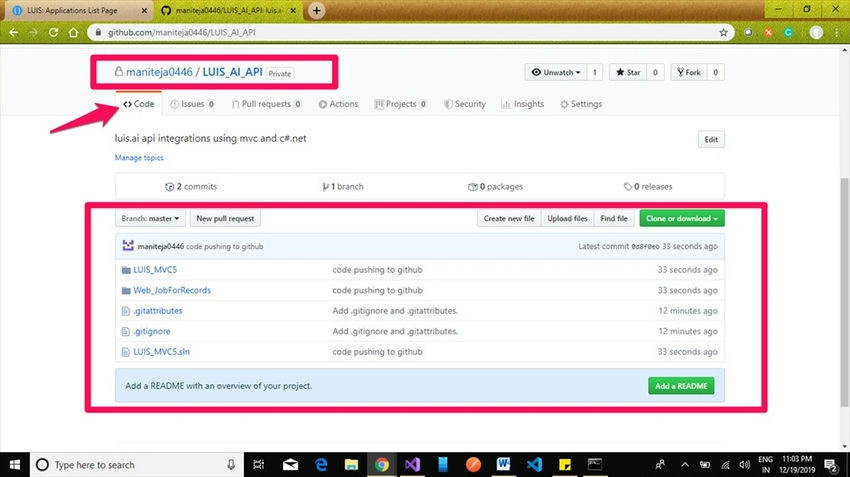
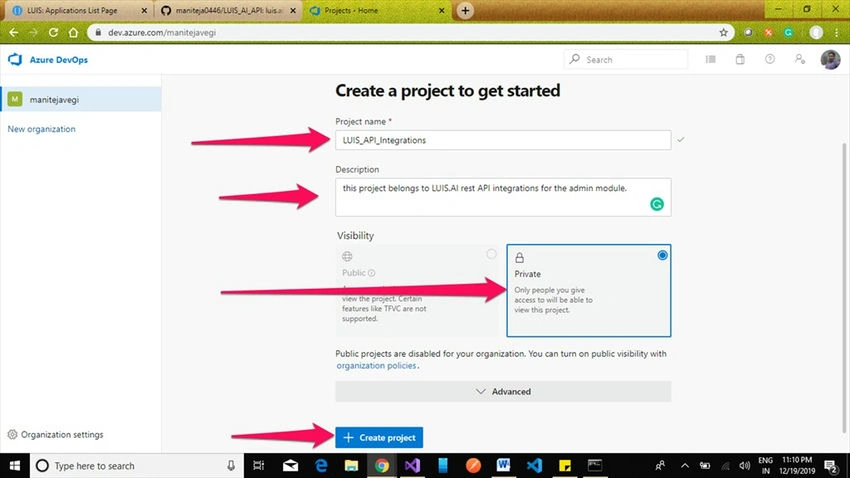
Now our job is done and it’s time to configure the pipeline in Azure DevOps. Switch to the DevOps site now. Go here and go to your organization to create a new project. Fill in valid details for your project and click on the Create Project button.
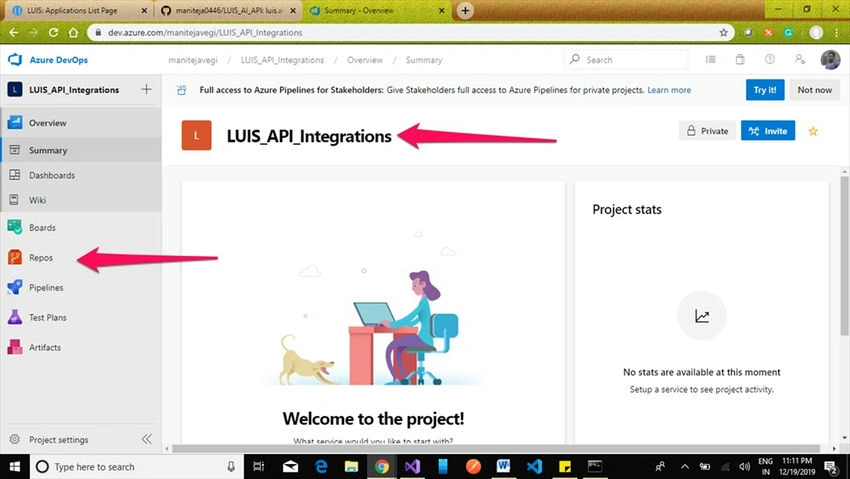
Once the project is created there will be an overview as shown in the below screenshot. We’re not using the ‘Repos’ option in this scenario.
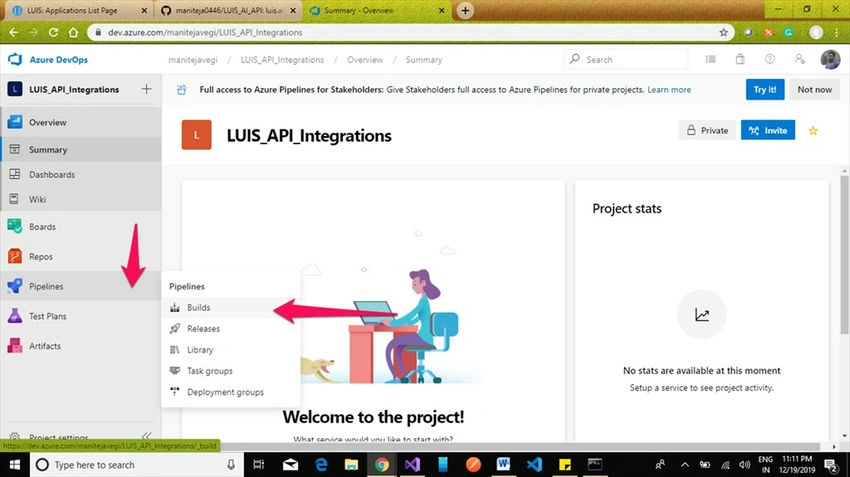
Now click on ‘Pipelines’ and Click on the ‘Builds’ option.
It notifies you to; switch to a multi-stage pipeline experience preview to use. Our Pipelines options are changed as shown in the below screenshot, Go to the ‘Pipelines’ option to create our pipeline for Continuous Integration (CI). Click on the ‘Create Pipeline’ button.
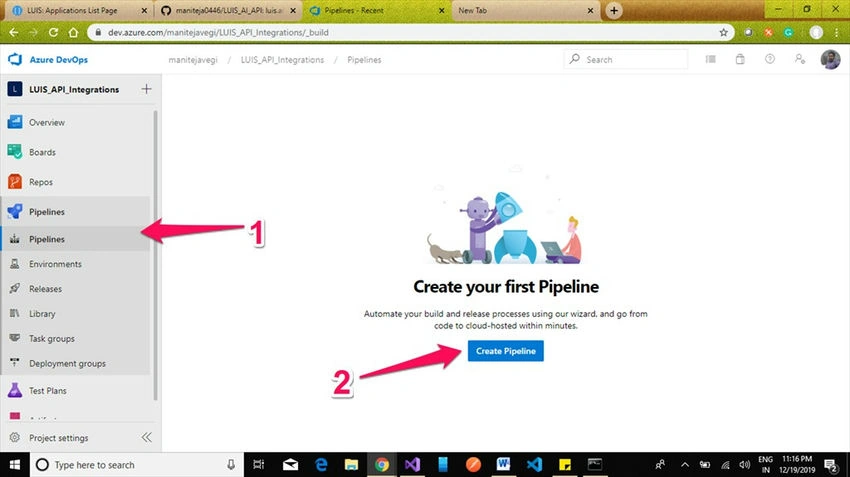
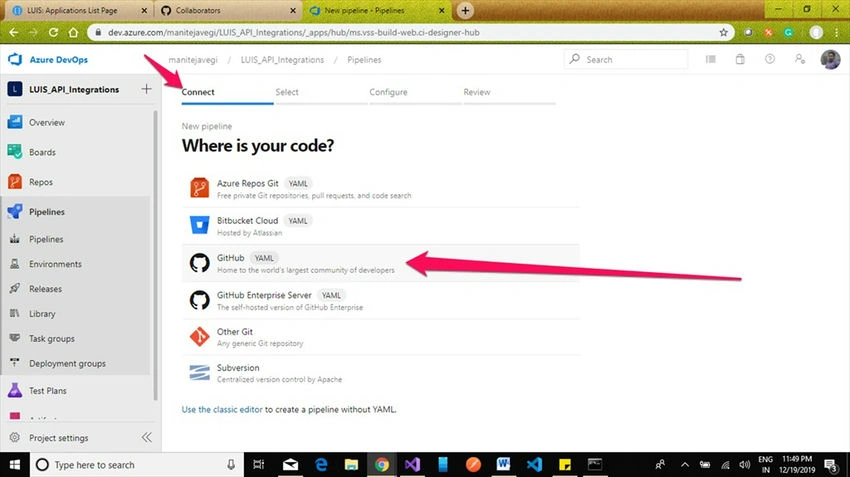
To create a pipeline, we need to give permission to access GitHub in the Azure DevOps Project settings option. Select the GitHub (YAML) option as shown.
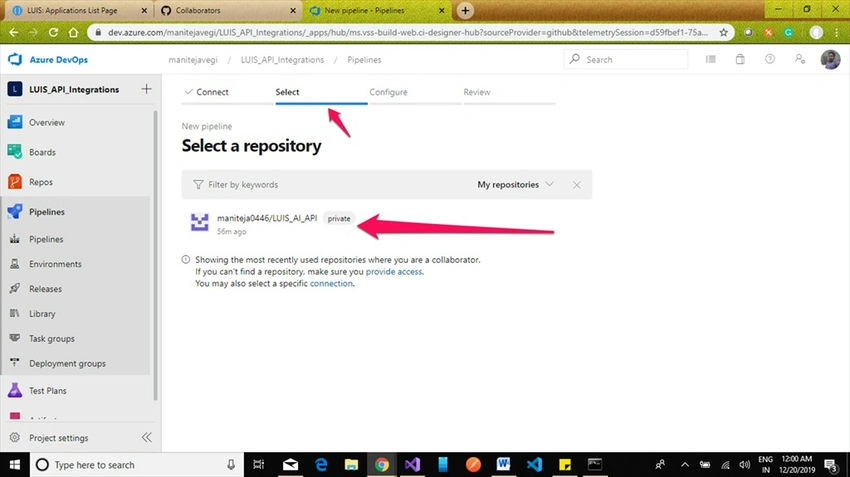
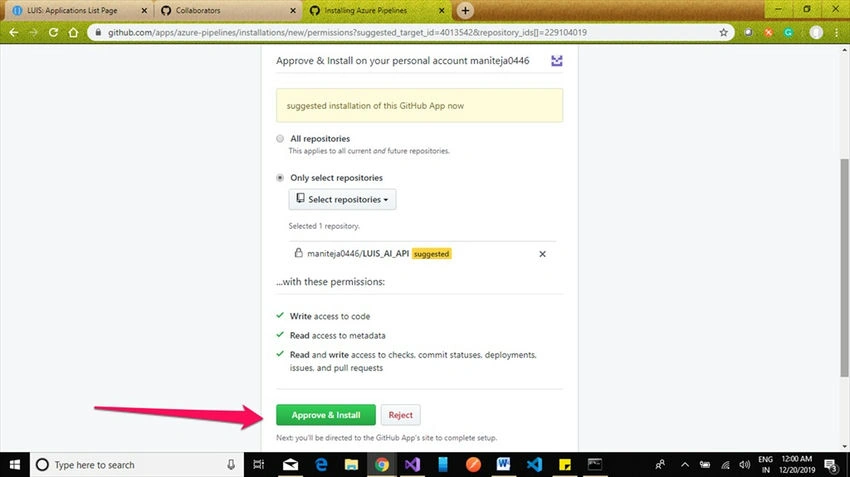
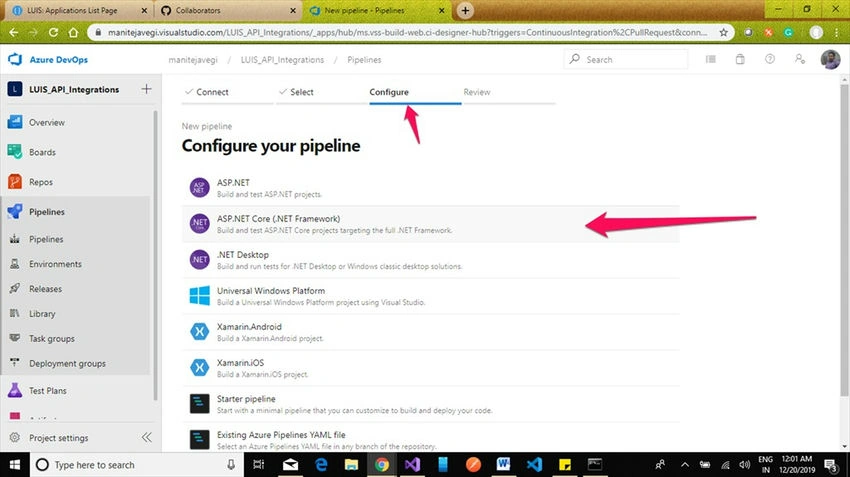
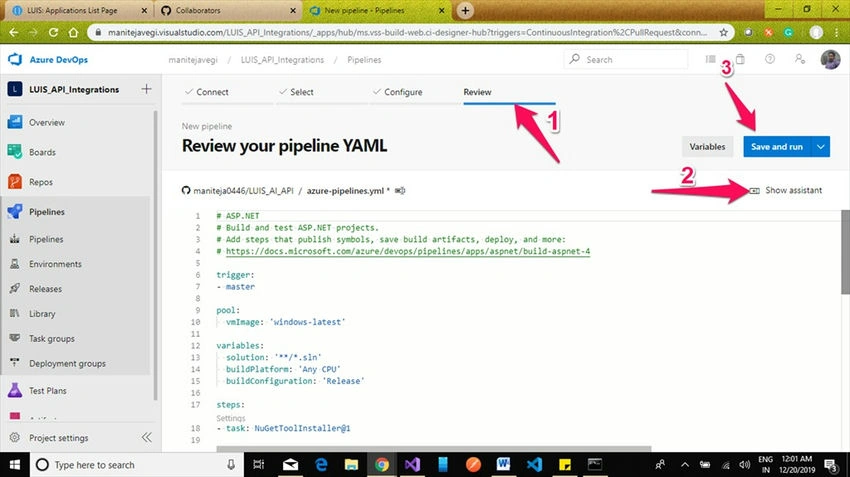
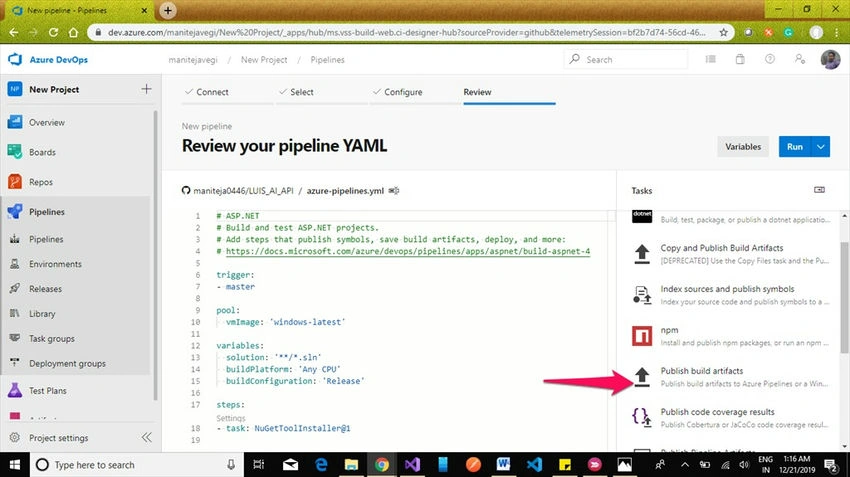
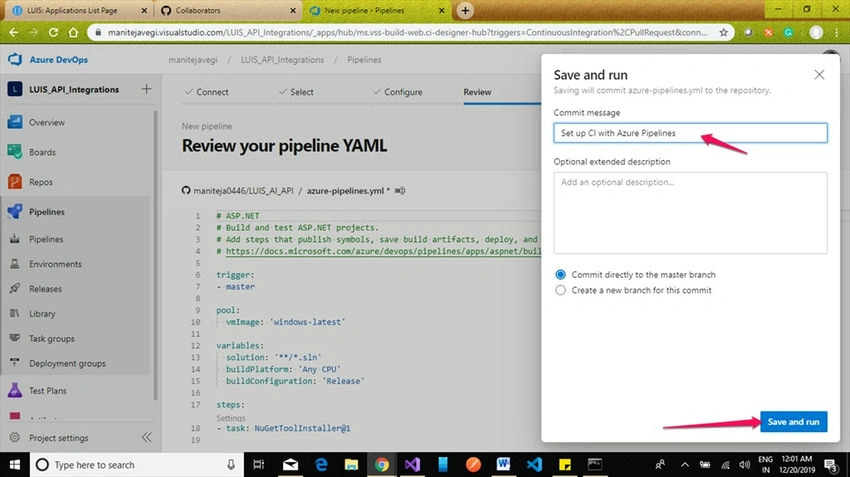
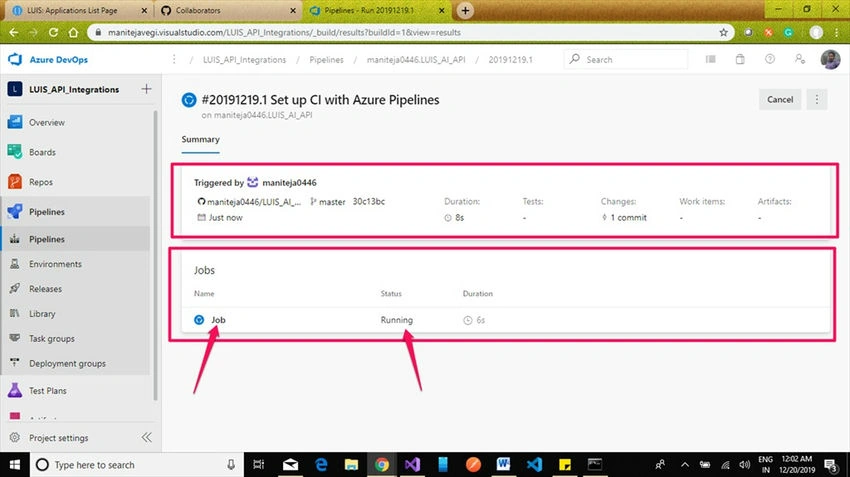
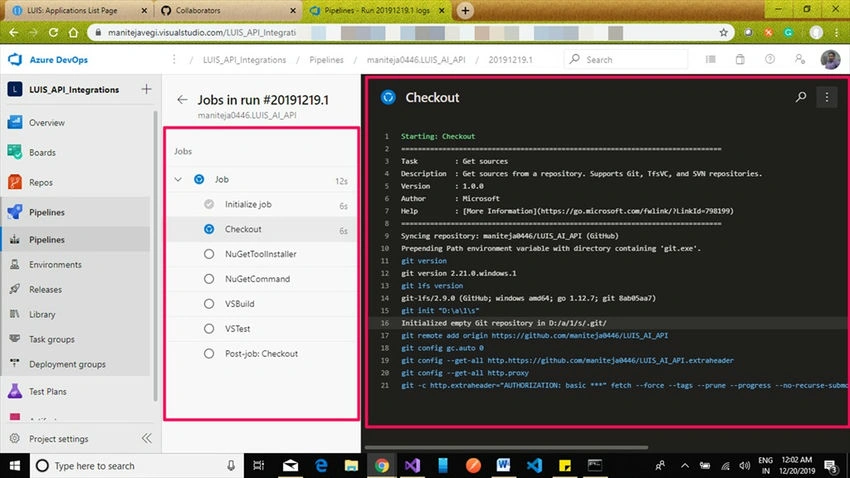
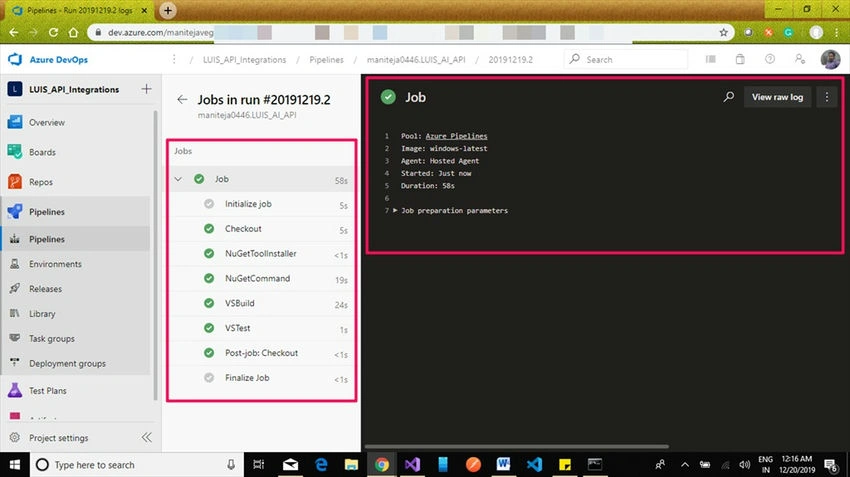
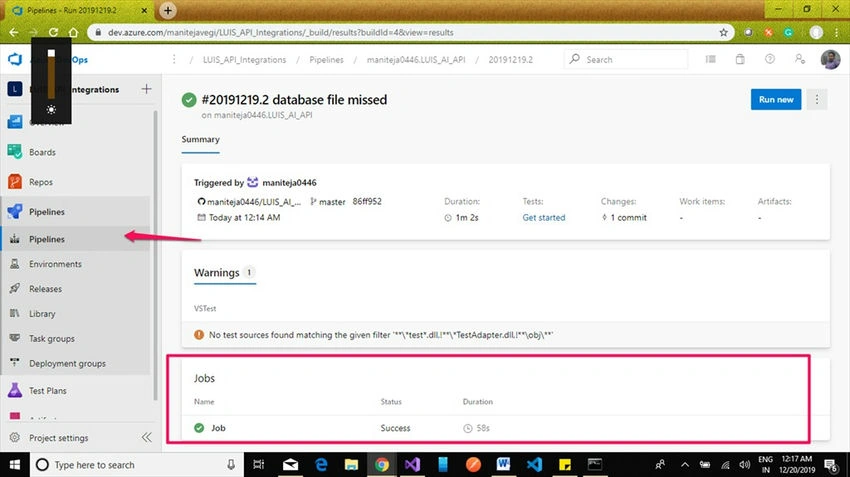
The next Step ‘Select’ section. In this selection, we need to select the GitHub repository to create a pipeline. Select the repository as shown in the below screenshot.
Abhilash GPosted Feb 27, 2020, 4:40 AM
Nice and useful article that saved time for me - Thanks for sharing:)
Abhilash GPosted Feb 27, 2020, 4:40 AM
Nice and useful article that saved time for me - Thanks for sharing:)
Sourav Kumar DasPosted Dec 26, 2019, 12:45 AM
Nice and useful article. Thanks for sharing.
Ankur MistryPosted Dec 24, 2019, 9:42 PM
Very nice, thank you for sharing