

Introduction
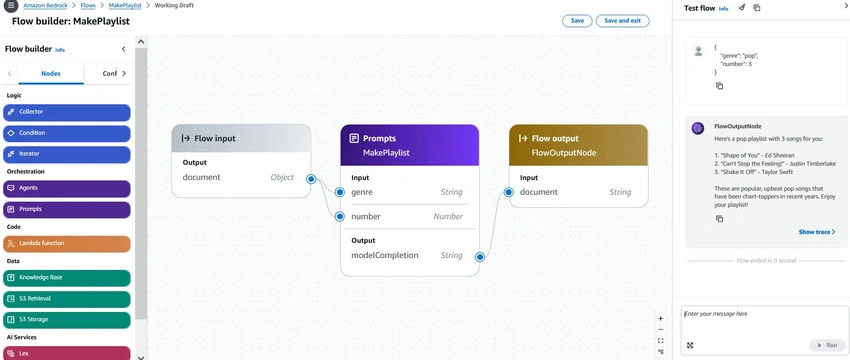
Amazon Bedrock Flows enables you to build and orchestrate AI workflows using a visual builder, seamlessly integrating with Amazon Bedrock services like foundational models, knowledge bases, and prompt management. It also connects with other AWS services, such as AWS Lambda and Amazon S3. In this article, you’ll learn how to automate the creation of a flow with a single prompt in Amazon Bedrock using the AWS CLI. Specifically, we’ll generate a music playlist based on genre and the number of songs requested.
Pre-requisites
- AWS account and the required permissions to access Amazon Bedrock.
- Access to Amazon Bedrock foundation model to validate the prompt flow.
- Install or update to the latest version of the AWS CLI.
- Get credentials to grant programmatic access.
Create a service role to create and manage a flow in Amazon Bedrock
Perform the following steps to create a service role for Amazon Bedrock flows.
Create a service role
Create a JSON file with the following content and save it as trust-policy.json.
{
    "Version": "2012-10-17",
    "Statement": [
        {
            "Effect": "Allow",
            "Principal": {
                "Service": "bedrock.amazonaws.com"
            },
            "Action": "sts:AssumeRole",
            "Condition": {
                "StringEquals": {
                    "aws:SourceAccount": "<account-id>"
                },
                "ArnLike": {
                    "aws:SourceArn": "arn:aws:bedrock:<region>:<account-id>:flow/*"
                }
            }
        }
    ]
}
Replace the <region> and <account-id> with the actual values.
Open Windows Prompt and execute the following command to create a service role.
# Create the service role
aws iam create-role \
  --role-name AmazonBedrockFlowServiceRole \
  --assume-role-policy-document file://trust-policy.json
Create the permission policy
Create a JSON file with the following content and save it as flow-permission-policy.json.
{
    "Version": "2012-10-17",
    "Statement": [
        {
            "Sid": "InvokeModel",
            "Effect": "Allow",
            "Action": "bedrock:InvokeModel",
            "Resource": [
                "arn:aws:bedrock:<region>::foundation-model/anthropic.claude-3-5-sonnet-20240620-v1:0"
            ]
        },
        {
            "Sid": "InvokeProvisionedThroughput",
            "Effect": "Allow",
            "Action": [
                "bedrock:GetFlow"
            ],
            "Resource": [
                "arn:aws:bedrock:<region>:<account-id>:flow/*"
            ]
        }
    ]
}
Replace the <region> and <account-id> with the actual values.
Open Windows Prompt and execute the following command to create a policy.
# Create the permission policy
aws iam create-policy \
  --policy-name AmazonBedrockFlowServicePolicy \
  --policy-document file://flow-permission-policy.json
Attach the permission policy
Open Windows Prompt and execute the following command to attach the policy to the service role.
# Attach the permission policy
aws iam attach-role-policy \
    --role-name AmazonBedrockFlowServiceRole \
    --policy-arn arn:aws:iam::654654320368:policy/AmazonBedrockFlowServicePolicy
Create a prompt flow
Perform the following steps to create a flow in Amazon Bedrock.
Create a JSON file with the following content and save it as flow-definition.json. Refer to this Create Flow request syntax documentation to prepare the flow definition. Note: Alternatively, you can use the Amazon Bedrock console to create the flow based on your requirements in the visual builder. Once you've created the flow, you can use the get-flow CLI command to retrieve the flow definition.
Vijai Anand RamalingamPosted Feb 20, 2025, 6:20 PM
Replace the '\' with '^' in create-flow CLI command
Vijai Anand RamalingamPosted Feb 17, 2025, 5:25 PM
Validate the flow section - Test the flow with the below JSON{ "genre": "pop", "number": 3 }