

Introduction
This article shows how to hide control boxes like minimize, maximize, the close button and change the look and feel of your Windows application form.
Use the following procedure to change the look and feel.
Step 1: Create a Windows application named "Windows App".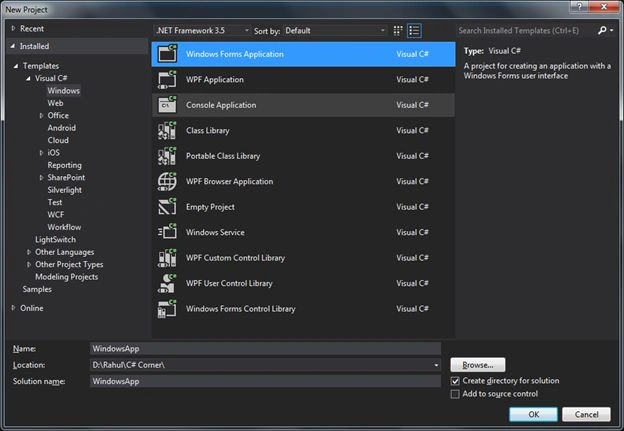
Step 2: Add a label and change the text like the name of your application in your default form named "Form1".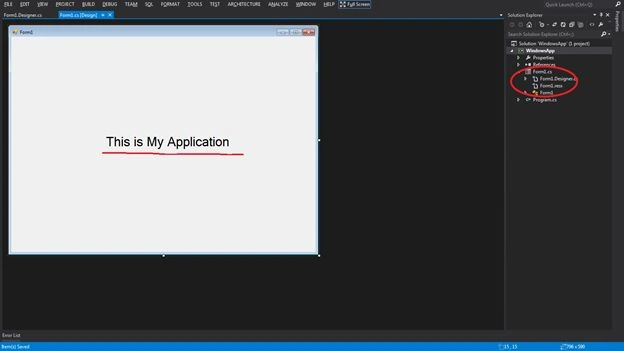
Add some more functionality like:
- Add some controls like button, label, textbox and groupbox
- Change the background color of form using the Background Color property
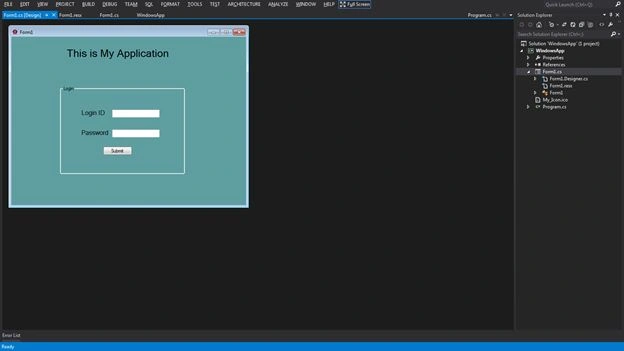
Step 3: Run the application.
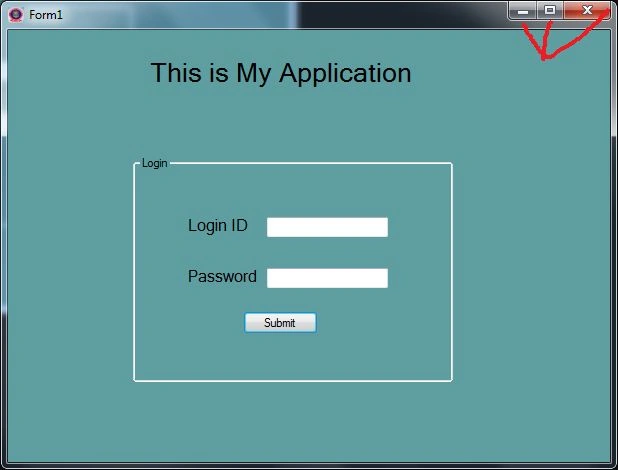
Purpose: Hide the control box, like minimize, maximize, close button and change the look and feel of the form.
Solution
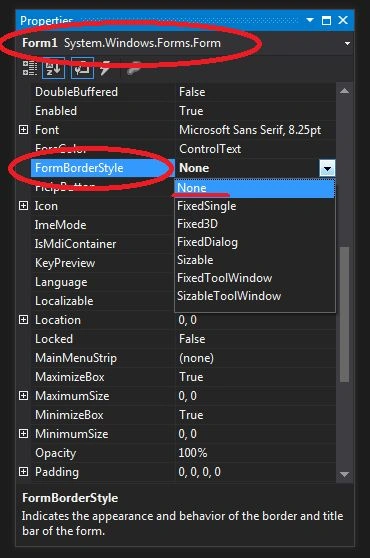
- Change the "FormBorderStyle" property of the form to "None" instead of the default value "sizable".
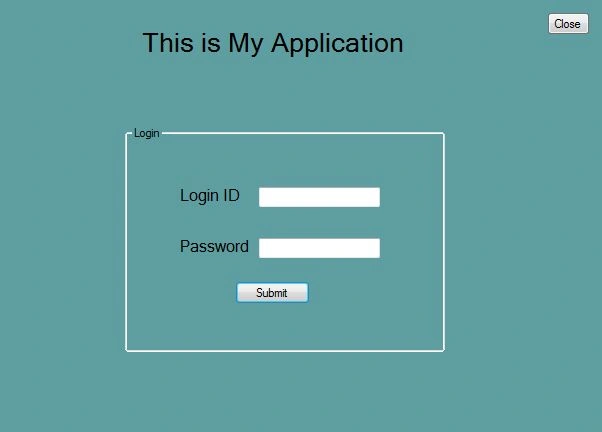
- Run the application and see the form.
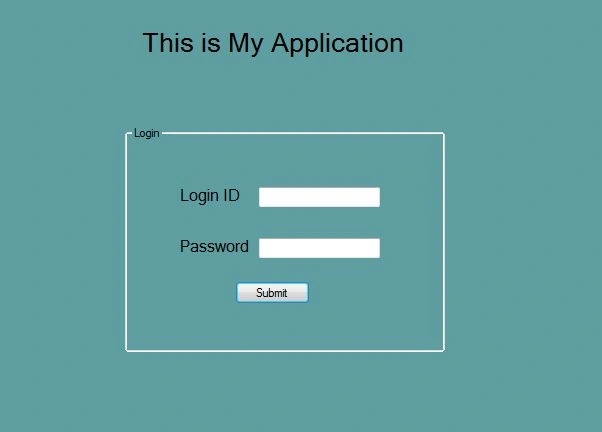
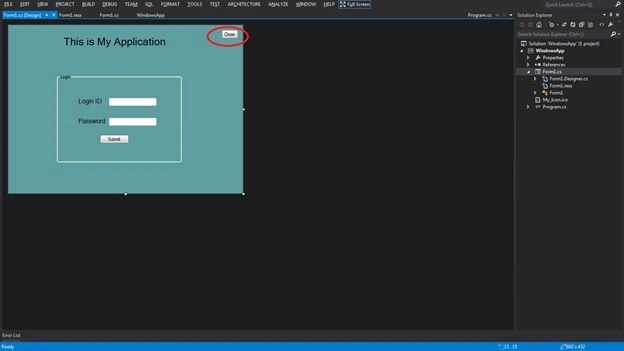
- But the drawback is, how to close the application whern the user wants to. So you need to add a close button for closing the form.
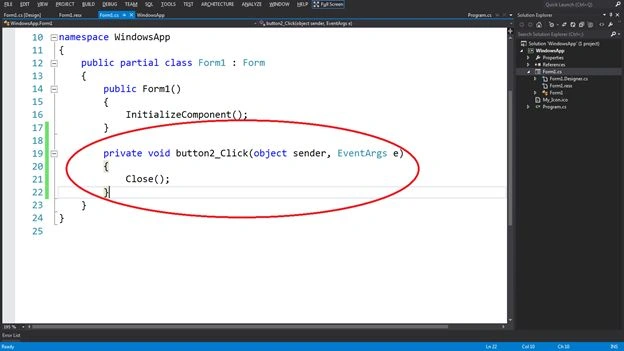
- Call the close() method on a click event of the close button to close the form.
private void button2_Click(object sender, EventArgs e)
{
Close();
}
- Run the application and check it.
Sam HobbsPosted Apr 7, 2014, 5:12 PM
Another possibility is to use a FormBorderStyle of FixedToolWindow or SizeableToolWindow. If you make no other changes then the caption (title bar) will exist but it will be shorter than normal. There will be a small close button but no other buttons. A window with the FormBorderStyle set to FixedToolWindow or SizeableToolWindow (I assume) has the WS_EX_TOOLWINDOW Windows Style.