

Today we will learn about an important file that is associated with your Windows Store project when you create a new Windows Store application. This is the Application Manifest File that Visual Studio will automatically create for your application. This file will be called Package.appxmanifest and it is in the root of the project. Let's see how this file is important to us.
The manifest file contains several information related to our project and we can also edit this file. Visual Studio 2012 offers to the user a GUI form for editing the manifest file.
How to open the Package.appxmanifest file.
- For the manifest editor, go to the Solution Explorer.
- Select the Package.appxmanifest file and simply double-click on it to open it.
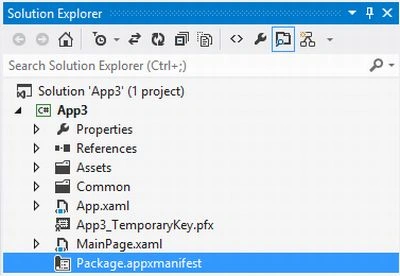
Package.appxmanifest file contains 4 types of tab.
- Application UI
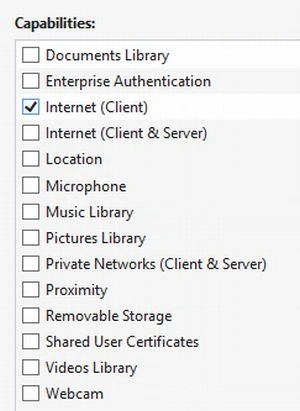
- Capabilities
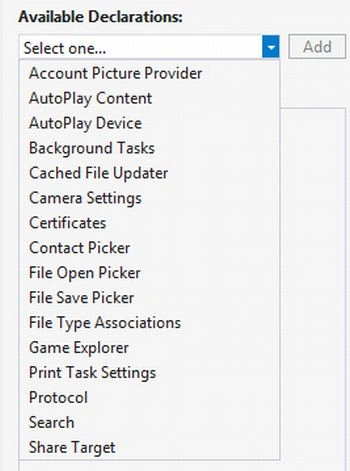
- Declarations
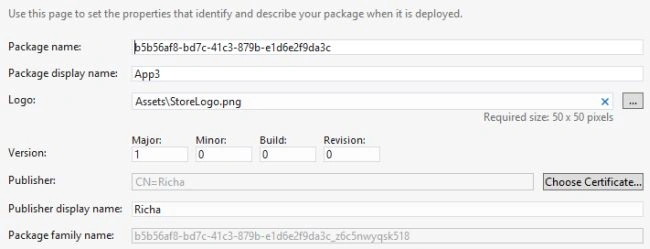
- Packaging
Let's take a look each of these.
Application UI
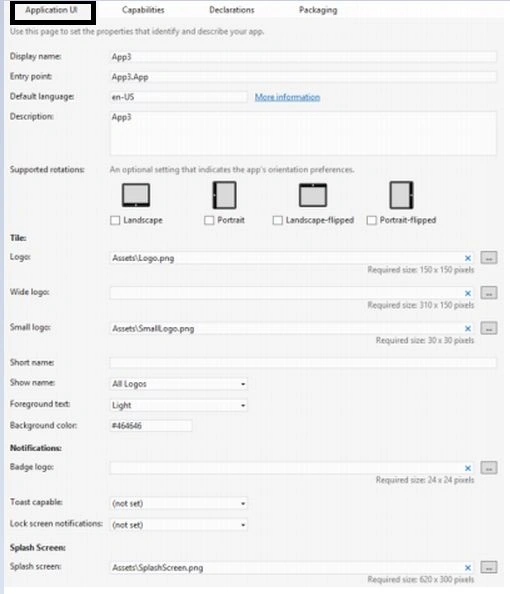
This tab consists of the basic info about your application:
- Display Name: It contains the title of your application. It will appear on the start screen, search page, etc., wherever the user can see. It can be localized.
- Entry Point: The value of this should be set to the project's App class.
- Description: It contains a description of your app, but the length of the Description can't exceed 2048 characters.
- Supported Rotations: It indicates the app's rotation that your app can support. It is optional.
- Tiles (Logo, Wide Logo and Small Logo): It represent the image or UI portion that you want to show when your application starts. Valid formats for all graphics are .png and .jpg and for each type of tile there is some fixed size of image that you can use.
- Show Name: This contains the name of your app that is displayed on the app tile.
- Foreground Text: It specifies the color of the text that is displayed on the app tile. You can set it to either Light or Dark.
- Background Color: It sets the tile's background color. You can set this either using a valid color name or by using a color code beginning with #.
- Badge Logo: It specifies the points of the graphics that will be displayed on the lock screen as a notification from your application.
- Toast Capable: This option should be set to true if you want to send alerts from the Windows Store app.
- Splash Screen: It specifies the appearance of the splash screen. The Splash Screen is a screen that appears when your app is run. You can specify an image to be displayed on the screen. You can also set its Background Color for that screen.
Join the conversation! Your thoughts help the community grow.