

Introduction
This article explains how to send an email from an application in which an Excel file is to be connected with the application. There are the following three fields defined in the Excel file.
- User Name
- User EmailID
- The file that is sent as an attachment
We are developing a scenario in which we need to send the file as an attachment but suppose we do not want to upload and after uploading attach the file. In this case, we can provide the file path in the Excel file. The file path is specified in the Excel File as shown in the following screenshot.
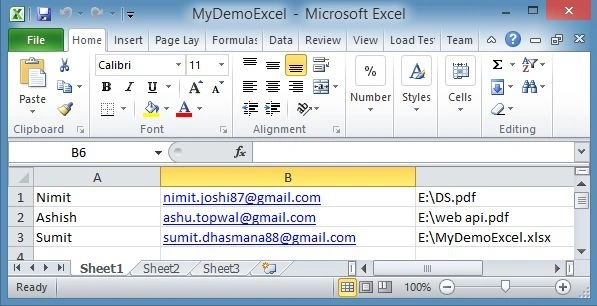
So, let's develop an application that connects with the Excel application and sends the email to the users. Use the following procedure to do that.
Creating ASP.NET Web Application
Step 1. Create an ASP.NET Web Application in Visual Studio.
Step 2. Just right-click on the project to add the new Web Form to the Solution Explorer.
Step 3. Replace the body code with the following code.
<body>
    <form id="form1" runat="server">
        <table style="height: 299px; width: 389px">
            <tr>
                <td>Select File:</td>
                <td>
                    <asp:FileUpload ID="FileUploadExcel" runat="server" meta:resourcekey="FileUploadExcelResource1" />
                </td>
            </tr>
            <tr>
                <td colspan="2" class="auto-style1">
                    <asp:Button ID="BtnUpload" runat="server" Text="Upload"
                        OnClick="BtnUpload_Click" meta:resourcekey="BtnUploadResource1" />
                </td>
            </tr>
            <tr>
                <td>Subject:</td>
                <td>
                    <asp:TextBox ID="TxtSubject" runat="server" meta:resourcekey="TxtSubjectResource1"></asp:TextBox>
                </td>
            </tr>
            <tr>
                <td colspan="2">
                    <asp:GridView ID="DataGridView" runat="server" AutoGenerateColumns="False" Height="78px" Width="349px"
                        meta:resourcekey="DataGridViewResource1">
                        <Columns>
                            <asp:TemplateField HeaderText="Name" meta:resourcekey="TemplateFieldResource1">
                                <ItemTemplate>
                                    <asp:Label ID="LblName" runat="server" Text='<%# Bind("F1") %>'
                                        meta:resourcekey="LblNameResource1"></asp:Label>
                                </ItemTemplate>
                            </asp:TemplateField>
                            <asp:TemplateField HeaderText="Email ID" meta:resourcekey="TemplateFieldResource2">
                                <ItemTemplate>
                                    <asp:Label ID="LblEmail" runat="server" Text='<%# Bind("F2") %>'
                                        meta:resourcekey="LblEmailResource1"></asp:Label>
                                </ItemTemplate>
                            </asp:TemplateField>
                            <asp:TemplateField HeaderText="File" meta:resourcekey="TemplateFieldResource3">
                                <ItemTemplate>
                                    <asp:Label ID="LblFile" runat="server" Text='<%# Bind("F3") %>'
                                        meta:resourcekey="LblFileResource1"></asp:Label>
                                </ItemTemplate>
                            </asp:TemplateField>
                        </Columns>
                    </asp:GridView>
                </td>
            </tr>
            <tr>
                <td>
                    <asp:Button ID="BtnSendMail" runat="server" Text="SendMail"
                        OnClick="BtnSendMail_Click" meta:resourcekey="BtnSendMailResource1" />
                </td>
                <td>
                    <asp:Label ID="LblMessage" runat="server" meta:resourcekey="LblMessageResource1"></asp:Label>
                </td>
            </tr>
        </table>
    </form>
</body>
Connect ASP.NET to Excel
In this section, we'll connect the Excel file to the application. Use the following procedure to do that.
Step 1. Create a folder named Data in the project.
Dattatray ArsulePosted Apr 4, 2022, 5:46 AM
How did you get value of Location property?
rakesh ranjanPosted Nov 27, 2015, 5:56 AM
Dear writer i find exception like device is not ready. can you please tell me what to do ?