

In this blog, let us see how to create a login page using C# language in an ASP.NET application that is using MS Access database. Please follow the below steps.
STEP 1
- First of all, open Visual Studio and create a new website.
- Go to the "Website" tab, click on "Add New Item", choose language as "Visual C#" and select the "Web Form" option.
- Name this page as login.aspx and press the "Add" button.
- Add one more "Web Form" and name that Default.aspx.
STEP 2
Now, design your web pages by trying the below code.
login.aspx
- <body>
- <form id="form1" runat="server">
- <div>
- <asp:Label ID="Label1" runat="server" Text="Username"></asp:Label>
- <asp:TextBox ID="TextBox1" runat="server" Width="146px"></asp:TextBox>
- <asp:RequiredFieldValidator ID="RequiredFieldValidator1" runat="server"
- ControlToValidate="TextBox1" ErrorMessage="Enter username." ForeColor="Red"></asp:RequiredFieldValidator>
- <br />
- Password<asp:TextBox ID="TextBox2" runat="server" TextMode="Password"
- Width="147px"></asp:TextBox>
- <asp:RequiredFieldValidator ID="RequiredFieldValidator2" runat="server"
- ControlToValidate="TextBox2" ErrorMessage="Enter password." ForeColor="Red"></asp:RequiredFieldValidator>
- <br />
- <asp:Button ID="Button1" runat="server" onclick="Button1_Click" Text="Log In" />
- <br />
- <asp:Label ID="Label2" runat="server"></asp:Label>
- </div>
- </form>
- </body>
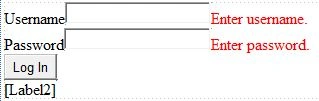
After inserting the code, you will get a UI like in the below image.
Default.aspx
- <body>
- <form id="form1" runat="server">
- <div>
- <asp:Label ID="Label1" runat="server" Text="Welcome"></asp:Label>
- </div>
- </form>
- </body>
STEP 3
Now, let's create our Access database. Here are the details -
- Database Name: LogInDatabase.mdb
- Table Name: login
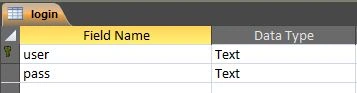
Insert some data into the login table.
Note - Do not forget to create the database (LogInDatabase.mdb) under your project folder.
STEP 4
After creating the database, let us come back to our Visual Studio project. Double-click the "Log In" button and add the below code.
login.aspx.cs
First of all, add two classes.
- using System.Data;
- using System.Data.OleDb;
Now, add your code.
- protected void Page_Load(object sender, EventArgs e)
- {
- if (!IsPostBack)
- TextBox1.Focus(); // blink cursor in TextBox1
- }
- protected void Button1_Click(object sender, EventArgs e)
- {
- string sql; int row;
- OleDbConnection con = new OleDbConnection();
- // establish connection
- con.ConnectionString = "Provider=Microsoft.Jet.OLEDB.4.0;Data Source=" + Server.MapPath("LogInDatabase.mdb");
- con.Open(); // connection open
- // sql query
- sql = "select count(*) from login where user='"+TextBox1.Text+"' and pass='"+TextBox2.Text+"'";
- OleDbCommand cmd = new OleDbCommand(sql, con);
- row = (int)cmd.ExecuteScalar(); // cast into integer and ExecuteScalar() get single value from database.
- con.Close(); // connection close
- if (row > 0)
- Response.Redirect("Default.aspx");
- else
- Label2.Text = "Username or Password is invalid...";
- }
STEP 5
Now, your project is complete. Run your project by pressing F5.


In this blog, I covered the creation of the Login page in ASP.NET with Access database. If you face a problem with this code, please comment below.
Join the conversation! Your thoughts help the community grow.