

I have a document library named “Documents” in which versioning is enabled.
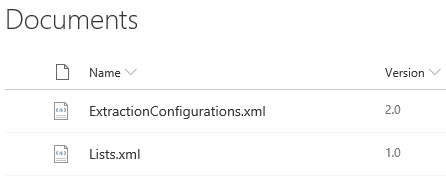
In this blog, you will see how to get the current document version in SharePoint Online using PnP PowerShell.
You can download setup files from the releases section of the PnP PowerShell repository.
Copy the below script and paste it in a notepad. Save the file as GetCurrentVersion.ps1.
- # Input Parameters
- $siteURL="https://c986.sharepoint.com/sites/dev"
- $listName="Documents"
- # Connect to SharePoint Online site
- Connect-PnPOnline -Url $siteURL -Credentials (Get-Credential)
- # Get the list items
- $itemColl=Get-PnPListItem -List $listName
- # Get the context
- $context=Get-PnPContext
- # Loop through the items
- foreach($item in $itemColl)
- {
- # Get the file
- $file=$item.File;
- $context.Load($file);
- $context.ExecuteQuery();
- Write-Host -ForegroundColor Yellow $file.Name " - Current Version: " $file.UIVersionLabel
- }
Open PowerShell window and run the following command.
- >cd "<folderlocation>"
folderlocation – GetCurrentVersion.ps1 file location
Run the following command,
- >.\ GetCurrentVersion.ps1

Thus in this blog, you saw how to get the current document version in SharePoint Online using PnP PowerShell.
Join the conversation! Your thoughts help the community grow.