
In this blog, I would like to discuss the field format in the classic experience of the list/library using custom Display Item Template.
The Display item template consists of two files -- HTML and JS. The HTML file provides the HTML for list item display and JS file searches the data for displaying from the result set.
Based on the count of the result set item, the item template creates an HTML section as per the count in the list display.
Using the custom display item template, the format of the field can be changed.
For example, the format of the date field has to be DD/MMM/YYYY in the list display. But SharePoint is unable to support this format without the help of a calculated column. To achieve this in the particular list, we can add the custom item template js link to the list web part.
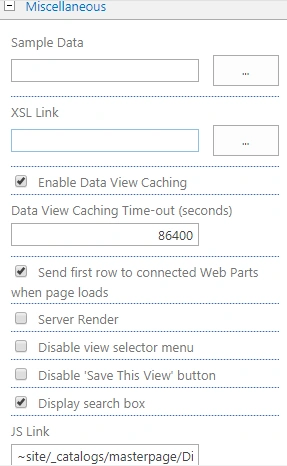
Steps to create the custom display item template
Upload the custom item template js file in the path mentioned below.
Path: site settings-> master page and page layout under web Designer Galleries-> Display template -> Content web parts -> upload the Custom Display Item template.js.

- (function () {
- // Create an object that have the context information about the fields that we want to change the rendering of.
- var priorityFiledContext = {};
- priorityFiledContext.Templates = {};
- priorityFiledContext.Templates.Fields = {
- "EventDate": { "View": priorityFiledTemplate },
- "FbTime": { "View": priorityFiledTemplate },
- "test":{"View": priorityFiledTemplate}
- };
- SPClientTemplates.TemplateManager.RegisterTemplateOverrides(priorityFiledContext);
- })();
- var dateString;
- // This function provides the rendering logic for the list view
- function priorityFiledTemplate(ctx) {
- debugger;
- var priority =ctx.CurrentFieldSchema.RealFieldName;
- dateString= ctx.CurrentItem[ctx.CurrentFieldSchema.Name];
- // Return html element with custom date format
- if(dateString!=''&& priority!='test'){
- const monthNames = ["0","Jan", "Feb", "Mar", "Apr", "May", "Jun","Jul", "Aug", "Sep", "Oct", "Nov", "Dec"];
- var dateParts = dateString.split('/');
- dateParts=(dateParts[1]+'/'+monthNames[dateParts[0]]+'/'+dateParts[2]) ;
- }
- else{dateParts=dateString;}
- switch (priority) {
- case "EventDate":
- return "<span>"+dateParts+"</span>";
- break;
- case "FbTime":
- return "<span>"+dateParts+"</span>";
- break;
- case "test":
- return "<div style='width:400px;'>"+dateParts+"</div>";
- }
- }
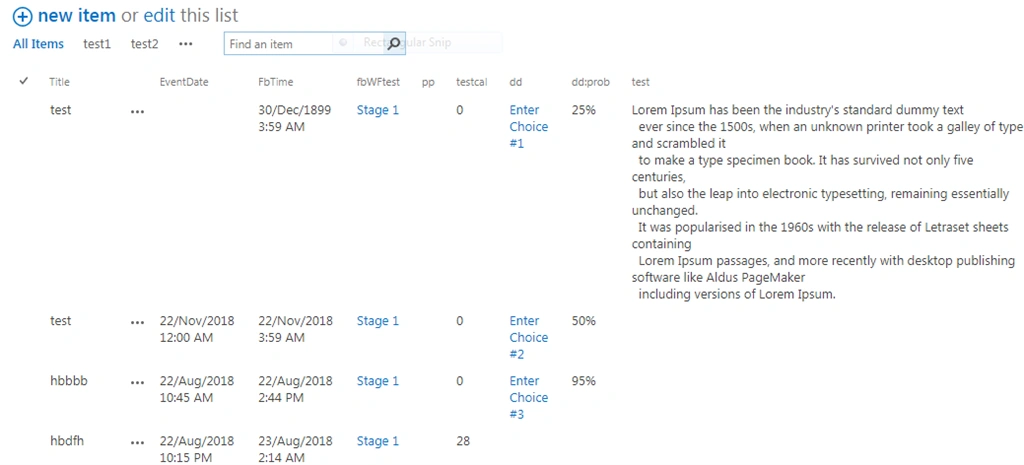
The remaining fields are following the default display item template of the SharePoint list.
Join the conversation! Your thoughts help the community grow.