

In this article we will be seeing how to lock or unlock site collections in
SharePoint 2010.
Introduction:
To prevent users from adding the contents or updating the contents to the site
collection you can apply locks to a site collection. And also to prevent users
from accessing the site collection temporarily you can apply locks to a site
collection.
Site Lock Information:
To view the current lock status or to change the lock status go to Central
Administration => Application Management => Site Collection => Configure quotas
and locks.

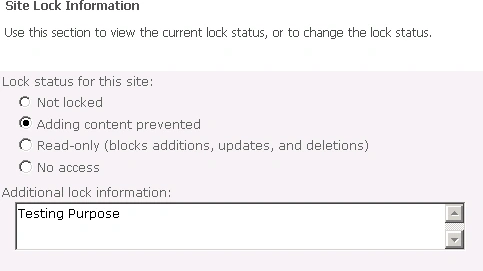
You could see the lock status as shown in the following
Locking Options:
The following are the locking options available in SharePoint Server 2010.
- Not locked
- Adding content prevented
- Read-only (prevents additions, updates, and deletions)
- No access
Not locked - Unlocks the site collection and
makes it available to users.
Adding content prevented -Prevents users from adding new content to the site
collection. Updates and deletions are still allowed.
Example:
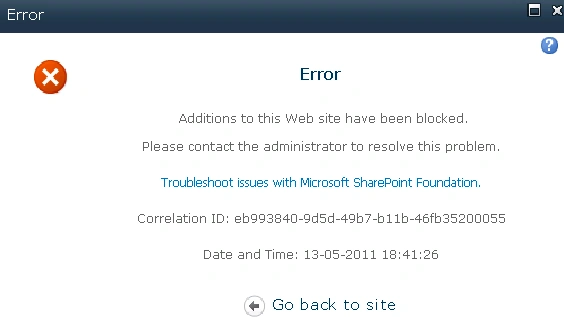
When you try to add content to the site collection you will be getting the
error.
I tried adding word document to the Shared Documents I was getting the following
error.
Read-only (prevents additions, updates, and deletions) - Prevents users from
adding, updating, or deleting content.
Example:
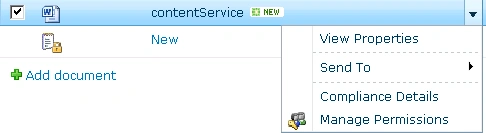
You won't be getting an option to add, update or delete the contents. I tried
deleting the document from Shared documents but the options were disabled in the
ribbon interface and I was not able to find the options in the ECB menu.
No access -Prevents users from accessing content. Users who attempt to access
the site receive an access-denied message.
Example:
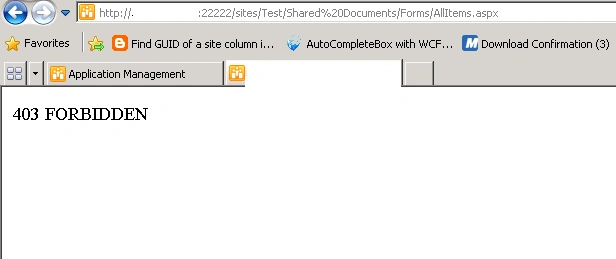
When you try to access the site collection you will be getting the following
error.
Lock or Unlock site collection using object model:
- Open Visual Studio 2010.
- Go to File => New => Project.
- Select Console Application template from the installed templates.
- Enter the Name and click Ok.
- Add the following assembly.
Microsoft.SharePoint.dll
- Add the following namespace.
Using Microsoft.SharePoint;
Adding content prevented:
SPSite.WriteLocked property is used to enable "Adding content prevented" option.
It is used to get or set a Boolean value that specifies whether the site
collection is locked and unavailable for Write access.
using
(SPSite site = new
SPSite("http://serverName:22222/sites/test"))
{
site.WriteLocked = true;
site.LockIssue = "Testing Purpose";
}
Note: Refer SPSite.WriteLocked for more details.
No access:
SPSite.ReadLocked property is used to enable "No access" option.
It is used to get or set a Boolean value that specifies whether the site
collection is locked and unavailable for Read access.
using
(SPSite site = new
SPSite("http://serverName:22222/sites/test"))
{
site.ReadLocked = true;
site.LockIssue = "Testing Purpose";
}
Note: Refer SPSite.ReadLocked for more details.
Read-only (prevents additions, updates, and deletions):
SPSite.ReadOnly property is used to enable "Read-only (prevents additions,
updates, and deletions)" option.
It is used to get or set a Boolean value that specifies whether the site
collection is read-only, locked, and unavailable for write access.
using
(SPSite site = new
SPSite("http://serverName:22222/sites/test"))
{
site.ReadOnly = true;
site.LockIssue = "Testing Purpose";
}
Note: Refer SPSite.ReadOnly for more details.
Lock or Unlock site collection using powershell:
- Go to Start => All Programs => Microsoft SharePoint 2010 products => SharePoint 2010 Management Shell.
- Run as an administrator.
- Run the following script.
Set-SPSite -Identity "<SiteCollectionURL>" -LockState "<Lock>"
Where:
- <SiteCollectionURL> is the URL of the site collection that you want to lock or unlock.
- <Lock> is one of the following values
- Unlock
- NoAdditions
- ReadOnly
- NoAccess
Ravishankar SinghPosted May 16, 2011, 1:51 PM
Very Nice and Useful article vijai.