

Introduction
Before reading this article, please go through some important links given below.
- Quick Start on Microsoft PowerApps
- To Use Template
- To Use Blank App
- To Add Excel File
- To Use Sort And SortByColumn Functions
- To Use Filter, Search, And LookUp Functions
- To Add Contacts
- To Get User Details
- Developing Camera App
- Using Radio Button
- Developing Drawing App
- Using ListBox Control
- Adding Audio And Video Control
- Using Slider Control
- Import And Export Data In Microsoft PowerApps
- Using CheckBox Control
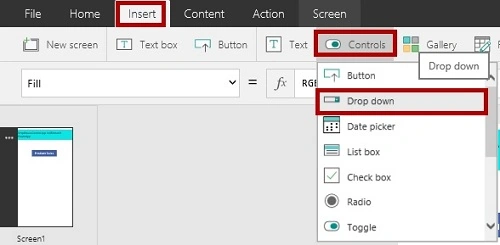
In PowerApps, we can add the DropDown Control.
Drop Down Control
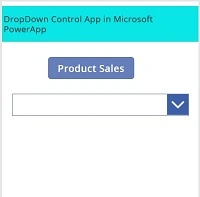
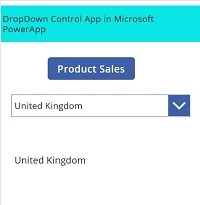
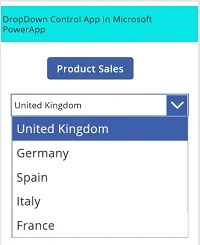
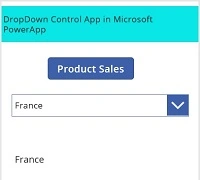
A DropDown Control conserves screen real estate, especially when the list contains a large number of choices. The control takes up only one line unless the user selects the chevron, to reveal more choices.
Follow the below steps to work with DropDown in PowerApps.
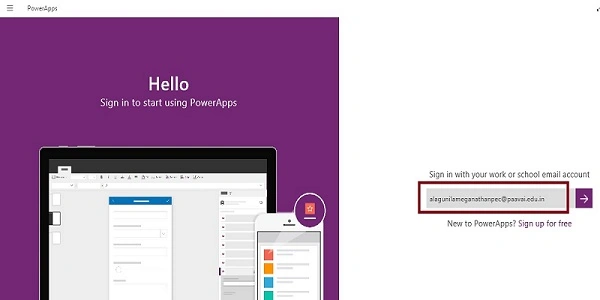
Step 1- Log in to PowerApps
After downloading the PowerApps from Windows Store, here, we need a Microsoft related organization’s Office 365 ID or (MSDN, Microsoft, Skype, Office 365, etc.,), to login with it.
 Step 2- Create a new app in PowerApps
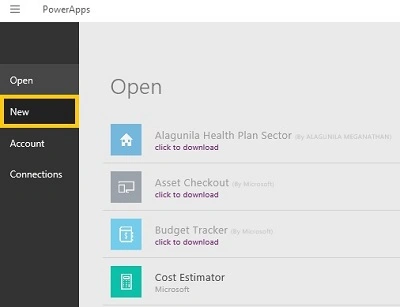
After Login, we will see the Dashboard. There, click on the New button.
Step 2- Create a new app in PowerApps
After Login, we will see the Dashboard. There, click on the New button.
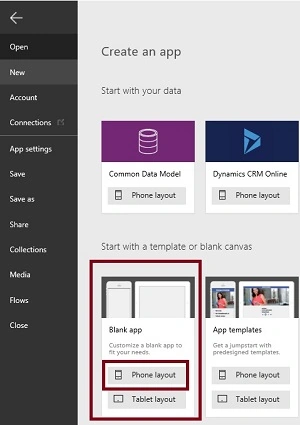
 Step 3- Choose the Blank App.
 Step 4 Design the app
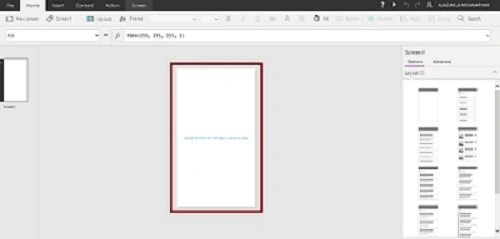
Now, let's start designing the app. On the left side, we can see the individual screens for adding our data. On the right side, we see the list of Layouts. At the top, we see the formula bar. There, you see the Properties of the screen that you select. On the right side, we see the Add Data Source add the External Data Source.
Step 4 Design the app
Now, let's start designing the app. On the left side, we can see the individual screens for adding our data. On the right side, we see the list of Layouts. At the top, we see the formula bar. There, you see the Properties of the screen that you select. On the right side, we see the Add Data Source add the External Data Source.
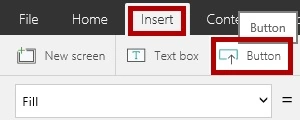
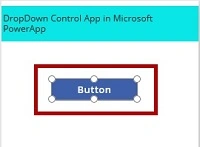
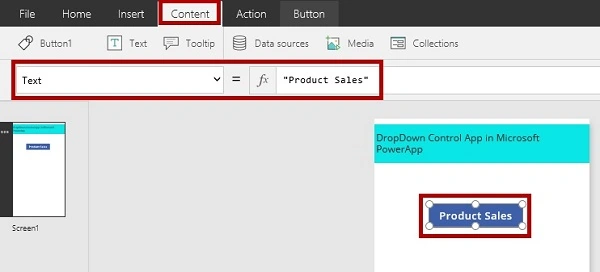
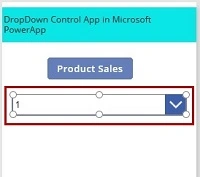
 Step 5- Drag and drop the Button Control

Kalhid MarceloPosted Feb 9, 2021, 5:19 AM
Is it possible to add another drop down list that depends on the previous drop down list’s value? For example, depending on the selected country, the cities of that country are shown on the second drop down list. Thanks!
Hiago DantasPosted Jan 14, 2021, 2:13 PM
My drop-down list contains large texts, so they do not appear when I open the list to select one item, it is, each item contains just one line of text. I would like to know if there is any way of showing multiples lines of one item? (something like a line break or text break)
Guru PrasadPosted Apr 23, 2018, 2:03 AM
When i select value from drop down it will be stored , but when again i want select the drop down i dont want to see the value which i have entered ...how can i do this
Keldon MoodleyPosted Aug 1, 2017, 8:19 AM
I get invalid use of '.' for Counties.Selected.Value
Anu VPosted Nov 21, 2016, 12:24 AM
Nice article.. Thanks for sharing.